
Cozy is taking shape. I’ve been using it every day this past week, and I want to walk you through some of what you’ll find in it once it’s out.
Like I mentioned before, it’ll launch on Mac first. Mobile is next on the list, and eventually Windows (maybe Linux too, we’ll see).
Alright, let’s get into it.
The first time you open it
The first thing you’ll see is the onboarding screen.
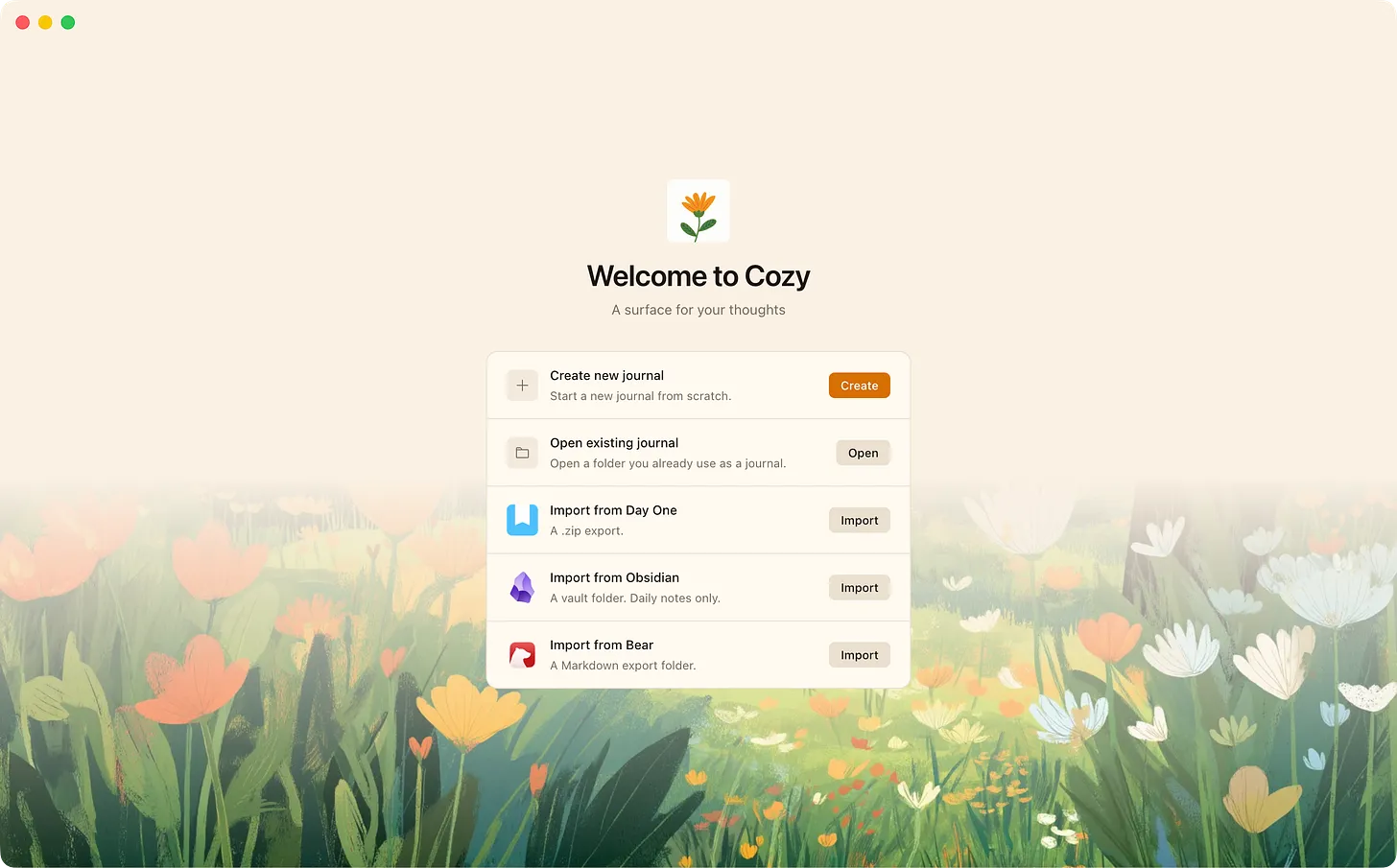
From here you can start a journal from scratch or import one you already have. For now I’ve added Day One, Obsidian, and Bear as import options. I can add more later if people want them.
Writing in it
Once your journal is ready, you’ll land on your entries. Nothing surprising here. If you’ve used other note-taking or journaling apps before, it’ll feel familiar.
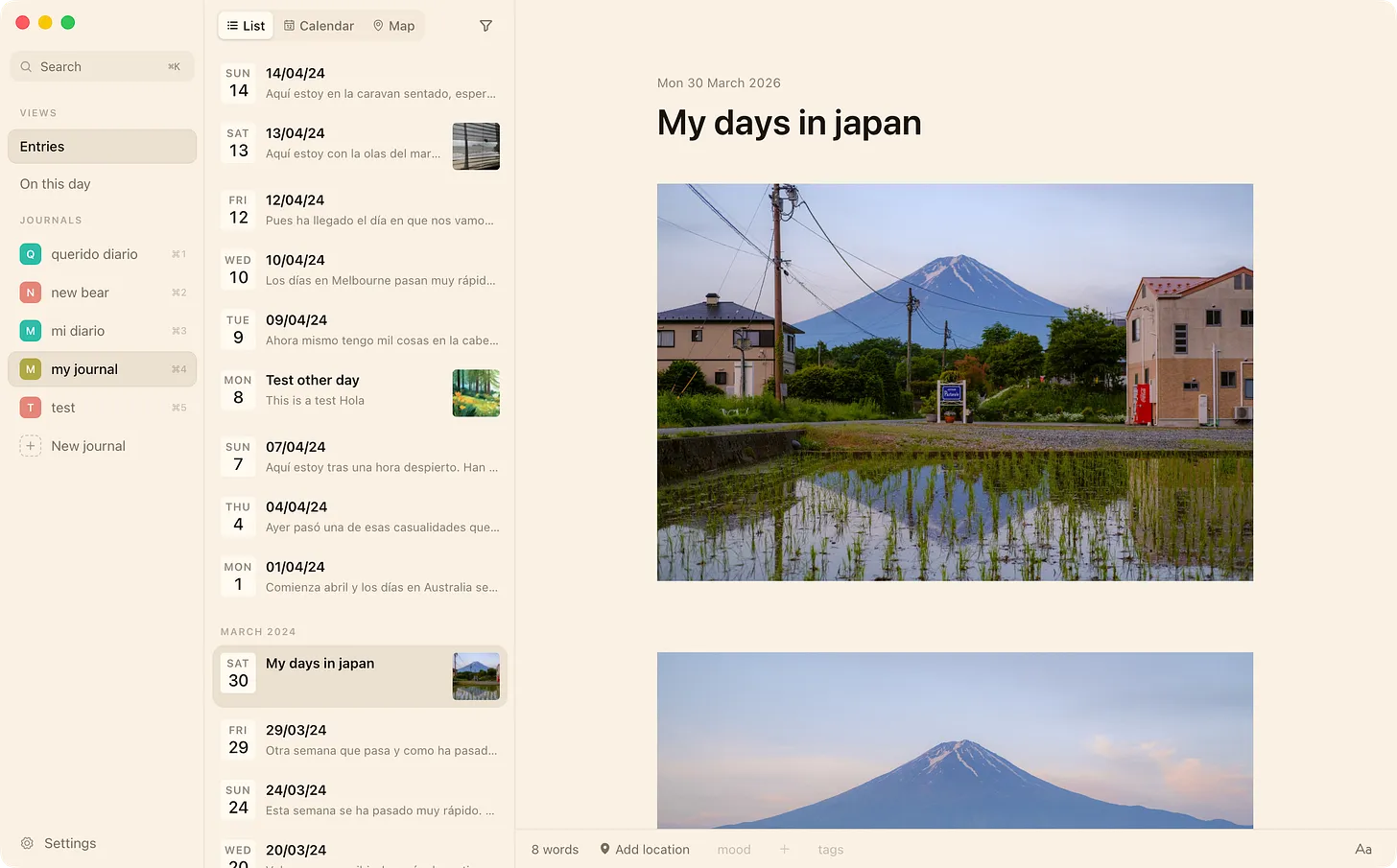
You can create as many entries per day as you want, and drop in videos, photos, or audio. The app runs on plain text, so if that’s already how you write, the jump should be easy.
New entries default to the date as the title, but you can rename them to whatever you want. You can also change the date attached to an entry if you’re writing about a different day.
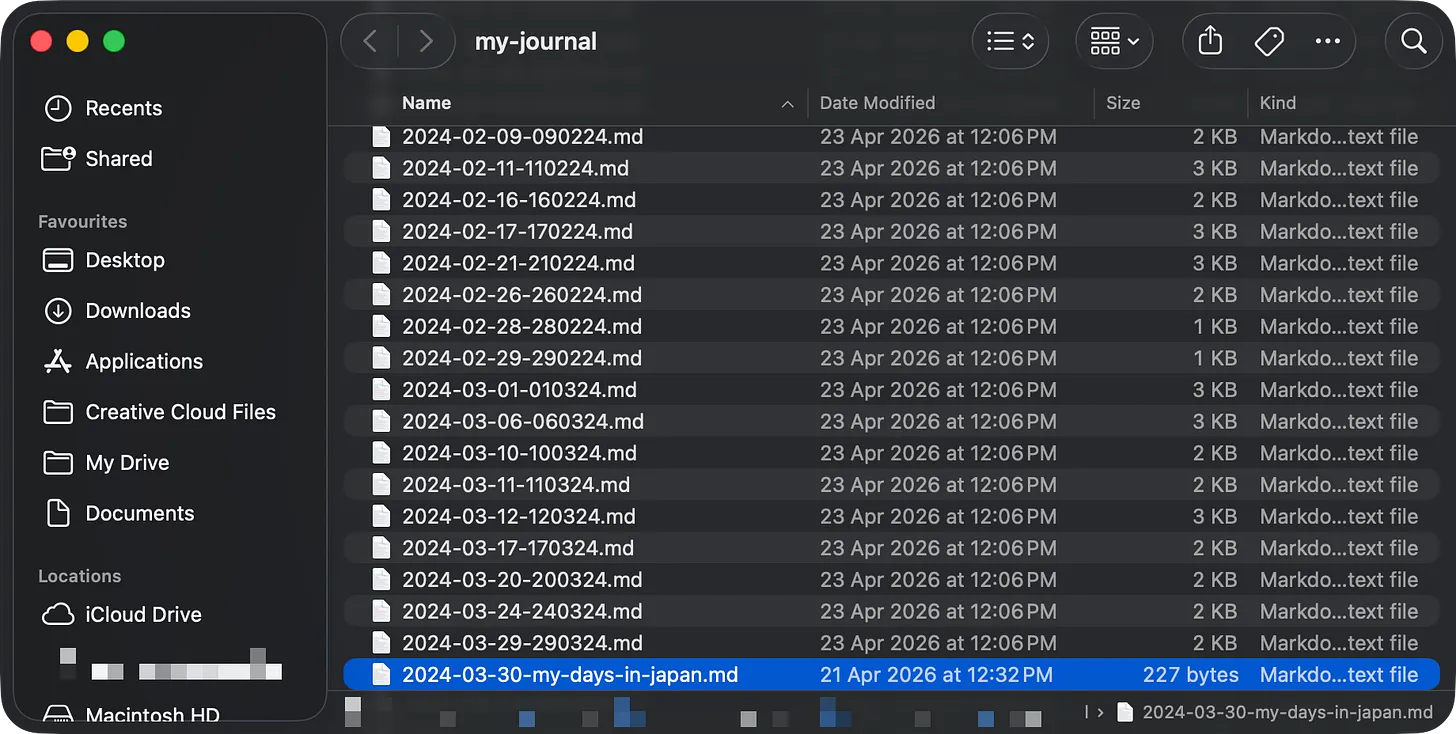
And the part I care about most: every entry gets saved to the folder where you created your journal. Your files stay yours.
Writing mode
This mode is for when you just want to focus on one thing. In the side menu you can tweak a few settings. I’ve added ambient sounds and keyboard sounds because I personally love that cozy writing atmosphere. Hope you like it too. And if it’s not your thing, just turn it off.

What else can you add to each entry?
Each entry can carry tags, a location, and something I’m calling custom fields. Basically properties you can attach to track your mood, your habits, or whatever you want.
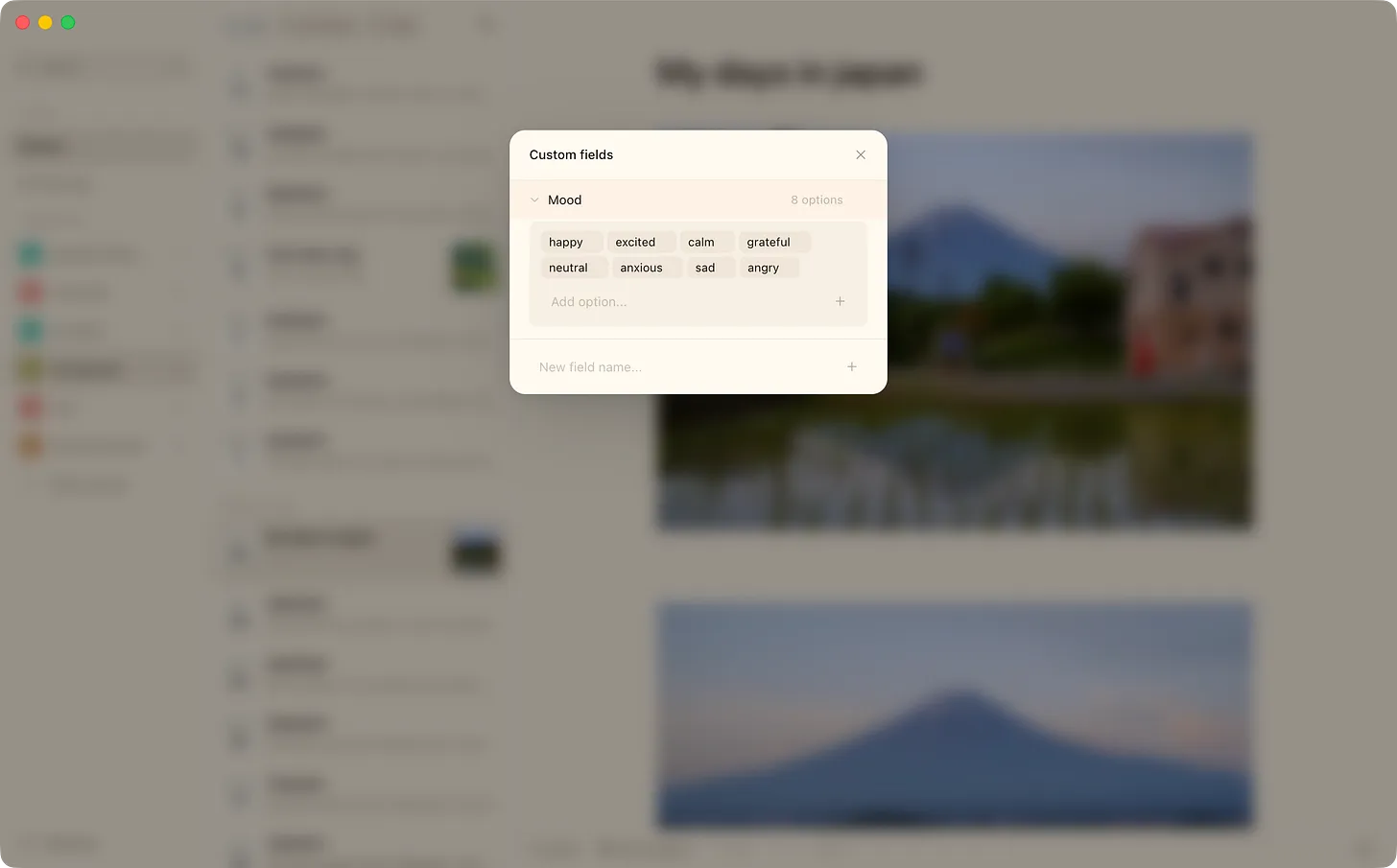
All of this lives inside your file, so if you ever want to open it in another app or run AI over it for something specific, you can.
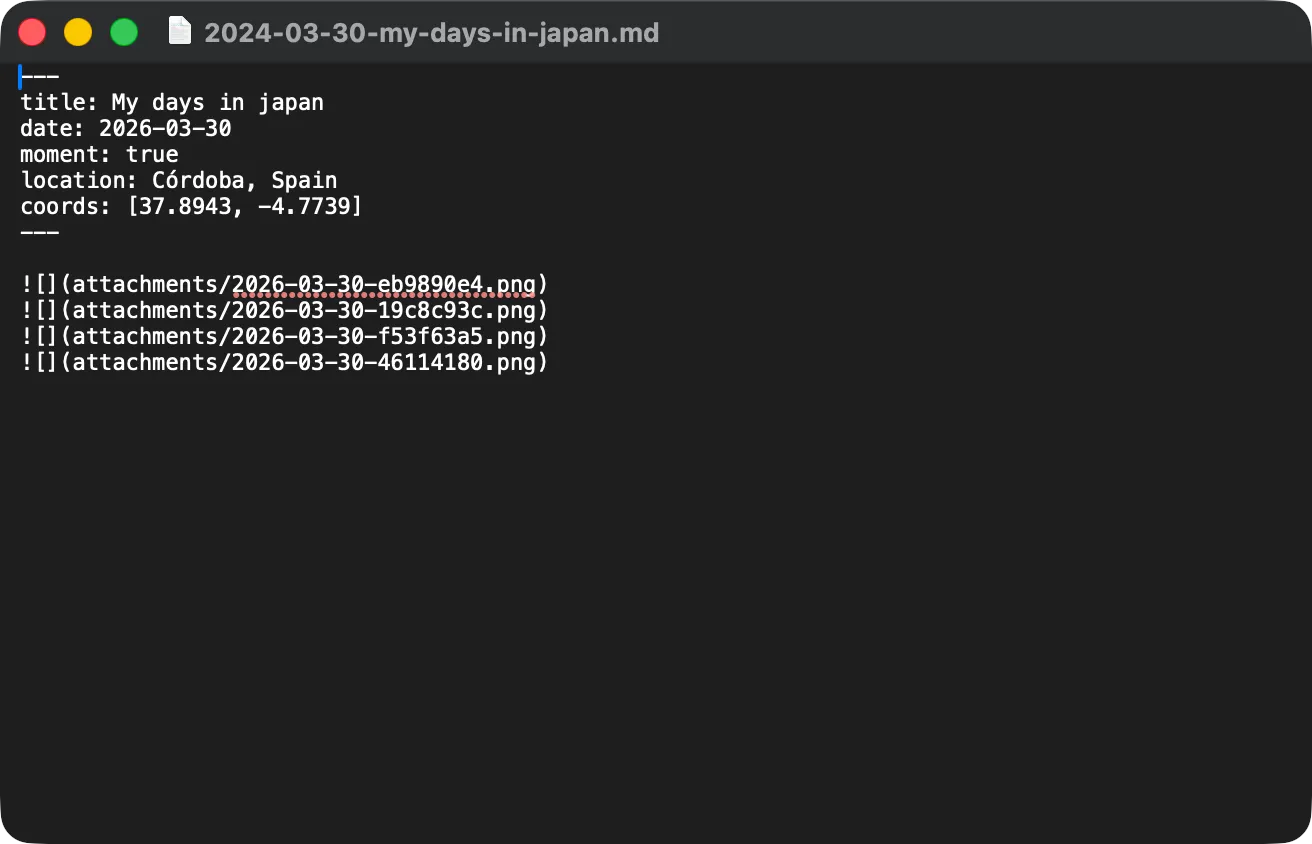
It also lets you filter inside the app, and unlocks a couple of extra views: a calendar view and a map view.
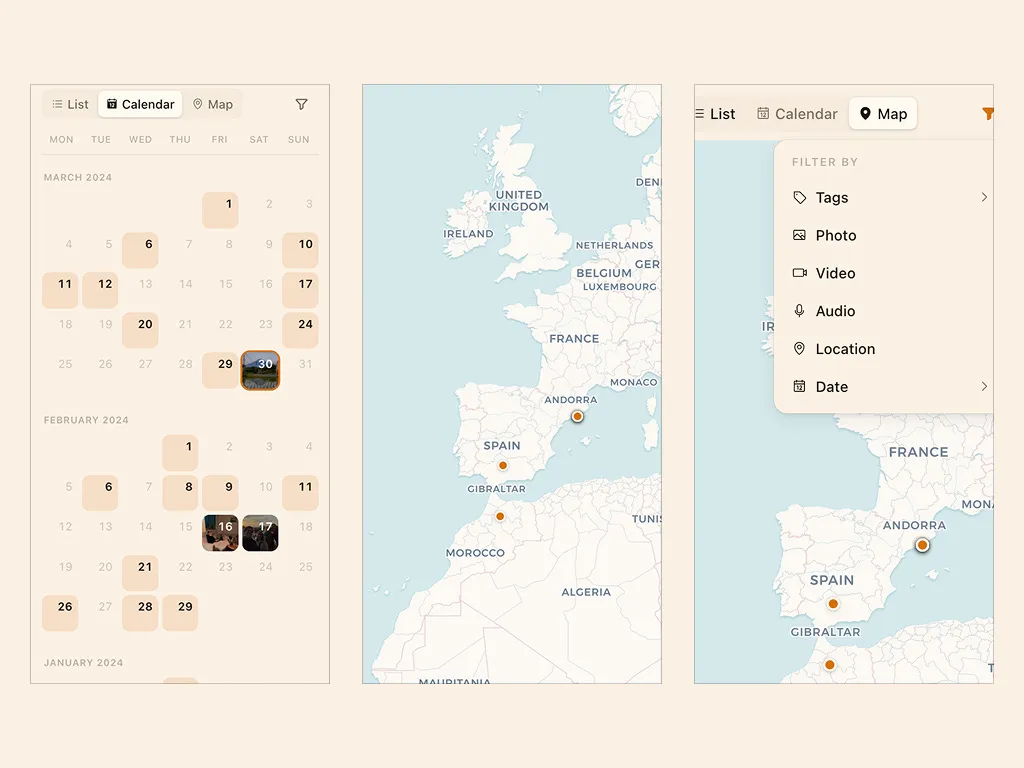
The ⌘K command
This shortcut opens a command bar that searches your entries in a few different ways:
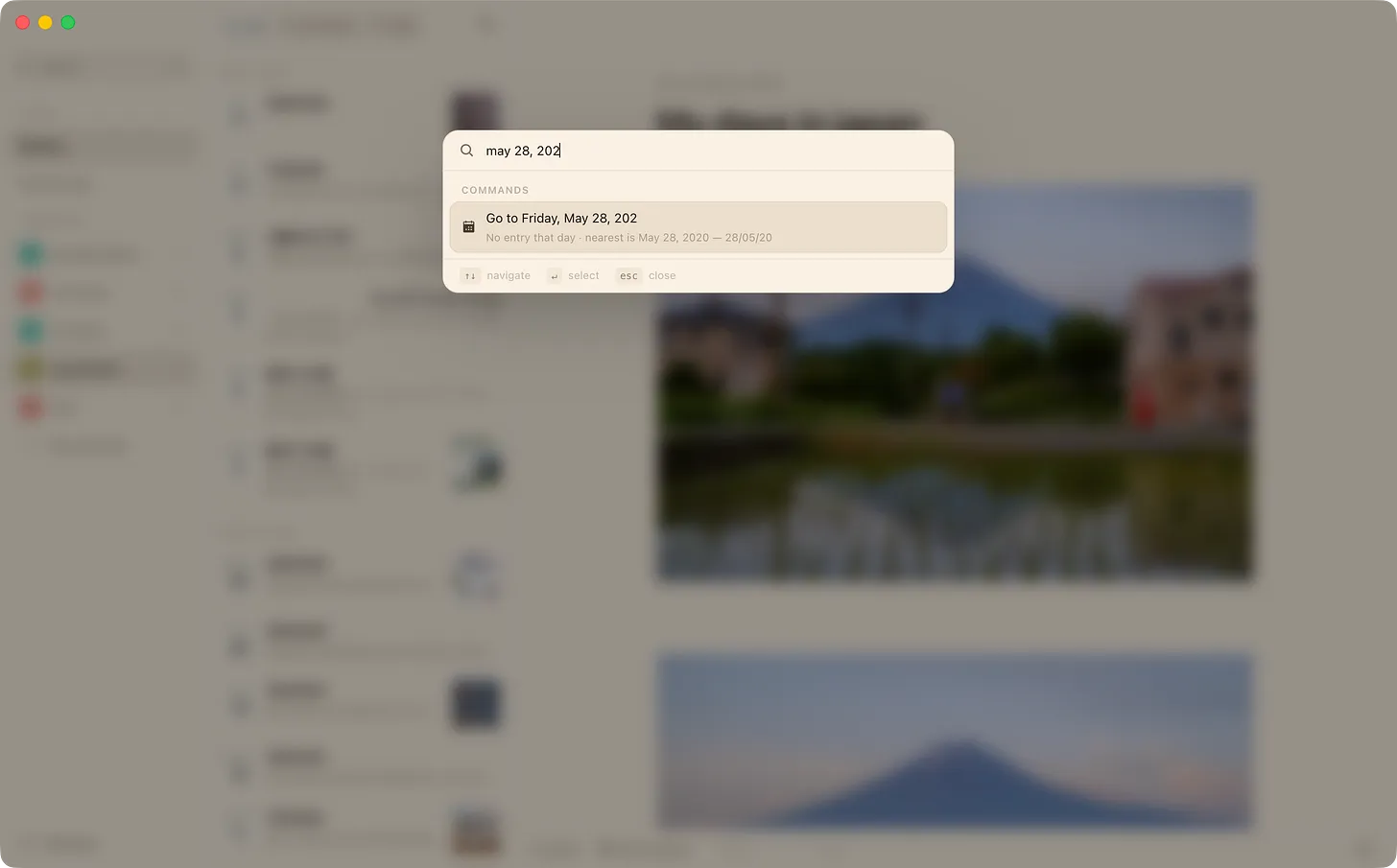
- A few words from something you wrote, and Cozy finds the entry with a snippet showing where it matched.
- A date (“March 5,” “1/1/1992,” “2020-12-25”), and it jumps you to that day. If you didn’t write that day, it takes you to the closest one.
It’s basically the way to move around the app without thinking about it.
A few more things
On this day: lets you read entries you wrote on the same date in past years.
Per-journal settings: every journal has its own settings, so you can set each one up differently. All of that lives in a config file inside the folder.
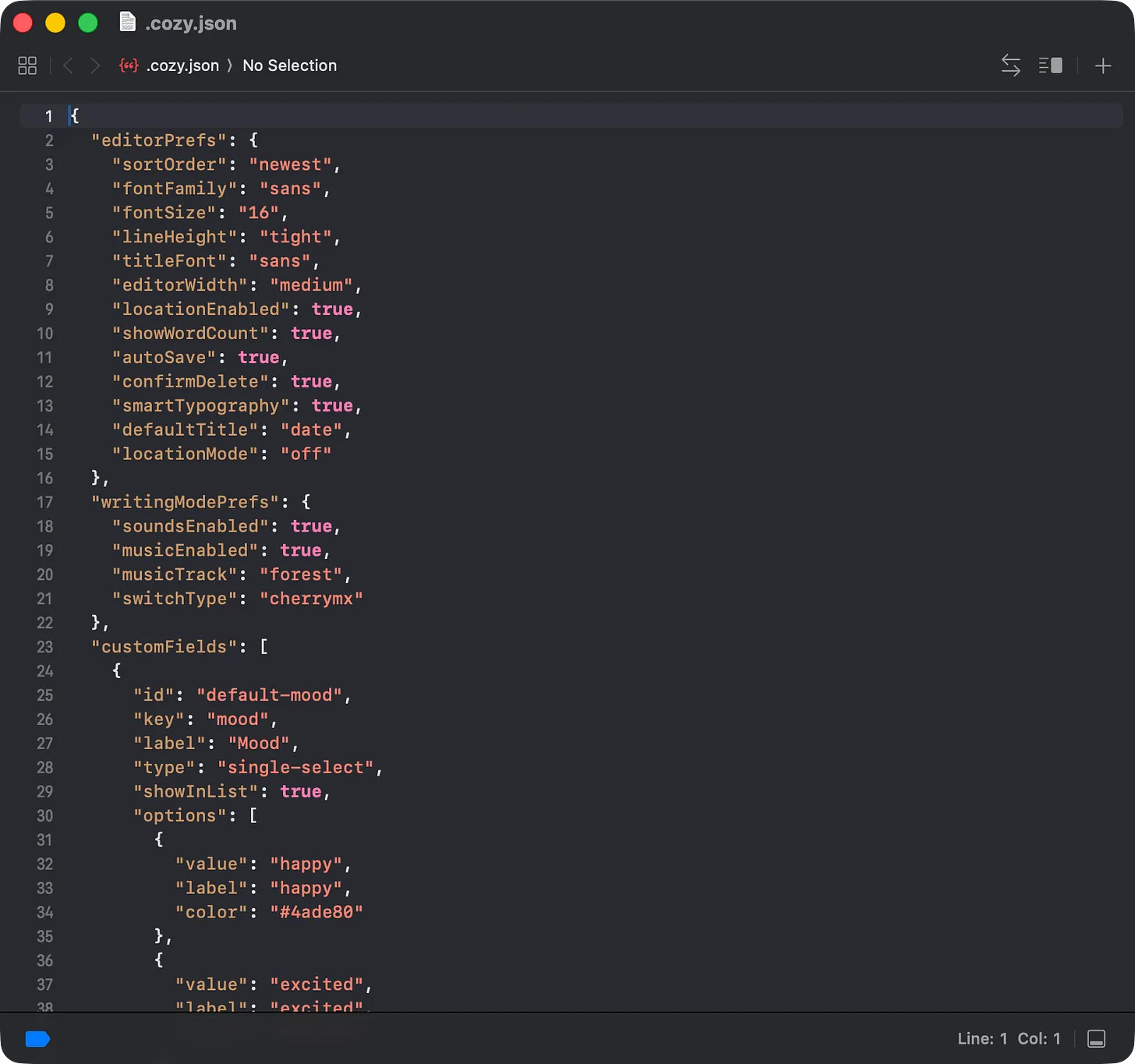
That’s it for now. If anything comes to mind in the meantime, feel free to reply to this email or drop a comment. I’d love to hear your feedback.
This week or next, I’ll send another post going into the launch, the beta, and how I’m planning to handle all of it.
Hope you like it, and talk soon,
Alberto