Cozy logo

Changelog

Cozy leaves beta — rename your trackers, and video thumbnails that show

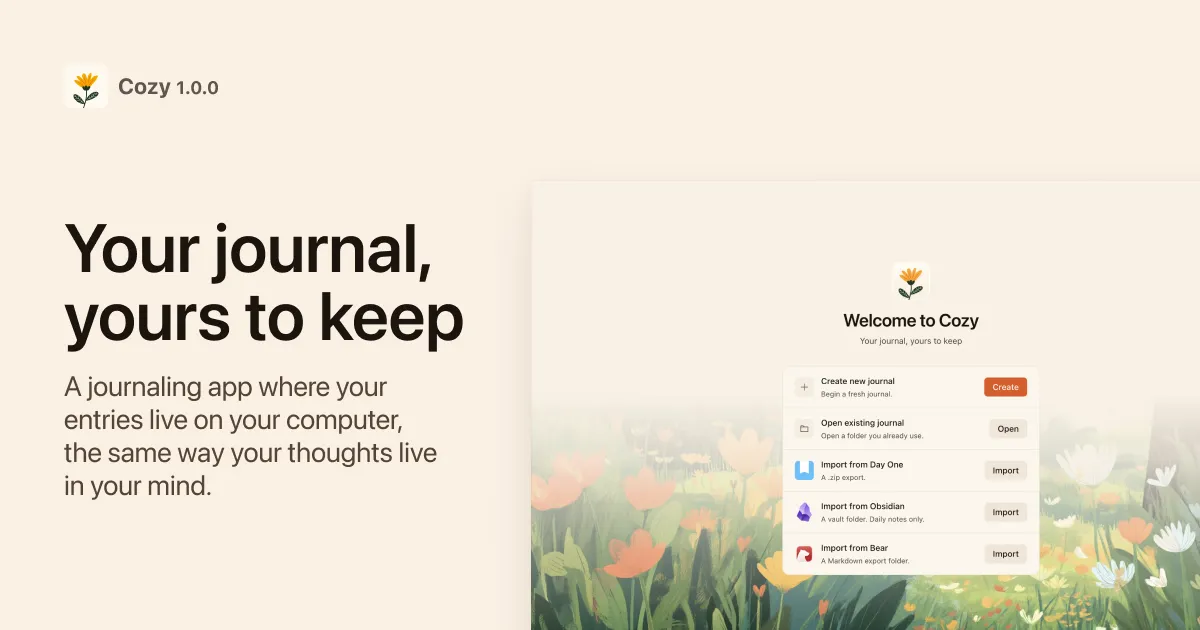
Cozy 1.0.0 welcome screen

  • Rename your trackers and their options whenever you like. Open Trackers, double-click a name (or use the little pencil) and type a new one. “Mood” becomes “Vibes,” “so-so” becomes “meh.” Cozy updates every entry you’d already filled in to match, so none get left on the old name.
  • Trackers now opens as a centered panel with a soft backdrop, instead of tucked against the toolbar. A little easier to land on.
  • Cozy now asks for your license key the first time you open it. Paste your key on the welcome screen to start writing — there’s a link to grab one if you need it, and another to recover a key you’ve misplaced. The free beta has wrapped up; thank you for writing with me through it.
  • Video entries now actually show their first frame in the sidebar. Instead of a blank tile, a clip’s thumbnail is its own opening frame with a play badge on top, captured right on your computer with no extra tools needed.

Filter by your trackers, smoother video, and a jump to the top

All platforms

  • Filter your entries by what you track. The filter menu now has a Trackers section — pick one or more values from any tracker (Mood: Good, Weather: Sunny…) to narrow the list to just those days. Stack several values, or mix trackers with tags, places, and years, to land on exactly the entries you mean.
  • Find your way back to the top. When you scroll down your list — or open an old “On this day” memory that parks you deep in the past — a little pill slides up at the bottom; tap it to glide straight back to your newest entry.
  • Videos just play — and scrub. Clips you add, including iPhone .mov recordings, now start right away and seek smoothly when you drag the playhead, with nothing extra to install on your computer. Re-opening an entry with a video is instant too — it loads from cache instead of fetching and decoding the clip again.
  • Video entries look the part in the list. A clip now shows its first frame as the sidebar thumbnail with a little play badge, instead of a blank space — and the preview text no longer spills raw <video …> code.
  • iPhone photos show everywhere. HEIC pictures you drag in now render on Windows and Linux too, not just on Mac.
  • Day One import works on every platform. Bringing in a Day One export no longer needs any system tools, so it runs the same on Mac, Windows, and Linux — photos and videos included.
  • A quiet safety and privacy tune-up. Cozy is now pickier about which links and files it will open on your computer, and the crash reports it sends no longer carry your folder names or username — your journal stays yours.

Windows

  • The title bar is now its own tidy strip. The menu button and the window controls share a dedicated band across the very top of the window, so they no longer crowd the search box, the toolbar, or the writing-mode button below them — and the menu is always right where you’d reach for it.

Move entries between journals, and a proper Windows menu

  • Move an entry to another journal. Right-click an entry (or a selection of them) and pick “Move to journal” — Cozy copies the writing and any photos, video, or audio it holds into the journal you choose and removes them from the old one. Pictures keep working at their new home.
  • New entries you don’t name are saved with a tidier filename. An untitled entry written today becomes 2026-06-04.md instead of repeating the date as a slug — the same daily-note convention Obsidian uses. Entries you do title are unchanged, and untitled Obsidian daily notes you import now show their date instead of a blank title.
  • Long entries breathe at the bottom. When you’re writing past the end of the screen, the last line now lifts toward the middle instead of clinging to the very bottom edge, so the line you’re typing stays in comfortable view.
  • The journal name in Settings now has a clear Save button that appears once you start editing, instead of a “Saved” flash after the fact. Press Esc to discard your edit and snap back to the saved name.
  • You can clear a location after adding one. Open an entry’s location chip and remove it, and the place is wiped from the entry — no more being stuck with a spot you picked by accident.

Windows

  • The app menu is finally within reach. A menu button now sits in the top-left of the title bar — click it for New Entry, New Journal, Import, View options, and everything else that lives in the menu bar on Mac. No more hunting for the Alt key.
  • The writing-mode button no longer hides behind the window controls. It now tucks to the left of minimize/maximize/close so you can always reach the distraction-free view.

Easier writing mode, smarter formatting, and reliable cloud sync

  • Writing mode is easier to find. A small expand button now sits in the top-right corner of an entry, so you can slip into the distraction-free writing view with a click instead of hunting for the ⌘⇧F shortcut.
  • Formatting reveals itself more naturally as you write. Put the cursor anywhere inside a bold word, a link, or an image and its markdown shows up so you can edit it — not just when you land exactly on the symbols. Click anywhere on a heading and its # appears too, then tucks away the moment you move on. And you can skip typing symbols altogether: ⌘1–6 set heading levels, ⌘⇧8 makes a bullet list, ⌘⇧7 a numbered one. Checkboxes also work with * and + bullets now, not only -.
  • Keyboard shortcut hints now match your keyboard. On Windows and Linux they show Ctrl where macOS shows ⌘ — in Settings, tooltips, and the search bar — so the keys you read are the keys you press.
  • Journals kept in a cloud folder sync cleanly again. An open entry no longer sits “syncing” forever in Google Drive, iCloud, Dropbox, or OneDrive: Cozy now saves entries as a plain edit those tools recognize instead of a file-swap that left them spinning, and it won’t re-save an entry you’re only reading.

Free-drag image sizing, photo-wall galleries, and custom covers

Resize an image to any size you like: grab the little handle in its bottom-right corner and drag. The old 25% / 50% / 100% menu is gone — pick whatever width feels right, and Cozy remembers it in the entry.

Galleries now lay out like a proper photo wall. Instead of one cramped row, images flow into two balanced columns at their natural shape, so nothing gets cropped and tall and wide photos sit comfortably together.

Choose your cover: right-click any image in an entry with more than one photo and pick Use as Cover to set which one shows as the thumbnail in the sidebar. Leave it alone and Cozy keeps using the first image, like before.

Days and places with several entries open a tidy little sheet. Click a calendar day or a map pin that holds more than one entry and a panel slides up from the bottom listing them all — each with its thumbnail and a snippet — so you can pick the one you meant.

Fixed a rare way to lose writing: pressing Cmd+Z right after switching entries could undo into the previous entry and overwrite the one you were looking at. Undo now stops cleanly at each entry’s edge.

Entry previews in the sidebar used to show the messy leftover code behind a YouTube or media embed. Now they just show your words.

Opening “On this day” (or any entry with a very large photo) no longer freezes Cozy for a few seconds. Big images now resize without locking up the app, and they look sharp again — no more grainy previews.

Your journal no longer flashes empty at launch when a cloud-sync tool or macOS briefly locks the folder for a moment — Cozy now waits a beat and tries again instead of giving up on the first hiccup.

Faster startup and automatic update checks

Cozy now checks for new versions on its own while it’s open: every few hours, and whenever you click back into the window. A new release shows up in the sidebar without you opening Settings to hit Check for updates. Before, it only looked once, right after launch.

Cozy opens faster from a cold start. The editor and map now load only when you need them instead of up front, so there’s about a megabyte less to get through before your journal appears.

Sidebar thumbnails show up sooner on a fresh start. Cozy warms up previews for your newest entries first instead of decoding every image in the journal at once, so the list isn’t fighting itself for the first few seconds.

Trackers, image galleries, and smarter word count

Custom fields are now Trackers — same picker (Mood, Energy, Weather…), warmer name. Drag any tracker to reorder the list, and drag its options inside to set the order you’d rather see them in.

Saving entries and settings no longer crashes when the journal lives in a cloud-synced folder that briefly locks or hides a file mid-save (OneDrive on Windows, Dropbox/iCloud/Drive on macOS) — Cozy now writes straight to the file instead of giving up.

Image size: right-click an image and pick 25%, 50%, or 100%. Your choice is saved with the entry, so opening it later picks up right where you left off.

Image galleries: group photos into a single row instead of stacking them down the page. Right-click an image, pick Add to Gallery, and they line up next to each other. Each image keeps its own size — two at 50% sit side by side, four at 25% fit across.

Drag any image inside a gallery to reorder it, or drag one out to make it standalone again. Pull out the last image and the gallery quietly disappears.

Drag any image, video, or audio to a new spot in the entry to move it — no more copy-paste-delete shuffle.

Word count is honest about Chinese, Japanese, Korean, and other scripts that don’t put spaces between words: it counts actual words instead of treating each paragraph as one. The number you see when an entry opens also matches the count after your first keystroke (it used to flicker).

Editor polish, custom fields, and a friendlier map

Location autocomplete: start typing a city in the location field and Cozy suggests matches, so you stop guessing whether to write “NYC”, “New York” or “New York City”.

Custom fields got a friendlier face. Each picker now shows its name and value together (e.g. Mood: Good) with a small caret, sits on a subtle pill background, and has a thin divider separating it from tags, so it’s clear which chip is which. Tapping a field that has no options yet jumps straight into Manage Fields with that field already open.

New journals start with a ready-made Mood field (Great / Good / Meh / Low / Bad) so the feature is easy to find on day one. If you already had your own fields, nothing is touched.

When there are no fields yet, the + button now reads + Field so it’s obvious where to start.

“On this day” reads more clearly: the subtitle is now “What you wrote on May 18 in past years” instead of just the date.

Map: when several entries share the same spot, you can finally see all of them. The dot gets a little number badge (3, 12, 99+), and clicking it opens a short list of every entry pinned there. Tap one to jump into it.

Editor: bold actually looks bold now, and the raw **, *, ## , > , ~~, == stop hanging around after you use the toolbar or shortcuts. Blockquotes are a calm accent stripe instead of italic. Cmd+B (or I) on an empty spot puts the cursor inside the markers ready to type; press it again to step past them. Hit Enter inside **asas|** and you land on a new line below the bold, not between two stranded asterisks. Delete the word inside **word** and the leftover **** cleans itself up.

Text formatting and localization

Formatting toolbar now floats above selected text (Jira-style) — Bold/Italic/Strike/Code/Highlight/Link/Quote/Heading/Lists all accessible with one click. No more searching for the formatting menu. Markdown wrapping improved: selecting multiple paragraphs no longer leaves stray ** on separate lines, and selections adjacent to images won’t accidentally consume the image markdown.

Dates now consistently render in English everywhere—entry date buttons, InsertDate/Time menu, and Settings—regardless of your system language. This eliminates the issue where Spanish locale settings would display non-English month names in the UI.

Location editing now works by simply typing the city name where you wrote the entry. Your entries automatically capture and store location context.

Fixed a critical crash when deleting entries from the sidebar during rapid scrolling. Improved sidebar responsiveness and keyboard navigation for smoother multi-entry management.

Update notices, YouTube embeds, and Windows support

Fixed YouTube error 153 blocking video embeds. The player now correctly respects our cozy-app:// protocol, enabling seamless video integration directly in your entries.

Journals no longer go silently empty after filesystem hiccups. The entry list now recovers immediately on reopen instead of caching stale data—a critical fix for cloud-synced folders.

"Check for updates" fully restored. A packaging bug had prevented the updater from launching. Now includes immediate feedback, visible error messages, and offline error logs.

Settings no longer crashes when your journal lives in cloud-synced folders (iCloud, Dropbox) that briefly hide the config during saves—verified stable across sync scenarios.

YouTube embeds no longer autoplay from nearby clicks. The iframe loads YouTube’s native player controls, giving you full control over playback.

Empty journals now display a clickable "+ new entry" button for quick action. Calendar back-fill lets you add entries to any past or today empty day.

Sidebar update notices are quieter—appear only when necessary. Diagnostic logging for the updater and YouTube player is now visible offline in ~/Library/Logs/Cozy/main.log for faster debugging.

Windows

Native window chrome featuring a hidden title bar with theme-aware overlay, Mica background material, and hidden menu bar by default for a cleaner interface.

Drive-letter paths (C:\…) and youtube.com embeds are now handled correctly across media resolution and import workflows.

First beta release

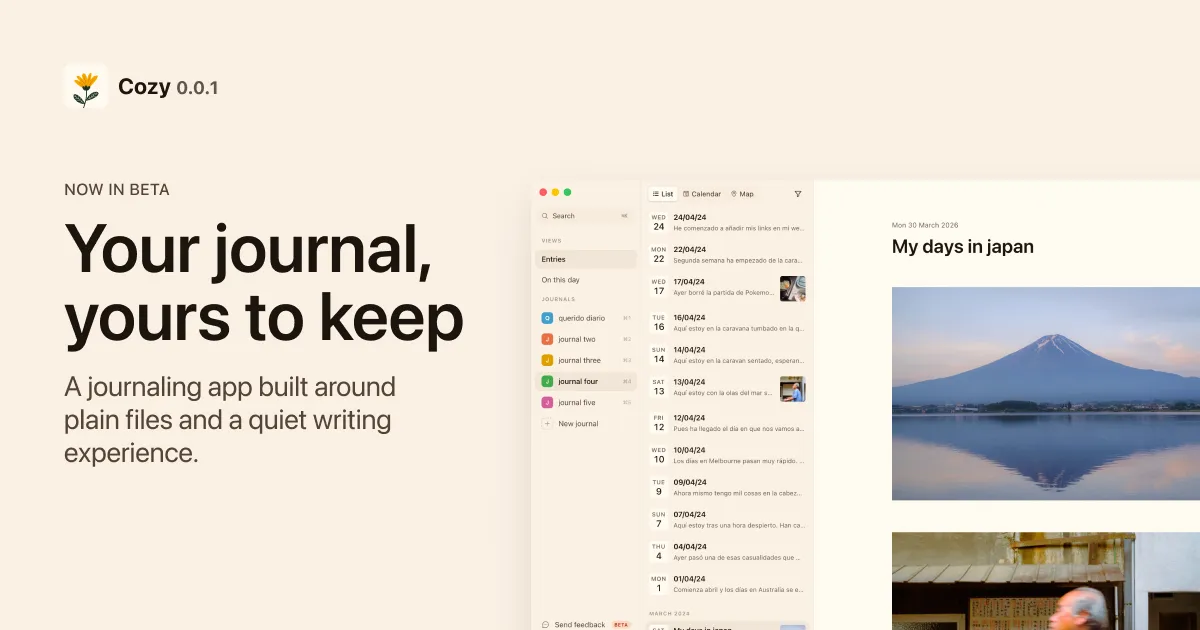
Cozy 0.0.1 beta interface

Welcome to Cozy, a private journaling app designed for Mac. Your entries are stored as plain text files on your machine—completely private with no cloud syncing unless you explicitly choose it. Your thoughts remain yours.

Write with comprehensive formatting: bold, italic, strikethrough, code, and links. Navigate your journal by date using an intuitive calendar view, or search across all past entries instantly. Your full writing history is always accessible and searchable.

Embed images and YouTube videos directly into entries for richer context and visual memory. Preserve moments alongside your words.

Light and dark modes automatically follow your system settings for comfortable reading at any time of day. This is an early beta release—we’re actively building and refining Cozy based on feedback.