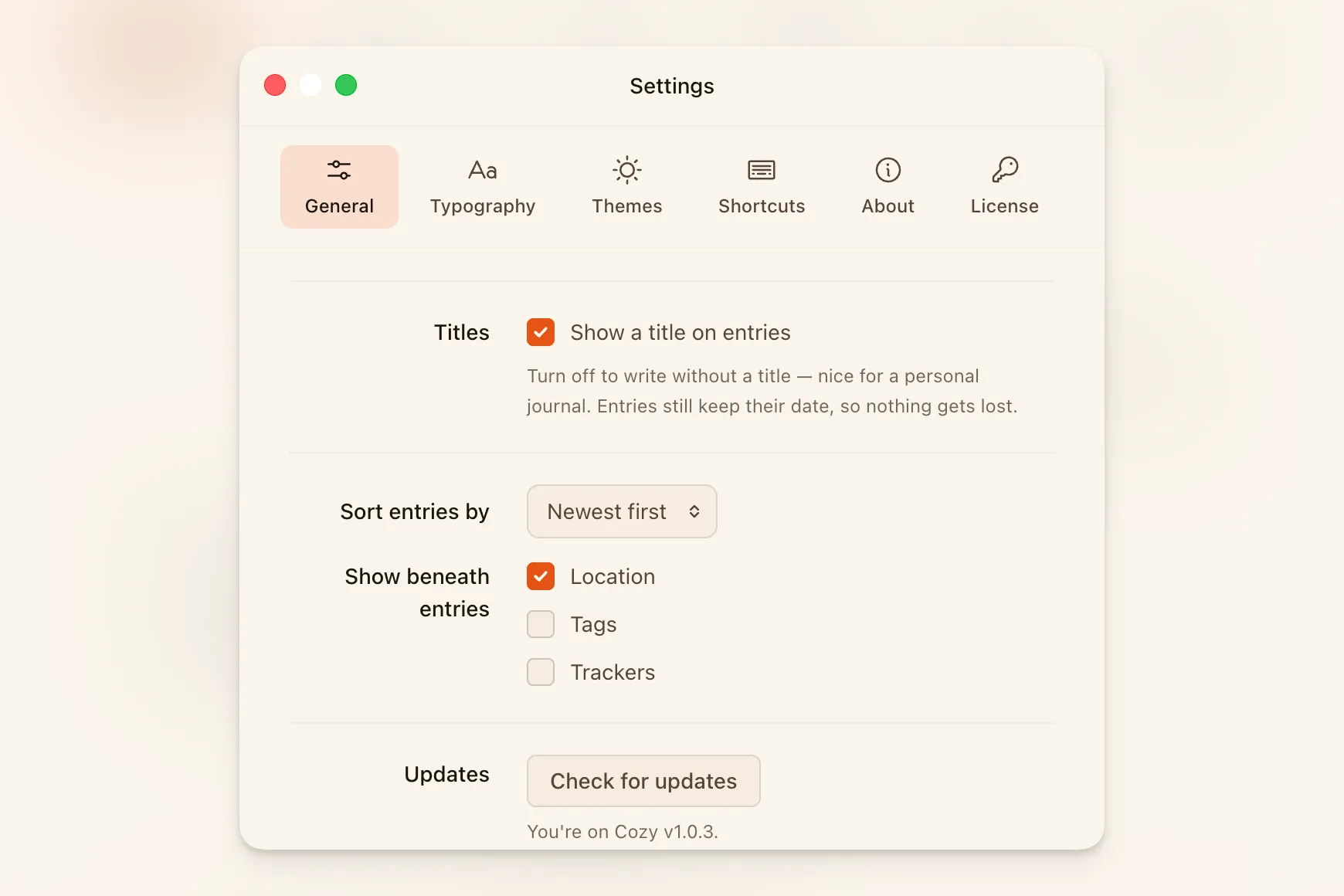
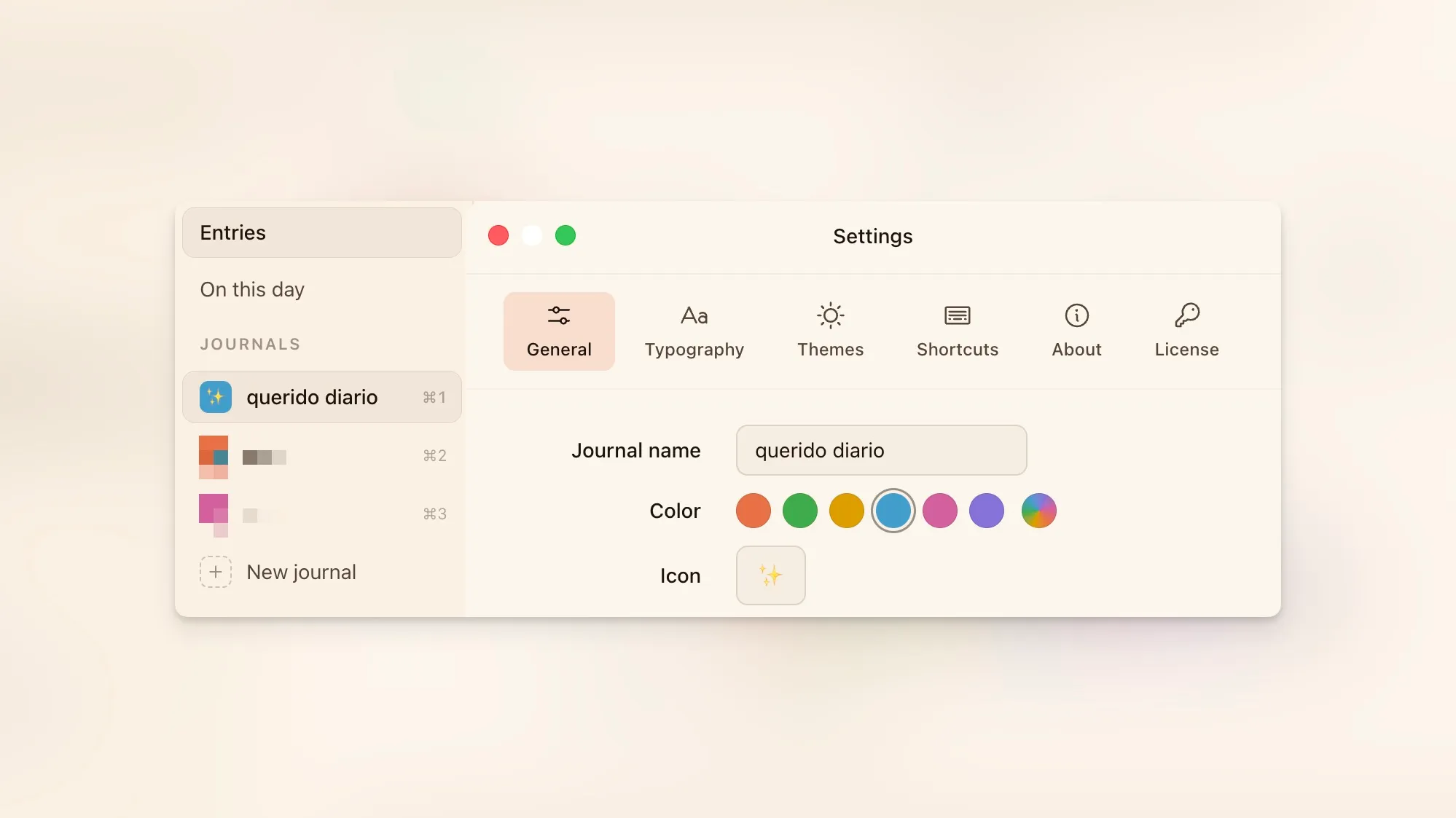
The font list fills in. The first time you opened Settings > Journal > Font it showed only Inter, because Cozy asked the computer for its fonts on the click and that can take a few seconds. Now it asks as soon as the row shows, and says it is finding your fonts while it waits.
Obsidian notes written in HTML import formatted. A note pasted in from another app can be HTML, which Obsidian shows as headings and paragraphs. Cozy imported the tags themselves, <h1> and <p dir="auto"> around every line. Now they turn into the same headings, lists and bold you saw in Obsidian.
Pick the font you write in. Settings > Journal > Font lists every font on your computer, each in its own face: Songti for Chinese, Times New Roman for a page that looks typed. It sets the entry’s title and body, and the PDF export follows it. It travels with the journal, so your iPhone and iPad write in the same font.
Improvements in 1.7.1
Cozy opens where you left it. Choose All journals and it opens there next time, not on the last single journal you picked.
Search says the year. Each result ends with the year it was written, so a match from 2009 doesn’t pass for last week.
Pinch into a photo. Double-click a photo to open it, then pinch on the trackpad, or hold Ctrl and scroll, to look at the details. Scroll to move around it.
Delete a whole table. Right-click a table cell and the last item is Delete Table. Cmd+Z brings it back.
Bug Fixes in 1.7.1
A new entry opens clean. The first line showed its raw #, ** and - until you clicked into the entry. Now the marks stay hidden until the editor has focus.
A review shows its period, not a clock. Rows under Reviews showed the time the review was written, 1:07 PM next to 2026. The time is gone from them.
Tap a photo in an entry to open it full screen, then pinch or double tap to zoom into the details. Touch and hold still opens its menu.
Edit details and Export as PDF share one menu. Tap the … button at the top right of an entry and pick either. The PDF button beside it is gone.
Settings in All journals lists your journals. Tap one for its own settings.
On iPhone Duo, the bar’s buttons stand in the side column with the tabs: journal, search, settings, and in an entry back and its menu. Screens change with the system’s own motion.
On an open iPhone Duo, sheets sit in the middle at the width the system uses. The column beside an entry takes the entry’s colour, and the list starts at the top with no gap above it.
Bug Fixes in iOS 1.4.1
Settings opens at its first page. It used to open on the last page you left it on.
Open an iPhone Duo from its outer display and the list and the entry appear side by side. They stayed stacked until you turned it.
Hide the list on an open iPhone Duo and the button stays the sidebar button, not a back arrow.
Delete the last photo of an entry and its thumbnail in the list goes with it. It used to come back until you relaunched the app.
A review named after its period says it once in Look back. The row read 2026 and then 2026 again.
When a journal’s folder is moved or deleted on another device, Cozy says the folder is gone and takes the journal off the list. It used to ask you to wait and try again, and waiting never helped.
Reviews for a week, a month or a year. Any entry can look back on one: choose Review of… in the editor’s + menu and pick the period, years back too. Reviews leave your days and gather under Reviews in the title menu (⌥⌘7), each with its cover photo, and ⌘N there starts a new one. The file takes the period’s name, 2024.md, the same one Obsidian gives it.
Name the places you write from. On an entry with a location, choose Name this place… in the + menu and call it Home. Every new entry written within 150 metres of it takes that name, and keeps its real coordinates for the map. Type the name in any entry’s location and the place comes up first. Rename or delete places in Settings > Journal. They live in the journal folder, so your iPhone knows them too.
Export entries as a PDF. File > Export as PDF (⌘P), or right-click entries in the list. Pick several and they come out oldest first, each on its own page. A page looks like the entry does in the editor: galleries in their rows, a video as its first frame, an embedded PDF as its first page, code in colour. The paper is always white, whatever the theme.
Reminders, if you want them. Turn one on in a habit’s card, or Remind me to write in Settings > System, then pick a time and the days. A day you already wrote, or already logged the habit, stays quiet. Click one to land on Habits or a new page. They show while Cozy is open.
The calendar runs to December. Plan ahead: an empty day later this year opens a new entry. Later years stay closed.
Improvements in 1.7.0
A choice habit says “Add options”. Pick “I pick how it went” in the New habit form and the button tells you what comes next.
The writing streak is off until you turn it on, in Settings > Journal > Playful extras. A journal that never chose shows no card; one that chose on keeps it. And it no longer slides in on every launch and journal switch.
Tab nests numbered lists too. It lines the item up under the text above, starts a new numbered list at 1, and takes the item’s own items along. Shift-Tab works the same way back.
Bug Fixes in 1.7.0
The table menu keeps what you just typed. Right-click a cell you were still typing in, pick an action, and the text stays.
A table in the list reads as text. An entry with a table showed its pipes and dashes in the preview. It shows the cell text now.
The calendar opens on this month. In a journal with little history it landed halfway down the month after.
Italic shows on Chinese and Japanese text. Those fonts have no italic face, and Cozy wasn’t allowed to slant them.
Cozy tells you when it can’t read a folder. While iCloud or another drive is still syncing, a new entry or a writing-mode change could fail without a word. Now Cozy says what happened and leaves your files alone.
A reorder keeps its drop. If another window took focus while you dragged a habit, the card snapped back. It stays where you let go now.
The emoji panel on macOS opens only when you ask. Coming back to Cozy, or closing the Character Viewer, opened it a second time.
Reviews for a week, a month or a year. In an entry’s Details, set Review of to any period, years back too. Reviews leave your days and gather in Look back, and your Mac sees the same ones.
Tables, numbered lists and dividers are in the format keys, which now hold three rows. A table lands below the line you’re on, with the first cell ready.
Name the places you write from. In an entry’s Details, open its location and tap Name this place. New entries written nearby take that name, and typing it finds the place again. Rename or delete places in Settings.
Export an entry as a PDF. Tap the button next to Details, or touch and hold an entry in the list. Save it to Files, send it, or print it from the share sheet.
Reminders, if you want them. Turn one on in a habit’s sheet, or Remind me to write in Settings, then pick a time and the days. A day you already wrote, or already logged the habit, stays quiet. Tap one to land on Habits or a new page.
Improvements in iOS 1.4.0
Touch and hold a table cell to add or delete rows and columns.
On iPad, Settings, the paywall and every other sheet open as a card in the middle of the screen, the way iPadOS does it.
Bug Fixes in iOS 1.4.0
On iPad, swipe in from the left edge to bring the list back and it stops in its place. It used to follow your finger across the entry.
On iPad the top bar stays put while an entry scrolls, so the way back to the list is always there. In writing mode, a tap brings the toolbar back.
Try Cozy free for 7 days on your iPhone. The trial starts from the sheet that opens after you set up a journal, and you can switch on a reminder for the day before it ends. Nothing is charged when it ends: writing stops, and everything you wrote stays there to read.
Buying Cozy in the app now includes Cozy for Mac and Windows. Type your email after the purchase and the desktop key lands in your inbox.
Lists go deeper. With the caret in a list item, two keys above the keyboard move it in or out a level, and its own items come along. They take the place of the add and template keys, which come back when you leave the list.
Improvements in iOS 1.3.0
Setting up a journal is one sheet over the journal itself, and it ends on how to get Cozy. Bought Cozy on your Mac? Unlock with your email from the same sheet.
Grouped rows in Settings stand out from the page in the light theme.
The writing streak is off until you turn it on, in Settings > Journal > Playful extras. A journal that never chose shows no card; one that chose on keeps it.
Bug Fixes in iOS 1.3.0
Scroll down inside an entry, go back, and the bars at the top and bottom stayed away over the list. They come back the moment you leave the entry.
Cozy speaks Chinese. Simplified (简体中文) and Traditional (繁體中文) join English and Spanish. Pick one in Settings > System > Language, or let Cozy follow your computer. Dates read the Chinese way, and the tags field takes , and 、 as well as a comma.
Improvements in 1.6.1
Changing language restarts Cozy. The date and time pickers read their language only at launch, so a reload left them in the old one. Cozy saves your writing, restarts and opens Settings where you left it.
Change an entry’s time, not only its day. Click the date above an entry and a time field sits next to it, the way the iPhone already lets you. The date line shows the time once the entry has one.
Notices sit in one place. Trial and license, sync, editor states and small errors used to get strips of their own. Now they’re one-line cards at the bottom of the pane, three at most. Click the words to read the whole thing, and the X to close it.
Buttons, fields and rows follow Text size. They were stuck at 13 and 15 pixels, so the page grew with Text size and zoom and left them behind. They grow with it now.
Links hold their contrast on every light background. In Meadow the coral accent and the amber warning are a touch deeper, so a link on a selected row or a card passes the 4.5:1 contrast standard.
The streak card opens instead of jumping in. When it turns up after the list has drawn, its slot opens from nothing and the rows slide down instead of getting shoved.
Search is ready the second time. Closing search used to throw away the text of every entry, so the next search read the whole journal again before a word could match. It keeps that text now, and reads an entry again only after it changes.
Writing mode opens at once. The first time after launch it waited on your speakers, even with music off. Now the page dims straight away, and sounds and music start once the panels have slid away.
Cozy speaks Chinese. Simplified and Traditional join English and Spanish. Pick one in Settings > Appearance > Language, or let Cozy follow your iPhone. Dates read the Chinese way, and the tags field takes , and 、 as well as a comma.
Cozy fits the folding iPhone. Open, the list sits beside the entry and the two meet on the fold, so no line of writing runs through the crease. Closed, everything keeps clear of the camera and the side bar. Search, Details and Settings open as a panel on the right.
Improvements in iOS 1.2.1
The keyboard gets out of your way. Tap a colour, a choice or a row and it closes. Drag a sheet and it follows your finger down. The check key closes it instead of sending the form, so a new habit is made with its own button.
Main buttons are the iOS size: taller, with 17 point text, to match the rows around them.
On a wide screen, onboarding and sheets keep to a readable column instead of stretching edge to edge.
Media and Map in Look back grow out of the card you tapped, and shrink back into it when you go back.
Notices sit in one place, above the tab bar: Viewing only, iCloud downloads and small errors. Each one is a single line. Tap the words to read it all, tap the X to close it.
The cards in Look back follow your Text Size.
The date bar over an entry steps aside as you scroll down and comes back at the top, so the page is all writing.
Bug Fixes in iOS 1.2.1
Text Size was counted twice in the bar titles, Search and the date picker, so they outgrew the page beside them. They match now.
On iOS 18 the top bar had no background. It takes the colour of the page now, in every theme.
The writing streak card fits its row.
Back from an entry you opened from Search, its row in the list sat under the tab bar. It stops above the bar now.
Camera RAW photos (DNG and the like) froze the Media grid for up to half a second as they scrolled past. They come in as thumbnails now, like every other photo.
On this day cards blended into the page in the light theme. They stand out again.
Templates, a starting text for an entry. Add Morning pages, a bullet journal, gratitude or a daily review in Settings, or write your own with a name, tags and text. Pick one as the journal’s default and every new entry begins with it. {{date}}, {{weekday}} and {{time}} fill themselves in. Templates are plain files in the journal’s .cozy folder, so they travel with it.
Put a template into the entry you’re writing. Type / and a name, or open the command palette, choose Use template and pick from the list. One undo takes it back.
Improvements in 1.6.0
Writing mode shows only what you’re writing. The title and the date disappear, the paragraph with the caret stays lit, and the rest of the page fades to half. A selection stays lit too, photos and videos inside it included, and so does a video you click to play.
The selected place in the rail keeps plain ink. In light, the selected journal, view and Settings tab are no longer red. The darker wash behind them already says where you are.
Open and Copy image ask more of what they touch. Open on a photo, video, audio file or PDF opens it. Anything else in a journal stays shut. Copy image checks every redirect on the way, so a link can’t send it somewhere on your own network.
A journal only lives where you put it. Adding a journal, moving one to the Trash, and importing now work from folders and files you picked yourself.
Crash reports carry less of you. Entry names, folder names, links and the label of whatever you clicked are swapped for a placeholder before a report leaves your computer. It keeps the file type and where in the app it broke.
Bug Fixes in 1.6.0
A dialog stays inside its window. In a short window the title and the buttons could slide past the edge. The dialog stops short of the window now and its body scrolls.
A file in a shared folder can’t run inside Cozy anymore. A page dressed up as a PDF used to run its script the moment you opened the entry. A PDF embeds only when the file is a PDF, and every other file Cozy serves is shown as plain text.
A shortcut can’t lead out of your journal. A link that pointed at a file elsewhere on the disk was followed. Cozy checks where it really goes now, and a photo or video that points outside the journal stays blank.
A name that is already taken asks you. Create a journal in the default place, with a folder of that name already there, and Cozy asks where it goes. Before, it stopped with an error.
Templates. Add Morning pages, a bullet journal, gratitude or a daily review in Settings > Journal > Templates, or write your own, then pick one as the default for new entries. To use another while you write, tap the template button above the keyboard, or search for Use template.
Bug Fixes in iOS 1.2.0
On iPad, the entry you’re reading shows its date, time and place at the top, even with the list beside it, and its row in the list is highlighted.
Crash reports listen to Settings now. Turn them off and Cozy sends none at all. The ones it does send carry no entry names, folders, or labels of what you tapped.
Habits, a square a day. A Habits view gives each habit a card: half a year of squares in the habit’s own color, and one number for what it came to. A habit is a yes or no, a count against a goal (a day that fell short is a smaller square), or a choice. Add, rename, recolor, reorder and delete right on the card (delete asks first), and tap a square to open that day’s entry.
A windowsill of flowers over your habits. Each habit grows its own potted flower as its weeks in a row add up: leaves at 2, buds at 4, in bloom at 8. There are nine flowers, and none repeats until all nine are in use. Scroll the row sideways, and tap a pot to jump to its habit.
Every habit behind one chip. Under an entry, a Habits chip opens all of them together: tick a yes or no, pick from a menu, type a count. They no longer crowd the bar one chip apiece, or hide in the + menu.
Improvements in 1.5.0
Light is amber daylight now. The rail, the list and the page are three tones you can tell apart, amber washed over white. The accent stays the same orange, on the selected row, the date over your entry and the tags, whatever color the journal has. Dark themes stay as they were.
Media is a tab of its own. It sits between List and Calendar, so the photo grid is one click away and the button next to + is gone.
The entry list opens a little wider. It starts at 380px, enough for the tab names to show, and you can drag it out to 400px.
One color picker, for journals and habits. Auto, the six colors, then a plus for your own, opened from the system picker. The selection ring grows out from the edge of the swatch and fades in, so it sits right on any surface.
Habit forms label their fields like Settings does. Color, Times a week, Options, Goal and Unit share the weight and size of a Settings row, with the hint underneath.
Empty checkboxes and text fields have a clearer edge. Both used to fade into the page. Settings gets it too.
Habits are kinder to the keyboard and screen readers. The day you land on gets a bold ring, the chips under an entry light up when you tab to them, and a refused name is read out. The note that says a rename failed stays until you close it.
The sidebar answers what you do. Journals settle into place after you drag one, the streak card marks the day it moves, and the Trash row, the filter count and the cloud notice fade in instead of popping. The highlight follows the arrow keys with no lag.
An import names the notes still in iCloud. A note that isn’t on this Mac yet stays where it is, and the message at the end says to download it in Finder and import again.
Bug Fixes in 1.5.0
A journal’s settings hold while its file syncs. If iCloud for Windows or a cloud drive was still bringing down a journal’s settings file, Cozy showed the defaults, and the next change could save over the real file, trackers and lock with it. It leaves that file alone now and keeps what it last read, so a locked journal stays locked.
A new entry never lands on one that is still syncing. If a cloud drive held the journal folder for a moment, Cozy took every name as free, so a new entry, a rename, a restore, a move or an import could write over an entry that was there. It stops and tells you now instead.
Find any place. Location suggests landmarks, venues and remote spots as you type, and keeps the name with the coordinates, so two venues in the same city are two pins. The map works offline once you’ve looked at a place.
Lock a journal with a password, then open it with Face ID. It stays out of other journals and out of search until you open it, and it locks again when you leave.
A writing streak. A card above your entries counts consecutive days as seven letters. Miss a day and it starts again. Turn it off in Settings > Playful extras.
New ways to get words in. Tap the microphone to dictate, punctuation included, or use Scan a Page from the + menu to bring in a paper journal.
Cozy fits the iPad. Entries sit in a column beside the one you’re reading, or clear off so you can write full width, with Command shortcuts.
Three themes: Meadow, Dusk and the new Moss, deep greens from the app icon. Settings shows a preview of each before you pick.
Media in one tap. The button above your entries swaps them for every picture and video in them, newest first, dated by day.
Press and hold works on entries and media: Details, move, delete, cover, or group into a gallery.
Search rides up with the keyboard and holds every filter at once: tags, photos, location, trackers, dates.
Swipe back from the left edge and the screen follows your finger, with the page underneath showing as you drag.
Improvements in iOS 1.1.0
Cozy follows your Text Size up to the largest sizes. Rows reflow instead of cutting off.
Lists, Calendar and Settings scroll under a glass bar, the way Photos and Files do. The tab bar is glass too, with entries running underneath it and a button to start a new one.
Opening a journal you already have is easier and faster. Find it in iCloud Drive, or browse to any folder. Blank stubs fill in, a journal started on your Mac shows up on its own, and words download before photos.
Creating a journal is one screen. Name it and choose iCloud or On My iPhone together.
Entries are locked to your passcode. iOS encrypts what Cozy writes, with the key put away while the phone is locked. They are still plain Markdown files.
An entry shows its date, year, time and place at the top. Tap them to jump to Details, which now has a real date and time picker instead of a text field. Calendar opens on today, with a Today button once you scroll away.
Every sheet on iPhone opens the same way: a large title, a round close button, and the page receding behind it.
Habits in one place. One row in Details opens them all. Tick a yes or no, pick a choice, type a count.
Bug Fixes in iOS 1.1.0
Photos from your library open anywhere. Photos are saved as JPEG and videos in a plain format, not the iPhone’s own, which some computers couldn’t open.
Sync is quieter. Opening a journal no longer rewrites it, a pile of iCloud entries no longer freezes the app, cleared-out entries fill back in, and settings hold while iCloud downloads them.
Lists in a sheet scroll to the bottom edge of the screen instead of stopping short.
A save no longer goes missing when its folder does, and a renamed journal reopens with all its entries.
Tapping back under a photo keeps the cursor put, a return before a photo makes room above it, and a quote on a blank line no longer freezes.
The keyboard bar sits on the keyboard, rests above a hardware keyboard’s shortcut strip, returns after the photo picker, and capitalizes new sentences.
VoiceOver no longer reads what’s hidden behind the editor or Settings, or a swipe action’s buttons twice. Closing search no longer flashes the keyboard open.
A video-only entry shows a real preview in the list and in Media instead of a plain grey tile, and an active filter highlights its whole row, not just the count.
Resizing the app on iPad keeps an open entry visible and stops sheets stretching full width. A pushed page like Journals no longer flashes what’s behind it, and Settings sections show up again.
A photo flies out of its tile. Open one from the media grid or an entry and it grows out of where it sits, then goes back there when you close it, even from halfway down a swipe. The arrow keys jump straight to the next photo.
The map goes full screen in one motion. The frame, the picture and the button move together, the map keeps the view you had, and Escape closes it the way the button does.
A wrong password shakes the field, on the unlock screen and in the lock dialog, the way a login window does.
A choice marks itself the same way everywhere. Color swatches and theme rows draw their selection on the same beat as the check on a chosen row, and picking a theme no longer freezes it.
On Mac, leaving writing mode brings the panels back at once. It used to pause first, waiting for a full screen that never came.
Buttons, fields and switches have a new finish. The main action is ink, lit from above like a small object. Everything else is paper. Text fields sit sunk into the page, and switches and checkboxes take the same depth, in every theme.
The sidebar and the welcome page carry a fine grain. It lies under the text and never on the page you write on. The sidebar is the same warm tone as your entry list now, so the two read as one.
The Obsidian import brings your photos, wherever the vault keeps them. Pick the whole vault or only your journal folder: Cozy finds the vault’s attachment folder either way, so embedded photos, audio and PDFs come along. Image sizes carry over, and a link to another note keeps its text.
Obsidian properties become trackers. A property like mood or sleep, with a handful of values, turns into a Cozy tracker holding those values. Inline #tags join the entry’s tags, and Map View locations land on the map.
The Obsidian import reads your daily-note format. It follows your Daily Notes setting, plus the formats you used before it, like “Saturday, March 16, 2024”. Notes without a date stay in Obsidian.
An import tells you what it left behind. If a note had no date or a photo wasn’t in the folder, a message at the end names them. A clean import stays quiet.
Bug Fixes in 1.4.2
A brand-new entry keeps the time it was started at. Opening it loaded a blank draft instead of the file Cozy had just written, and the first autosave wrote that blank over it, time and all.
Obsidian notes written on Windows keep their tags and dates. Their properties used to land in the entry as text, and the entry took the day of the import.
Callouts and %% comments import cleanly. A callout arrives as a quote with its title in bold, a comment stays a quiet aside instead of loose percent signs, and code blocks come through untouched.
An imported entry with no title keeps its filename. Cozy names it by its date from the start, so opening it no longer renames the file, which a synced folder could turn into a copy.
Photos added together leave room for text between them. Each one lands with an empty line around it, so you can click there and write instead of adding photos one at a time.
A map cluster’s entry list no longer wobbles on Windows. The timeline got this fix in 1.4.1; the list in a cluster’s sheet gets it now.
Dictation, on Mac. Click the microphone under an entry, or in Quick Entry, and talk instead of type. Cozy punctuates from the whole sentence, so a pause to think is not a full stop. It listens in your keyboard’s language, or the one you pick in Settings → System, and runs on your Mac itself when the language supports it. Names you list under Settings → Journal come out spelled right, and the list follows the journal to your iPhone.
A new journal opens on a welcome page. Its first entry is written by Alberto, who makes Cozy, a real page that shows what Cozy can do: bold and highlighted text, a checklist, a photo gallery, a mood and a tag. Try it, then delete it whenever you like.
See which Cozy you have. The license card in Settings → About names your plan, Standard or Forever. On Standard, an Upgrade button takes you straight to the page for moving up, key already filled in.
Choose whether entries show their time. A Time switch joins location, tags and trackers under “Show beneath entries” in Settings. It’s on by default, so no journal loses the time it already shows.
Improvements in 1.4.1
Journals open faster, and the entry list and photo grid scroll more smoothly, especially in a journal with hundreds of entries.
Copy your license key in one click. A button next to it in Settings → About copies the whole key, and turns into a checkmark for a moment to say it worked.
Lock journal is in the ⌘K menu. A journal you’ve already put a password on locks again from there, as fast as you unlocked it.
Keyboard and screen reader users get clearer cues. Tabbing to a button changes its color the way hovering does, and a dialog tells assistive tech that the page behind it is out of reach while it’s open.
Dialogs open and close a touch smoother. A popover anchored to your cursor grows from where you clicked, and its backdrop fades in step with the panel instead of trailing behind it.
Menus feel native. The + button in an entry, a tracker’s value, switching journals from Quick Entry, and the table’s menu open as your system’s own menu, like everywhere else in Cozy.
The day and tag list names what it’s showing. Open a day from the calendar or a tag from the sidebar and the panel carries the name in large type, with the entry count under it.
Onboarding eases in instead of snapping into place. Its title, line and card arrive one after another, and the meadow behind them rises in on its own slower beat.
The empty-entries button says “New entry”, the same words it uses everywhere else.
Bug Fixes in 1.4.1
Importing into a journal in iCloud, Dropbox or OneDrive brings your entries again. A Day One, Obsidian, Bear or Notion import into a synced folder copied every photo and then wrote no entries at all. If it happened to you, delete the half-imported journal and import again.
Panel widths stay put when you unlock a journal. Resize the sidebar or the journal list, lock and unlock, and it used to snap back to the width it opened at.
A gallery photo, a table’s menu and an image’s toolbar no longer stay highlighted after a tap on a touchscreen.
The lock dialog in Settings closes cleanly, instead of vanishing the instant you click Cancel while the rest of the screen keeps fading out.
Tapping Open with no password typed asks you to type one, instead of leaving a greyed-out button with no explanation.
Windows shows Windows shortcuts. The table’s menu used to show Mac symbols no matter which computer you were on.
The “get started” screen no longer clips in a small window. At the smallest size Cozy allows, the logo and the last import option could land off-screen with no way to scroll to them.
The meadow fades into the page smoothly again in dark mode. At every hour but midday it cut off in a hard line, behind an empty entries pane and behind onboarding both.
A day or location list opens at the top. It used to land on whichever entry you had open in the editor, cutting off the first ones.
Tapping List again jumps to the top in one tap, not three.
Every dialog matches. The trackers manager used to float above everything on its own layer, and the command palette painted a darker, boxed-in surface instead of the shell every other dialog uses.
Find any place, not just a city. The location field suggests landmarks, venues and remote spots as you type: a viaduct in the Highlands, a concert hall in London, the ballroom where the gig was. Pick one and the entry keeps its name and its coordinates, so two venues in the same city are two pins on the map, and a place you have used before pins again without a lookup. Search runs on Apple Maps on every platform now, Windows included, with the bundled city list as the offline fallback.
A writing streak. Write on consecutive days and a small card above your entries counts them, with the week laid out as seven letters and a potted hydrangea in the corner. Miss a day and it starts again from zero. It stays out of All journals, and Settings → Journal → Playful extras turns it off for good.
Lock a journal. Settings → Journal has a password now. Cozy asks for it before that journal opens, keeps it out of All journals and out of search, and locks it again when you put the app away. The entries stay plain files on your disk, so there is no recovery: forget the password and Cozy stops showing them.
Empty your trash in one tap. Recently deleted has a button next to the title now. Confirm once and everything in it goes for good, instead of one entry at a time.
Improvements in 1.4.0
Two entries on the same day are easy to tell apart. Write one this morning and another tonight, and the list shows both times, later entry first. Entries you wrote before this are left as they are, with no time on them.
Your current location names the place, not only the town. Use current location at the Acropolis and the entry says so.
Day One imports keep the place name. An entry Day One tagged at a venue arrives as “Venue, City, Country” instead of the city alone. Entries you imported before are left as they are.
A cut-off name shows the rest on hover. A long journal name, tag or trashed entry’s title used to just stop at the edge of the row. Rest your pointer on it and the full text shows.
Popovers close a touch softer. They already faded out over a shorter distance than they open; now they blur slightly too, so a menu leaving the screen feels lighter than one arriving.
Bug Fixes in 1.4.0
Switching themes no longer dissolves the app in pieces. Every color used to fade in on its own schedule, so flipping to Dusk or back played out as a wash instead of a clean switch. The whole app changes at once now.
Retitling an entry on iCloud for Windows no longer brings the old file back. Deleting the old file while iCloud was still uploading it made iCloud restore it, with an older version of your text, next to the new one. Cozy now waits until iCloud is done with the file before removing it, and if iCloud brings the old file back anyway, the next scan moves it to Recently deleted.
Cozy reopens on the view you left. Switching to the media grid stopped your session from saving, so quitting from there dropped you back on the entry list, and on whichever entry you had open before.
A failed rename or import no longer offers to delete something. Error messages used the same dialog as a real confirmation, so a failed rename showed Cancel and Delete underneath it. Failures get their own dialog now, with one OK button and nothing to decide.
Pick your text size. Settings > Entries has five steps now, Small to Largest, and it scales everything in Cozy together, not just the words on the page. Set it once and it follows the journal to your other devices.
Improvements in 1.3.1
The photo viewer feels like a real gallery now. Pinch to zoom, or double-click on the desktop. Drag a photo down to close the viewer, tap it to hide the counter and caption, tap again to bring them back. On the phone it runs edge to edge, and paging stops at the first and last photo instead of looping around.
Reordering your journals follows you everywhere. Drag one in the sidebar and the new order saves to that journal’s own file, so your other devices pick it up too.
Entry previews read a size bigger. Easier to make out at a glance in the list.
Bug Fixes in 1.3.1
The zoom level you set survives a restart. View > Zoom used to reset to 100% every time you reopened Cozy.
No more “(1)” and ” 2” copies of an entry on iCloud for Windows. Retitling an entry renamed its file, and iCloud for Windows held the old one open, keeping both. Cozy now moves the file in a way iCloud handles cleanly, and cleans up any copies it already made.
A media button beside your list swaps your entries for every photo and video you’ve written into them: one continuous grid, newest first, with the date on the first picture of each day. Open one to see it full size, and the caption underneath takes you back to the entry it came from. Each journal remembers how you left it, and On this day reads the same way.
⌘K is roomier, and a matched entry looks like an entry. The command palette is bigger now and opens centered. A search result shows the same row your list does: thumbnail, date, location, and the passage where your search landed, not just a title.
Search stops caring about accents. Type “cordoba” and find “Córdoba,” “strasse” and find “Straße.” A few words in any order match across the title and the entry itself, whatever language it’s in.
Hide titles in the list. A journal brought over from Day One carries the date as the title of every entry, so each row read the same day twice. There’s a switch in Settings now: off, the row shows the day, the first line and the photo, and nothing else.
The window doesn’t flash empty on launch. Cozy waits until your journal is drawn, then shows the window with it already there, instead of opening on a bare rectangle for a beat.
The H1 and H2 toolbar icons are bigger. They sat a size below the rest of the formatting bar and read faint next to B and I.
Bug Fixes in 1.3.0
The photo viewer’s counter is readable in every theme. “3 / 12” was drawn in a color that follows the theme, so in Dusk and Moss it came out dark on a dark photo. Anything sitting on top of a photograph keeps its own contrast now.
The list no longer wobbles when you scroll back through the years on Windows. Scrolling into entries the list had never measured set off two corrections for the same shift, one from Cozy and one from the browser engine, and the list bounced between them until you switched journals. One correction now.
Thumbnails come back for a journal that moved. An import writes the full path of each photo into its entry, so pointing Cozy at a copy of that folder opened the entry with its photos while the list showed no tile. The list now looks for the photo under the journal’s own attachments folder, the same way the editor does.
Selected icons go bold instead of filled. A chosen tag, an active filter, the row your keyboard cursor is on: its icon thickens now rather than switching to a separate solid version. Reads clearer at small sizes, and it’s consistent everywhere an icon carries state.
The sidebar rail, redrawn. Entries, On this day, Trash and Settings shed the tinted square behind their icons for bare glyphs, the same treatment the Settings tabs use, and every icon sits a size bigger, lined up with the search bar above it.
The sidebar’s toggle icon turns with it now. Collapse the rail or open it back up and the icon shows which way it’s about to go, instead of looking the same either way.
The editor reads a touch calmer, with slightly tighter line spacing and a narrower column.
Bug Fixes in 1.2.11
The copy iCloud leaves behind is handled now, not just left there. Edit the same entry on two devices before sync catches up, and iCloud for Windows keeps the loser as “entry 2.md” with no explanation. When that copy is just the entry as it read a few keystrokes back, Cozy clears it away on its own. When it holds words the real entry doesn’t, it stays, labeled “Second copy,” with a button to delete it right from the editor. Dropbox’s “conflicted copy” files get the same treatment.
Windows gets the cloud-safe save on a drive letter or a network share, too. Google Drive mounts as G:\, a name Cozy couldn’t recognize, so a journal there kept saving the way that once made iCloud keep copies. Any drive other than the system one, and any network share, now saves in place the way iCloud and OneDrive folders already do.
Hint text stopped changing height depending on where it showed up. The line under a Settings toggle, an empty page’s subtitle, an onboarding caption — one height now, everywhere.
The location field stopped boxing itself in when you tap it. That chip only exists while you’re editing it, so there was nothing for the ring to point at.
An empty quoted line keeps its > while you’re on it, and hides again as soon as you leave the line.
The cursor lands under a photo you add, not on its edge. Insert several at once and they keep the order you picked them in.
The calendar no longer crashes on a cold launch. It used to ask about a month before entries had loaded, taking the whole app down with it.
The crash reports label fits on one line now, instead of wrapping and crowding the switch next to it.
The sidebar search loses its border. It sat right above the sidebar’s own rows, which carry no box of their own, so the border made it the one framed thing on the panel. The fill and the focus ring stay.
One hover, everywhere. Every row and button lights up at the same strength when you point at it, so two panels side by side no longer glow at two brightnesses. The small pencils and crosses in Trackers are real buttons now, with tap targets you can hit on a phone.
Every control shares one shape now. Buttons, fields, icon buttons, toolbar buttons and sidebar rows sit on the same height-to-corner-radius scale, so a field standing next to a button lines up without either one being told about the other. Tap targets grew too: a menu item or list row takes a wider hit area on touch than it does under a mouse.
Bug Fixes in 1.2.10
A disabled button doesn’t borrow the accent color anymore. It used to show through as a peach-tinted, half-available-looking button. Disabled reads as plainly off now.
Dropdowns show where your keyboard focus is. Select menus never had a focus ring at all, and every field’s ring is a crisp accent hairline now instead of a soft glow.
The meadow follows the clock. The scenery behind an empty page now carries the light of whatever hour you’re writing in: soft and warm at dawn, its natural color at midday, gold in the evening, cool and dim at night. It shifts slowly enough that you never catch it moving.
One typeface for the whole app. Inter now sets every label, menu and word you write, with Geist Mono for code. Both ship inside Cozy, so nothing is fetched over the network. The font, size, line spacing and width pickers are gone from Settings: your text scales with your Mac or Windows zoom instead of a menu inside Cozy.
Every theme repainted, again. Meadow’s page is white now, with the cream living in the chrome around it instead of the page itself. Dusk and Moss deepened to match, and every color in the app draws from the same warm curve, so the whole thing reads as one material.
A new icon set, and one row style everywhere. Every icon in Cozy was redrawn. The sidebar, the Settings menu and the command palette share the same row now, so a highlighted item looks the same wherever you find it.
Every icon draws in one color. The two-tone look is gone. An icon sits at its plain outline and fills in only where a control needs to show it’s on.
Settings, sorted further. Every row is a switch or a value now, not a checkbox, and each one carries a line saying what it does. About splits your license and the update check into their own groups instead of stacking them under one heading.
Bug Fixes in 1.2.9
Calendar dates stop clipping. Shrink the calendar’s columns and a day number used to crowd into the corner and lose a digit. It centers itself once a column gets tight.
All journals keeps you in all journals. Switching to All journals and then to Entries, or opening an entry from it, used to bounce you into whichever journal owned that entry. Both stay in scope now.
Location suggestions show up again, at the right size. The list under the location field had stopped appearing, and when it did, its text ran bigger than the rest of the entry bar. Both are fixed.
The sidebar rail stopped looking washed out. Entries, On this day, Recently deleted and Settings sit in their tile at full strength now instead of a faded tint. The add-to-entry button draws from the same component as the formatting button beside it, so the two finally match.
A dropdown’s arrow looks like a dropdown’s arrow. It was using a sort glyph for its up and down arrow. It’s a proper stacked chevron now.
Your license badge tracks the theme. The seal beside your license status was a fixed green or yellow whatever theme you were in. It draws from the palette now.
Read a deleted entry before it goes. Recently deleted now lists what you removed the way the journal lists everything else, photos and all, newest day first. Click one to read it. A line above it says how long it has left, with Put it back and Delete now beside it.
Improvements in 1.2.8
Settings, rearranged. The sections run down the left, each with a line saying what it holds, and Typography and Themes are one Appearance tab now. Your license sits in About, beside updates and the ways to reach us. Settings that belong together sit in a named group rather than one long run, with each label above the control it names, and the window opens at the size all of that needs.
The sidebar tells you what’s in it. Entries, On this day and Recently deleted each have an icon now, and every journal and view carries its number of entries. Icons across the app are drawn light, and the one on whatever you’re looking at fills in, so you can find where you are without reading the labels.
Every theme repainted. Meadow’s paper lost its tan and reads close to white now, with darker text on it. Dusk and Moss both sit on a deeper ground, Dusk taking a warm accent in place of the green one and Moss the yellow from the app icon. The six journal colors were re-mixed on all three, deeper on the dark themes where they used to read as candy, and still six you can tell apart at a glance. Water on the map is blue again.
One set of text sizes, used everywhere. Every size carries its own line spacing and letter spacing now, so two rows that look the same size are the same height, and small text has room to breathe while a title holds together. In the editor the six heading levels are six sizes: level four used to be body text in bold, and levels five and six were identical.
Tab through Cozy and nothing gets a ring around it. Whatever you land on lights up the way it does under the pointer, on every control in the app. Clicking a button in the sidebar no longer leaves it holding the keyboard either, so Enter goes to the entry you moved to. Hold Option (Alt on Windows) and press up or down on a journal in the rail to move it, which used to need a drag.
Easier to hit, easier to read. Every icon button, toolbar button and tracker control has a proper hit area now, so the small ones stop asking for a precise aim. Links and destructive labels are darker, and read clearly on every surface in every theme.
Panels leave the way they arrive. Tooltips, the link editor and the tracker manager fade out instead of vanishing on a frame, the map eases in and out of full screen, and turning on Reduce Motion no longer leaves a popover sitting there for a moment after you dismiss it. Reopen one while it’s still on its way out and it comes back from where it is instead of starting over.
On this day and Recently deleted stay quick. Both lists now draw only the rows on screen, so a journal with years behind it scrolls the way the main list does.
Typing near a formula keeps up. Every keystroke used to re-read the whole entry looking for math, and every arrow key re-scanned it. Long entries with a formula in them no longer slow down as they grow.
VoiceOver can jump between sections. The label above each group of entries is a real heading now, not text dressed up to look like one.
Bug Fixes in 1.2.8
Return beside a photo starts a line under it. Pressing Return at the top or bottom edge of a photo or gallery opened a blank line above the photo and left you sitting in it. It opens a line below the block now, and puts you there. Grouping two photos into a gallery leaves you below it too, rather than back inside the markup.
Backspace beside a photo can’t break it. Deleting the line break next to a photo or gallery pulled the text below straight onto the block’s closing marker, and the photo turned back into raw markdown. Cozy won’t do that one any more. A blank line beside a photo still goes.
An entry dated with a time opens properly. A date: carrying a clock time, the kind an import writes, showed Invalid Date in the header and gave the date picker a value it could not hold.
Nothing gets lost between entries. Changing an entry’s date could quietly drop the next entry’s unsaved text, or land the change on whichever entry you had just moved to. A rename that finished after you switched away left the list holding the old filename, so a later entry reusing that name could be handed the wrong text to compare against.
A deleted entry stays deleted. Ticking a checkbox, dropping a file, pasting, resizing an image or reordering a gallery all still wrote to an entry in Recently deleted, or to any entry a lapsed license had made read-only. A dropped file was even copied into the journal for an edit that was then thrown away.
Editing a table cell stays in the table. Typing above a table and then changing a cell wrote the table over the paragraph you had just written.
Markdown that shouldn’t render, doesn’t. ==Highlight== marks leaked raw into list previews and search results, a bare [text] link rendered with its closing bracket showing, and a regex like [^a-z] inside a code fence turned into a footnote pill.
The map draws again. Every tile came back stamped API KEY REQUIRED, so the map was a grid of warnings instead of a place. Anything cached while it was broken is thrown away and fetched fresh.
Removing a license frees the machine it was on. Signing out left that computer counted against your license, so activating on the next one could be refused for no reason you could see.
Cozy always opens with a window. A half-written window position in the settings file stopped startup dead, and Cozy came up with nothing on screen at all.
Deleted entries wait 30 days before they go. Recently deleted sits in the sidebar with everything you’ve removed and the days each one has left. Put an entry back where it came from, or delete it for good now. Its photos stay put until the entry itself goes.
Take a copy of a journal anywhere. Export Journal, in the File menu and the command palette, copies the whole folder wherever you point it and then opens the copy. Plain Markdown, same as always, ready for another app or a backup drive.
Improvements in 1.2.7
Easier to read, and easier to get around by keyboard. The accent color is deeper, so white text on a button sits properly against it, and faint labels and counts are less faint. Tab through the app and whatever you land on shows it, everywhere, not only in Settings.
One font for the editor. Titles used to have a font of their own, which mostly meant two settings to keep in step. Pick sans or serif and both follow it. A journal left on monospace goes back to sans.
Typing sounds start off. They’re still in Writing mode if you want them. Change any Writing mode setting and every open window picks it up at once, rather than the one you weren’t looking at keeping the old one.
The list stops saying things twice. An entry that takes its title from its first line no longer repeats that line as its preview.
Drop or paste a handful of files and they land in order. Photos, videos and voice notes together, in the order you gave them, instead of stacked back to front.
Clearer wording throughout, in English and Spanish. License messages say what to do next instead of naming a status, error messages drop the codes, and the first screen tells you crash reports are on and where to turn them off. The Spanish got a full pass too.
Bug Fixes in 1.2.7
Photos taken on an iPhone show up on Windows. Pictures picked from the phone’s library arrived as HEIC, a format Windows and Linux could not open, so an entry from your phone came through with blank spaces where the photos were. Cozy now decodes them itself, and the phone hands over JPEG from here on.
Cozy keeps a cloud journal clear of its own leftovers. Temp files older builds left behind in an iCloud or Dropbox folder are gone on the next open, and a photo added on Windows lands in one go instead of a copy-and-rename that iCloud for Windows counted as an upload it could never finish. Journals in the newer iCloud for Windows folder get the same care as the old one.
Code blocks stay code. Image, gallery and video markup written inside a fence was being drawn as the real thing, so a snippet turned into a photo. Long entries were the worst of it, since only the first few kilobytes were ever checked.
Typing beside a photo doesn’t break it. A character typed at the very edge of a photo or gallery landed inside the block and collapsed it into raw markdown. It goes on its own line now, above or below.
One notice at a time above your writing. A failed save, a sync copy and a note about a sync copy could stack three deep over the page. The one that matters shows, the rest wait.
Cozy says so when a license stops a write. Trying to write without an active license opened Settings with no word of why. A line at the top of the page now explains it.
A tag you take off an entry leaves the list too. The tag went from the entry, then stayed on its row in the list, and nothing put the two back in step, not even a restart.
Closing a photo keeps you in Writing mode. Opening a photo full size and pressing Escape closed the photo and dropped you back to the journal in one go. It closes the photo now, and leaves you where you were writing.
Journals you start on your phone turn up on your computer. Anything in Cozy’s iCloud folder counts as a journal on the desktop now, so what you wrote on the bus is open and waiting when you sit down. Nothing to add by hand.
Opening a folder of journals brings in all of them. Point Cozy at a folder with several journals inside and it lists what it found, then adds them once you agree. Before, it opened the folder itself as one empty journal while your entries sat a level below, out of sight.
Improvements in 1.2.6
A new journal starts with somewhere to live. The location comes filled in with your Documents folder, so a name is all that’s left to write. Point it somewhere else if you’d rather.
Dusk and Moss are easier on the eyes. The green is brighter, so a button’s label stands out against it. And a button that isn’t ready for you yet goes a soft, solid version of that color rather than fading out and letting the meadow behind it muddy the words.
Photo galleries read left to right. Two photos to a row, in the order you put them in, uncropped. They used to fall down two columns instead, so the photo beside one wasn’t the one that came after it.
Rearranging a gallery shows you the result. Pick a photo up and the others slide out of its way, so you see the arrangement you’d get rather than a thin line marking where it would land. Any photo can go anywhere, however many are in the gallery. Move Earlier and Move Later sit in the photo’s menu if you’d rather not drag.
Arabic and Hebrew read the way you wrote them. Cozy used to pick one direction for a whole entry from its title, so an Arabic title turned your code samples backwards and an English one stranded your Arabic paragraphs on the wrong side. Each paragraph and each list item now runs in its own direction, and code always stays left to right.
Bug Fixes in 1.2.6
Everything on a line of its own sits the same distance apart. A photo, a video, a voice note, a PDF: each keeps the same gap as two photos side by side in a gallery. They used to sit further apart than that, and further still from a gallery above or below.
Code blocks keep what you put in them. Pressing Return inside one on a line starting with a dash added a bullet to your code; on a line that was only a dash, it wiped the line. A line that looked like a checkbox became one you could tick, $HOME and $PATH disappeared into a math formula, and a >>> prompt was read as a quote and hidden. Cozy leaves code alone now.
Nested lists sit where they should. A list tucked under another one never actually indented, and a code block inside a list broke out to the full width of the page instead of staying with its item. Code indented with four spaces was never drawn as code at all.
An import that fails cleans up after itself. Cozy takes back the folder it had just made, so a second try doesn’t run into a name that’s already taken. A folder that was already there stays exactly as you left it.
Writing in a journal kept in iCloud or Dropbox stops leaving copies behind. On Windows a few minutes of typing could scatter half a dozen near-identical copies of the entry around it, each one a sentence or two shorter than the last. Cozy now edits the file in place instead of replacing it on every save, which is what your cloud was reading as a new file worth keeping.
Windows gets your journal’s folder right. A new journal records its path the way Windows writes it, so entries land in the list you expect and keep their dates after a rename. An entry can also no longer lose track of its own filename and start renaming itself.
Your license never needs the internet again. Cozy used to go read-only if it couldn’t check in with the license server for too long, with a countdown asking you to reconnect. That’s gone. Once activated, Cozy keeps writing no matter how long it goes without a connection. And if our server ever disappears for good, an offline key can activate any install without touching the network.
Bug Fixes in 1.2.4
Closing the quick entry popover no longer summons the main window. Clicking inside the popover and then dismissing it made macOS reopen the app, so the main window sprang up when all you wanted was to put the popover away.
The arrow keys keep to the list in front of you. In “On this day” they used to walk your whole journal and open entries it never showed you. Same story with a day from the calendar or a pin from the map. And the entry “On this day” starts you on is one your filters allow.
Cozy speaks Spanish. It follows whatever language your computer is set to, menus included, or you can pick one yourself in Settings. New entries get their dates written in Spanish; the ones you’ve already written keep their names.
Improvements in 1.2.3
Your license now tells you how long updates run. Settings shows the date, with a Renew button beside it. Once it passes Cozy keeps working exactly as it is, only new versions stop, and a line in the sidebar says how many you’re behind until you wave it away. Renew and they start arriving again on their own.
Bug Fixes in 1.2.3
The quick entry shortcut takes every modifier key. Control was thrown away as you pressed it, so a Hyper key binding got saved as some other combination and then never fired, and holding Option recorded the wrong letter. Command, Control, Option and Shift now all land the way you press them.
Opening straight into “On this day” lands on an entry you can see. It used to pick your newest entry instead, which wasn’t in the list in front of you.
Leaving “On this day” brings the list back to where you were. It sat wherever you’d left it rather than scrolling to the entry you had open.
The themes have names now, and there’s a new one. Light is Meadow, dark is Dusk, and Moss is new: deep greens borrowed from the app icon. Pick one in Settings or the View menu.
Improvements in 1.2.2
The meadow keeps its color at night. The illustration under your entries used to go grey in dark mode, a smudge against any tinted background. Now it dims and takes on the theme’s own tint, whichever dark theme you’re in.
Cloud drives stop echoing your saves back. Google Drive and iCloud touch a file again long after you save it. Cozy no longer mistakes that late echo for an outside edit and reloads the entry under you.
The map opens where you were last. It used to zoom out far enough to hold every country you’ve ever written from. Now it lands on your most recent entry with a place on it, and clicking the Map tab again brings you back there.
“Use current location” actually works on a Mac now. Cozy asks macOS directly where you are instead of quietly failing, so new entries pick up their place. macOS asks your permission the first time.
Click the tab you’re already on to go back to the top. The list, the calendar and the map all take the hint.
Days and places read like your list. Open a day from the calendar or a pin from the map and the entries arrive in your journal’s own order, under month headings when they span more than one. Each row keeps its cover photo and its first line, even while a sync is moving things around underneath.
Empty screens say what belongs there. Every view has its own little plant now, and a quiet line under the headline about what will fill the space once you write.
The app icon follows your Mac. On macOS Tahoe it switches with light and dark mode and picks up your tint, instead of staying one static picture.
Bug Fixes in 1.2.2
Videos play again after you switch away and back. Returning to an entry with a video, or reopening the app to one, could fail with “format not supported” until you restarted. Playback survives switching entries now.
A photo still up in iCloud gets downloaded, not a blank. A picture or video iCloud hadn’t pulled down yet used to come up empty. Cozy downloads it first now.
Adding a place no longer fights your typing. Setting or clearing a location on the entry you’re writing now rides the same save as your words, so it can’t turn into a duplicate or overwrite something you’d just typed.
The buttons in the notices at the top of an entry actually click. They sat in the strip that drags the window, so a click moved the window instead. And deleting a conflict copy now deletes the one on your screen, not whichever entry was selected last.
Titles stop rewriting themselves as you type. A space could drop the cursor a line down, clearing a title brought the old one back, and on a brand-new entry a few keystrokes could go missing. Cozy was renaming the entry’s file on every save while you typed; it now waits until you leave the title, and your typing stays put.
Accented filenames stop collecting numbers. Opening a journal synced through iCloud could rename “españa” to “españa-2”, then “españa-2-2”, once every time you opened it. Names that already grew those chains get trimmed back to what they were.
Deleted entries stay deleted. A save already on its way could quietly recreate the file right after you deleted it, and a cloud drive would bring it back as duplicates. The delete wins now.
Dark mode stops washing out its own buttons. The label on a green button, the number on the filter badge and the letter on a journal pill came out near-white on a bright fill. They’re dark now, and readable.
Look back through “On this day” as a list, a calendar or a map. The view now carries the same three tabs your entries do, so you can read past years straight down the page, spot them on a calendar, or see the places you were writing from.
Spot and clear sync-conflict copies. When two devices touch the same entry, Cozy keeps a spare copy so nothing is lost. That copy now wears a “Conflict copy” label in your list, and opening it offers to delete it. These copies stay out of “On this day” and the map, so a memory never shows up twice.
Start an entry while you’re looking at all your journals. The new entry button used to sit there grayed out in All journals. Now it asks which journal to put it in, or just writes there if you only keep one.
Improvements in 1.2.1
Names that stall a cloud sync get fixed. One file with a character Windows won’t accept can stop iCloud syncing your whole folder on a PC, not just that file. Those names are perfectly legal on a Mac or an iPhone, so Cozy tidies them up when it opens a journal.
Cozy and iCloud take turns now. Cozy waits its turn before reading or writing a file iCloud is busy with, and won’t open an entry that hasn’t finished downloading. An entry still up in the cloud keeps the cover photo it had last time instead of showing up bare, and deleting one no longer pulls your whole journal down to check for shared photos.
Renames own up when they fail. Renaming a journal or a tracker used to report success either way. If part of your journal is still in the cloud, Cozy now holds off and tells you, rather than renaming half your entries and stranding the rest.
Your license can’t lock you out of your own writing. Saving in the first moments after launch is no longer refused as unlicensed, and one bad answer from the license server can’t deactivate you.
Imports are as hard to interrupt as saves. Bringing entries in from another app now survives a crash or a power cut the same way saving does, and the temporary files left behind get swept up.
Menus and popovers leave the way they arrived. Tag and tracker pickers, the heading menu, the writing-mode panels and the journal chooser used to blink out the instant you dismissed them. They ease away now.
A cleaner edge on your photos, and a few smaller touches. The hairline around thumbnails, photos in an entry and calendar days no longer picks up the warm tint of the page and reads like a smudge. Filter pills press in when you click them, the tick beside a tag fades into an × as you hover it, and text fields don’t flash a ring when you click into one.
Bug Fixes in 1.2.1
Editing an entry no longer duplicates it. Changing an entry’s location or date, or just switching away mid-sentence, could leave two or three copies in your list, sometimes with a “Sync conflict” note. Writing twice in one day also made the second entry rename its file on every save. Cozy keeps a single entry now, with one name.
Entries edited in another app keep their details. An entry opened somewhere else, with Windows-style line breaks or a hidden marker at the top, could come back with its title showing as ”---” and its tags, place, and trackers gone. Cozy reads those files correctly now.
Dates land on the day you meant. An entry written late in the evening could be filed under tomorrow, and the calendar could lose track of today on the night the clocks change.
Nothing goes missing when you move or delete. Moving an entry to another journal can no longer leave a copy behind in both, and photos you remove go to the trash instead of vanishing for good.
Photos hold up in your list. Thumbnails no longer turn into broken squares while you type or another device syncs, animated GIFs arrive animated instead of flattened to one frame, and a photo that fails to resize falls back to the original rather than coming up blank.
Dots and accents in names behave. A journal folder with a dot in its name kept forgetting where you were, and entries with accented filenames could miss changes synced from another device.
Trackers can’t take a name Cozy already uses. Calling one “title” or “date” used to collide with the hidden details at the top of an entry.
⌘K does more than find entries. It runs things now: start a new entry, open today’s or a random one, switch journals, change views, import from another app, or format what you’re writing. Each row shows its shortcut, so you pick them up as you go. The separate Jump to date box is gone, ⌘J opens the same search, and it reads dates the way you write them, “3/14”, “March 14”, or just “2020”.
Type / while you’re writing. A small menu opens right at your cursor with headings, lists, checklists, quotes, links, and everything you can insert, so you never reach for the toolbar mid-sentence.
Photos and videos are a keystroke away. ⌘⇧I drops one into an entry from anywhere in the editor, and there’s an image button in the formatting bar next to audio. ⌘⇧T opens tags, ⌘⇧M logs a tracker.
Move your journal’s folder without starting over. Settings now shows where your journal lives and lets you point it at a new folder. If you’ve moved it, just choose the new spot instead of removing the journal and adding it back.
Ask for your location from the Add location menu. The menu now opens with “Use current location”, so if a place didn’t attach on its own you can just ask again. The list underneath stays short, your last three places, until you start typing.
Edit on two devices, keep both. Change the same entry in two places before sync catches up, and Cozy used to quietly keep whichever saved last. Now the other version is kept beside it as a conflict copy, with a small notice so you know it happened. Nothing gets thrown away.
Improvements in 1.2.0
The list keeps up with you. A new entry shows up the moment you make it, a deleted one stays gone instead of flashing back, and renaming or dragging a journal into a new spot lands right away rather than waiting on the folder.
Picking a tracker option got quicker. The picker now has a search box and arrow keys, so with a long list of moods you can type a couple of letters and hit return. Escape clears what you typed, Escape again closes it.
Every shortcut is listed in Settings. The Shortcuts tab used to show a handful. It now covers navigation, journals, inserting, formatting, tags, and trackers.
Cloud-only entries still show their place and preview. In a cloud-synced folder, entries that hadn’t been downloaded to this computer used to show up blank. They now carry their title, preview and map location from the last time they were read, without pulling the whole file down.
A cloud journal catches up the moment you come back. Edit on another device, and returning to Cozy refreshes your entries right away instead of making you wait. Cloud folders also check for changes more often.
Your journals keep the name you give them. Creating or renaming a journal now names its folder the way you typed it, “Daily Journal” with its capitals and spaces intact, instead of flattening it to “daily-journal”.
Right-click your “On this day” entries. They now open the same menu as everywhere else, so you can reveal, open, move, or delete a memory without leaving the view.
Saving is harder to interrupt. A crash, a force-quit, even a power cut mid-save can no longer leave an entry half-written or empty. The same goes for photos and settings, including journals that live in iCloud or Google Drive.
Bug Fixes in 1.2.0
⌘1 sets a heading without switching journals. Pressing ⌘1 through ⌘6 while writing used to make the heading and jump you to another journal at the same time. In the editor they now only set the heading level.
The map shows everywhere you’ve written, and keeps up as you move it. It used to plot only the cluster around your current city and stay stuck there when you panned or zoomed out. Now every entry with a location appears, wherever it is in the world, and the pins re-cluster as you explore.
A new cover photo shows up right away. Changing or removing an entry’s cover image used to leave the old one, or a broken thumbnail, sitting in the list for a second or two. The thumbnail now updates the moment you save.
Your location attaches more reliably. Cozy used to give up after three seconds, often before your Mac had an answer, so no place was saved and nothing said why. It now waits long enough, and tells you when it really can’t find you.
A renamed cloud journal no longer looks empty. Renaming a journal that lives in iCloud could make its entries vanish from the list until the cloud caught up. Cozy now keeps them listed while the folder settles.
Search works while the map is full screen. It used to open behind the map, and Escape closed the map instead of the search. Now search sits on top, and Escape closes it first.
A warmer, more playful voice throughout. The quiet corners of Cozy used to just state the facts. Now an empty journal asks you to plant a thought, your calendar blooms as you write, a fresh note is tucked into today, and even the little loading lines have some character.
Messages that tell you what to do next. When something goes wrong, like a dropped connection or an import that stops short, Cozy now says what happened and how to try again instead of a bare “Network error.”
A steadier list while it loads. The placeholder rows that show before your entries appear now match the real ones, so the list settles into place instead of shuffling as they arrive.
Open one photo and step through them all. Double-click any photo to see it big, and the arrow keys now move through every photo in that entry, not just the gallery it happens to sit in.
Grouping photos doesn’t mind the gaps. Pulling two photos into a gallery now works even when there’s a blank line between them, tucking that space away instead of leaving the photos apart.
Cozy opens on your newest entry. Starting the app takes you to the top of your list instead of restoring whichever entry you last had open. Changing the sort order takes you to the top too.
Today is easy to find on the calendar. The current day wears a soft dotted outline now, so it never gets mixed up with the solid ring around whichever entry you have open.
A new entry is ready the instant you ask for one. The page appears with today’s date already in place, no brief flash of loading before you can write.
Deleting several entries is sturdier. One stubborn file no longer stops the rest: Cozy finishes the batch, then tells you which entries it couldn’t remove. And the Delete menu now acts on everything you’ve selected, not just the highlighted entry.
Bug Fixes in 1.1.2
Accented characters come through intact. Smart quotes and your text replacements used to jump in while your keyboard was still composing a character, so a long-press accent or an input method could get scrambled mid-keystroke. They now wait until the character lands.
Writing in a Google Drive journal no longer trips over files that aren’t downloaded yet. An online-only entry that Google Drive hadn’t pulled onto this computer could raise an error in the background as you wrote, and a save could catch on the same snag. Cozy now handles those quietly.
The filter menu counts things up for you. Open the funnel and every row shows a number: how many entries have a photo, a video, a sound, or a location, and how many tags, trackers, and years you have to choose from. Before, you had to open each list to find out.
Attaching a big video or sound file is quick again. Cozy copies the file straight into your journal instead of loading the whole thing into memory first. That shortcut had quietly stopped working, so every clip was taking the slow way around.
Faint text is easier to read. Placeholder text, the month headings in your list, and the location line under each entry were all a shade too light against the warm page. They’re darker now, enough to meet accessibility contrast without losing their quiet.
Bug Fixes in 1.1.1
A saved entry no longer sits under a “Couldn’t save” warning. If Cozy saved your entry but then couldn’t rename the file to match a new title, something a synced folder can cause, it put up a warning that never went away, no matter how many times it tried again. Your writing was on disk the whole time. The warning now appears only when a save really didn’t go through.
Entry rows keep their own height. A row in the sidebar, or in the list over the map and calendar, could borrow the height of whichever entry used to sit in that slot, leaving a gap or a squeeze after the list refreshed or you changed a filter.
Quitting mid-sentence can’t wipe an entry. If Cozy closed while you were still typing, it could save an empty entry over your writing, keeping the title, date, and location but losing every word. It now leaves the file alone when there’s nothing to save.
Photos show up in entries written on another computer. Cozy used to save each photo’s full path, so an entry from a different Mac, or from before you renamed your account, pointed at a folder that no longer existed, and the photo came up blank. It now looks for the photo in your journal’s own attachments folder.
An entry that finishes downloading stops looking empty. When a file arrived from Google Drive or iCloud, your list kept showing it as not on this device, with no title or preview, until you reopened the journal.
Changing a date can no longer touch the wrong entry. If you set a new date and switched away before the save finished, slow going on Google Drive or iCloud, the rest of that save could land on the entry you’d moved to, or rename a file you weren’t even editing. Cozy now checks you’re still in the same entry before it finishes, and tells you if the save didn’t go through.
Formatting shortcuts toggle off again. Select some text and press Cmd/Ctrl+B: Cozy would bold it but drop the selection, so a second press just added empty asterisks instead of un-bolding. Now the text stays selected, so the shortcut turns formatting on and off the way you’d expect. Same fix for italic, strikethrough, code, and highlight.
Settings reach your journal even when its folder has gone missing. If you’d renamed or deleted a journal’s folder, or it hadn’t synced down yet, changing your font or text size in Settings quietly did nothing to the window you were writing in.
A System theme that follows your Mac or Windows. Pick “System” in Themes, or from the menu, and Cozy matches your device’s light or dark setting, flipping along with it the moment your OS does.
Improvements in 1.1.0
Editing your trackers is safer. A rename or delete that would rewrite your entries now asks first, and every delete leaves an Undo. Typing a name you already have gets a gentle note instead of quietly doing nothing.
Your quick-entry note is never lost. Whatever you’ve typed into the tray capture window survives closing it, clicking away, or even quitting Cozy. It’s cleared only once it’s safely saved.
Cozy is easier to read and to size to your comfort. The whole app, not just the writing area, now scales with your zoom and your device’s text size, and faint labels, hints, and links were nudged to colors that meet accessibility contrast. Dialogs keep keyboard focus where you’d expect, and the main parts of the app are labeled for screen readers.
Bug Fixes in 1.1.0
Undo can no longer reach into another entry. After switching entries, pressing undo or redo could pull the previous entry’s text into the one you were reading and quietly save it there. The undo history now clears on every switch, even between entries that happen to look identical.
Imports read your entries faithfully. Notes from Day One, Obsidian, Bear, and Windows sometimes carry different line endings or a hidden byte-order mark, and those used to show ”---” as the title, drop their tags, or get scrambled when you changed their date. They come through cleanly now. A Notion page that opens with a line like “Mood: good” keeps that line too, instead of mistaking it for a page setting.
One bad file no longer sinks a whole Day One import. Cozy skips the item it can’t read, imports everything else, and tells you what it missed, instead of stopping with “no entries.” Imported dates also land on the right calendar day whatever your timezone.
Cloud journals are safer to write. Entries on Google Drive or iCloud are now saved atomically, so a crash mid-save can’t leave a half-written file. A sync arriving back on your machine no longer overwrites what you’re typing, and a tray quick-capture won’t clobber a daily note that hasn’t finished downloading.
Deleting a photo from one entry keeps it in the others. Removing an image you’d also placed in another entry no longer deletes the shared file out from under it.
Photo galleries behave in the list again. Older entries no longer show raw :::gallery markup in the sidebar, and you can select or edit the line of text right below a gallery.
A flaky graphics driver can no longer take Cozy down with it. On some Windows machines a struggling GPU would keep restarting until the app gave up and closed itself mid-session. Now Cozy rides out those hiccups and keeps your writing open.
Cozy now runs its own license service. Your key moves over by itself the next time Cozy checks in, with nothing to re-enter and nothing to re-activate. If the move can’t go through, your license keeps working just as it did.
Clearer wording when a license key doesn’t take. Expired, refunded, already at its activation limit: Cozy tells you which, instead of one catch-all “that key didn’t work.”
Buttons feel like buttons again. Presses ease into place instead of snapping, and colors fade on hover. The map’s expand button now cross-fades between its two icons.
Small controls are easier to hit. The sidebar toggle, the Windows menu button, and the emoji slot on a tracker all take a full-size click now, without looking any bigger.
Bug Fixes in 1.0.9
The map follows dark mode. Its tiles stayed light while the rest of Cozy went dark. They dim now, whether you start in dark mode or switch to it while Cozy is open.
Toolbar buttons no longer steal each other’s clicks. Their invisible click areas overlapped, so aiming at the edge of one formatting button could trigger the one next to it.
New privacy controls in Settings. Turn off anonymous crash reports or automatic update checks whenever you like. Both stay on by default, but now it’s your call.
Improvements in 1.0.8
Opening a journal on Google Drive, iCloud, or another cloud drive is now just as fast online as it is offline. Cozy used to quietly re-upload some bookkeeping on every launch and download each changed entry’s photos just to measure them. Both are gone.
A gentle nudge when part of your journal hasn’t finished downloading. The sidebar points you at your cloud provider’s “available offline” setting, so you know how to bring the rest of your entries along.
Cozy is lighter and quicker off the mark. The app now ships its code bundled up instead of as thousands of loose files: around 20 MB lighter on disk, and it starts in about half the time.
Faster startup and smoother typing in long entries. The offline place-lookup dataset loads only when it’s actually needed, and math, table, and image formatting now update just the part of the entry that changed instead of rescanning the whole thing on every keystroke.
Smoother sidebar and entry-rail resizing. Dragging no longer stutters, and typewriter and background-music sounds no longer pile up work the longer a session runs.
Panels and menus settle more gently. We retuned the animation curves so things that slide into place feel calm instead of abrupt.
Bug Fixes in 1.0.8
Changing an entry’s date now updates its title to match. An entry still titled by its day used to keep the old day frozen as its title after a move; now the title follows the date, unless you’ve given it a title of your own.
Entries that open with a photo gallery or a positioned image now show their text in the list, instead of a raw :::gallery fence or a stray layout tag.
Fixed a crash on journals synced through Google Drive File Stream, where making a thumbnail could crash Cozy if a photo was still downloading. Cozy now reads the whole file first.
Wrapping text around an image actually wraps now. A full-width image left no room beside it, so Cozy now shrinks it to make room — and fixes a related quirk on Windows.
Entries on Filen and similar virtual drives no longer show as “not downloaded.” These drives report every file as offline, even ones already on disk; Cozy now checks whether a drive’s numbers can be trusted first.
Cozy is more careful about not losing your work. A save now finishes safely before anything else touches that entry, quitting right after a save no longer cuts it short, and a failed background save is retried instead of vanishing.
RAW photos show a clear “preview unavailable” placeholder on Windows instead of a broken image icon, and converting very large HEIC or TIFF photos no longer crashes.
Journal folders no longer fail to create on Windows when named a reserved device name like CON or PRN, and renaming or moving a journal on Windows no longer breaks links to its photos and videos.
Cozy now picks up changes to journals stored on Google Drive, Dropbox, OneDrive, and similar cloud drives, even when they don’t notify the app directly.
Copying in an attachment with a different-case filename no longer overwrites the original, and some shadows, borders, and the checkbox checkmark now adapt to dark mode.
Imports are stricter about what they’ll touch. Day One, Bear, Notion, and Obsidian imports no longer trust attachment paths that could point outside your journal folder.
The update notice is now a plain row above Settings instead of a coloured banner. It shows an icon, the label, and the version number. Clicking it still starts the download or restart.
Entries that haven’t synced from the cloud no longer show a badge icon in the list. The “not downloaded yet” message still appears when you open one.
Windows text is fixed throughout. “This Mac” is now “this device”, delete confirmations say “Recycle Bin”, and right-clicking media says “Show in folder” instead of “Reveal in Finder”.
Corner radii are tighter at every level. Toolbar buttons, heading picker rows, and editor context menu items now match their container’s curve.
Bug Fixes in 1.0.7
Windows users in cloud-synced journals can create notes again. A fix in 1.0.6 to prevent offline hangs was incorrectly treating brand-new notes as not downloaded on Windows. OneDrive, Google Drive, and Dropbox placeholders are still detected correctly.
Live updates now fire when entries change on disk. A file watcher bug meant external changes to entries never triggered a refresh. This also fixes a crash on Windows when a journal lives on a Google Drive File Stream mount.
“Toggle Full Screen” appeared twice in the View menu on macOS. Now there’s one.
Clicking “New entry” right as a trial expires no longer throws an error. It now opens license settings instead.
The interface tints to match your journal. Links, bullets, checkboxes, calendar highlights, and the selection ring all take on the active journal’s color and shift when you switch journals. A new + swatch opens the system color picker so you can use any color you like, and a “Use this color for highlights” checkbox lets you keep a journal on the theme default if you’d rather not tint.
Map markers cluster when you zoom out and split when you zoom in. Nearby pins merge into a count badge at small scales and break apart into individual markers as you zoom in closer. Tapping a cluster opens a sheet with all the entries inside.
Improvements in 1.0.6
All overlays and pickers are now draggable sheets. The entry list, tag picker, tracker picker, and link editor all slide up from the bottom with a handle you can drag to dismiss, on desktop and mobile alike. They sit over the current view without covering the rest of the interface.
Bug Fixes in 1.0.6
Opening a journal stored in Google Drive no longer freezes Cozy when you’re offline. Cozy now detects cloud-only files before trying to read them, shows a small cloud icon on the entry, and opens a friendly “not downloaded yet” message if you click one instead of hanging.
Switching journals no longer flashes an entry from the previous one. The editor now waits for the new journal’s list before deciding what to show.
The map no longer overlaps the title bar on Windows when Cozy is in full-screen.
Typing a city name without accents now finds it. “cordoba” surfaces Córdoba — the search strips accents from both what you type and the city list.
The journal entry count now updates as you add or delete entries instead of staying at zero until relaunch.
The hairline under the title bar on Windows is drawn correctly and no longer hides behind the min/max/close buttons.
Double-click any image to open it full-screen. A lightbox overlays the window with the photo at full resolution. If the image is part of a gallery, use the left and right arrows — or the ← → keys — to step through the rest. A counter shows where you are. Press Escape or click outside to close.
Wrap text around images. Click an image and a small floating toolbar appears above it with five layout options: block-left, centered, block-right, wrap-left, wrap-right. The wrap modes float the image to one side so the paragraph beside it flows around it. Choosing a block mode puts the image back on its own line.
Location lookup works without internet. Cozy no longer contacts an external service to turn coordinates into a city name. On macOS it uses the system’s built-in geocoder — the same one Maps uses. On Windows, and as a fallback when offline, it queries a bundled city dataset. No API keys, no network requests, no waiting.
Give each tracker its own emoji. Open the Trackers panel, click the small slot next to a tracker’s name, and pick from your system emoji picker. It shows as a prefix on the tracker chip in the editor and in the entry list. Leave it blank and the tracker stays text, same as before.
Jot a quick note from the menu bar. A small flower icon lives in your menu bar (macOS) or system tray (Windows). Click it and a panel drops down: a text area, a journal picker showing each journal’s color and emoji, and a Save button. Hit ⌘↵ (Ctrl+↵ on Windows) and the note goes into today’s entry in whichever journal you picked. If today’s entry already exists the note gets appended; otherwise Cozy creates it.
A global shortcut opens the panel from anywhere. ⌘⇧C (Ctrl+Shift+C on Windows) toggles the quick-entry panel even when Cozy isn’t the frontmost app. You can change the shortcut or turn the feature off entirely in Settings → General → Quick entry.
Closing the window no longer quits Cozy on macOS. The Dock icon hides instead, so the menu bar icon stays put and quick entry still works. The Dock icon comes back when you open a window again.
Improvements in 1.0.5
Tags are easier to add. The tag picker now has a dedicated search box to find existing tags and a + button to create a new one — no more guessing whether to type or click. Tags with no entries are removed from the list automatically.
The map can fill the screen. A small expand button sits in the corner of the map panel. Click it and the map takes over the full window so you can see where everything is. Press Escape or click the button again to go back. Clicking a single-entry pin opens that entry and collapses the map. Tapping a cluster keeps the map open and slides up a list of nearby entries to pick from.
Photos fade in instead of snapping into place. Images in the editor ease in as they finish loading rather than popping into the layout.
Images have soft rounded corners. A 6 px radius on photos matches the rounded feel of the rest of the interface.
Gallery photos lift slightly on hover, hinting they’re interactive. Double-click to open them in the lightbox.
A lone photo in a gallery spans the full width, instead of sitting in a narrow half-column with empty space beside it.
Writing Mode and Sidebar are grouped together in the View menu.
The sidebar toggle button is in the right place on Windows, sitting in the title bar strip instead of floating over the search box.
Cozy opens on Windows even when the settings file is briefly locked by antivirus or OneDrive. It retries a few times and, if the file stays locked, runs from the last-known settings so the session still works.
Bug Fixes in 1.0.5
The navigation rail stays where you left it. Collapsing it and relaunching Cozy used to open it back up every time.
⌘\ hides the navigation rail, not the entry list. It was toggling the wrong panel and could leave you with no way back to the list if you were already in writing mode.
A video that can’t load shows a play badge instead of a blank box. YouTube and Vimeo embeds now stay legible offline; the real player takes over the moment you’re back online.
Import from Notion. Export your Notion workspace as Markdown & CSV, point Cozy at the folder, and your pages come in as journal entries — dates, titles, and tags along for the ride. Find it under File → Import, or on the opening screen when setting up a new journal.
Choose what shows beneath each entry. Settings now lets you pick whether an entry’s location, tags, trackers, or any mix of them appears below its title in the list. Location shows by default, as it always has; tags and trackers are there when you want them. Whatever you pick carries through the calendar, the map, and On This Day too.
Your macOS text shortcuts now work in Cozy. Whatever you’ve set up in System Settings → Keyboard → Text Replacements — “omw” for “On my way!”, abbreviations, longer phrases — Cozy now expands them as you type. They fire on a space or punctuation mark and skip code blocks, so your abbreviations stay put where you’re writing code.
Write without titles. There’s now an option in Settings to turn off the title line entirely. Entries just start — the date still shows in the toolbar, and your titles are kept quietly in each file, so turning it back on later doesn’t lose a thing.
Improvements in 1.0.4
The sidebar toggle button follows the rail. When the rail is open, the toggle sits at its right edge. Collapse the rail and it moves to the top-left corner beside the traffic lights — and disappears entirely in writing mode, where the rest of the chrome does too.
The rail remembers its state across journals. Collapsing the rail in one journal used to snap it back open the moment you switched to another. Now it works like the panel widths — whatever you set, it stays.
Cozy skips location detection when you’re offline. It used to spin for up to ten seconds trying to find your location with no connection. Now it bails immediately. On a slow connection, the whole lookup — position plus place name — has a three-second limit so the editor doesn’t wait on you.
Entry previews show two lines instead of one. The snippet beneath each entry’s title in the sidebar used to collapse into a single truncated line. It now shows up to two and preserves paragraph breaks, so a quick scan tells you more about what’s inside.
Bug Fixes in 1.0.4
Search previews show only your words. An entry with an image used to show its raw image markup —  — in the search result preview. The preview now shows only the text you wrote.
Tags and tracker values stick after you save on cloud drives. If your journal lived in a synced folder — Google Drive, Dropbox, iCloud, OneDrive — a tag or tracker you added could flash in the sidebar and then quietly revert until you restarted. The sidebar now refreshes from the saved file the moment the write completes.
See every journal at once. When you keep more than one, a new “All journals” row sits at the top of the list. Pick it and Cozy pours all of them into a single feed, newest first, each entry wearing a little colored dot so you can tell where it came from. The calendar, the map, On This Day, search, and your filters all span the whole collection until you click back into a single journal. Open any entry and you stay in the feed, and it comes up with its own journal’s trackers and tags so editing across journals feels no different.
Give each journal its own color and icon. Right-click a journal in the sidebar and choose Edit, or open Settings, to pick a color from Cozy’s palette and an emoji of your own. The little badge beside each name wears them, so when you keep a few you can tell them apart at a glance instead of reading down the list. Leave the color on Auto and Cozy keeps choosing one for you, the way it always has.
Improvements in 1.0.3
Cozy opens right away. It used to sit on a blank window while it read through your whole journal before showing anything. Now the layout appears the moment you launch, sidebar and toolbar and writing space all there, and your entries fill in a breath later. The wait was longest on big journals, or ones kept in a synced folder like Google Drive, where it could stretch to a second or two. That’s gone.
Every journal shows how much you’ve written. The entry count now sits quietly at the end of each journal’s row in the sidebar. Hover over one of the first nine and its keyboard shortcut slides in over the number.
Cozy stops pestering you to reconnect. A valid license now keeps working for two months offline without a word, and only in the final week does a gentle, plain-spoken reminder appear, with a Try again button to re-check the moment you’re back online. Before, being offline a while, or a brief connection hiccup, could flash a stern warning and leave you re-entering your key.
Bug Fixes in 1.0.3
Windows chrome matches Cozy’s colors again. The title bar and window-control buttons were a slightly cooler, grayer shade than the warm cream filling the rest of the app, close enough to notice and off enough to feel wrong. They now use Cozy’s exact surface color, and when a panel like Trackers opens over a dimmed background, the min, max, and close buttons dim along with everything else.
iPhone photos and sidebar thumbnails hold up on Windows. The Windows build had been packaged with the Mac version of Cozy’s image engine, the part that reads HEIC photos and builds your thumbnails, so on Windows it had nothing to run. Windows now carries its own copy, so those pictures render and the thumbnails generate the way they should.
Search finds an entry by the name you see. An entry you never titled shows a friendly date in the list, like “Friday, June 5”, but searching that turned up nothing, because Cozy was quietly looking at the blank title underneath it. Search now reads the same titles you do, results and all, so typing what’s on screen finds it.
Search shows your words, not the file’s plumbing. A match used to spill the hidden header at the top of an entry into its preview line, and could even match on it. Cozy now searches and previews only what you actually wrote.
The window can be moved again on Windows. Grabbing the title bar strip to drag Cozy somewhere else could simply do nothing. The strip is now wired up to be draggable no matter what, so the window goes where you put it.
The bottom bar no longer hides behind the Windows taskbar. If you’d maximized Cozy or used writing mode, the next launch could come back slightly too tall, with the word count, location, and tags strip half-swallowed by the taskbar. Cozy now remembers your real window size, including whether it was maximized, and always fits to the visible part of the screen.
Spellcheck now speaks your language. Cozy matches your computer’s language to the right dictionary even when the names don’t line up exactly: Portuguese lands on the Brazilian dictionary, Chilean Spanish on the Spanish one. Before, writing in Portuguese on a Brazilian-set computer got red-underlined as if it were misspelled English.
Deleting entries works on cloud and network drives. Some places a journal can live, like a Google Drive folder or a shared network folder, have no Recycle Bin, and deleting an entry there used to fail without a word. Now Cozy asks if you’d like to delete it permanently instead. And deleting an entry whose file is already gone no longer trips over itself.
Big photos stay put. A very large picture, like a full-resolution iPhone photo, used to flash into an entry and then vanish a few seconds later. Cozy was handing the whole giant image to the screen, which couldn’t hold onto it. Now Cozy sizes it down for display first, so it loads quickly and stays on the page.
No more orange rings around buttons and rows. Clicking or keyboard-hopping through the sidebar, settings, or calendar no longer draws a website-style outline around things, so Cozy behaves like the desktop app it is. Text fields keep their soft glow so you always know where you’re typing.
Quieter update checks. When GitHub momentarily can’t answer, usually a brief hiccup on their end, Cozy now treats it like any other passing blip. It still tells you and tries again later, but no longer files it as a crash report.
The menu no longer crashes after you close the window. On Mac, Cozy stays running in the menu bar once you close its window, and picking something like “Random Entry” from up there used to crash it. Now Cozy simply reopens your journal instead.
Day One imports work again for newer exports. Cozy used to look for a file named Journal.json, but recent Day One versions name it after the journal (like Gaming.json), so the import quietly brought in nothing. It now finds your entries whatever the file’s called, pulls in every journal when you’ve exported several at once, and lands each entry on the day you actually wrote it — no more entries slipping to the day before because of your time zone. Obsidian notes with their tags written as a list now keep those tags too.
Removing a journal works more reliably, especially on Windows. Cozy now closes the folder before moving it to the Trash, so the delete doesn’t get stuck the way it sometimes did. And if another program has the folder open and it can’t be trashed, Cozy tells you where it is and offers to open it — instead of saying it couldn’t remove the journal when it actually had.
The meadow now sits behind every empty view, not just a fresh journal. Whether you’ve just made a new journal or simply haven’t opened an entry yet, you get the same soft meadow at the bottom of the page.
Rename your trackers and their options whenever you like. Open Trackers, double-click a name (or use the little pencil) and type a new one. “Mood” becomes “Vibes,” “so-so” becomes “meh.” Cozy updates every entry you’d already filled in to match, so none get left on the old name.
Trackers now opens as a centered panel with a soft backdrop, instead of tucked against the toolbar. A little easier to land on.
Cozy now asks for your license key the first time you open it. Paste your key on the welcome screen to start writing — there’s a link to grab one if you need it, and another to recover a key you’ve misplaced. The free beta has wrapped up; thank you for writing with me through it.
Video entries now actually show their first frame in the sidebar. Instead of a blank tile, a clip’s thumbnail is its own opening frame with a play badge on top, captured right on your computer with no extra tools needed.
Filter your entries by what you track. The filter menu now has a Trackers section — pick one or more values from any tracker (Mood: Good, Weather: Sunny…) to narrow the list to just those days. Stack several values, or mix trackers with tags, places, and years, to land on exactly the entries you mean.
Find your way back to the top. When you scroll down your list — or open an old “On this day” memory that parks you deep in the past — a little pill slides up at the bottom; tap it to glide straight back to your newest entry.
Videos just play — and scrub. Clips you add, including iPhone .mov recordings, now start right away and seek smoothly when you drag the playhead, with nothing extra to install on your computer. Re-opening an entry with a video is instant too — it loads from cache instead of fetching and decoding the clip again.
Video entries look the part in the list. A clip now shows its first frame as the sidebar thumbnail with a little play badge, instead of a blank space — and the preview text no longer spills raw <video …> code.
iPhone photos show everywhere. HEIC pictures you drag in now render on Windows too, not just on Mac.
Day One import works on every platform. Bringing in a Day One export no longer needs any system tools, so it runs the same on Mac and Windows — photos and videos included.
A quiet safety and privacy tune-up. Cozy is now pickier about which links and files it will open on your computer, and the crash reports it sends no longer carry your folder names or username — your journal stays yours.
Windows in 0.0.10
The title bar is now its own tidy strip. The menu button and the window controls share a dedicated band across the very top of the window, so they no longer crowd the search box, the toolbar, or the writing-mode button below them — and the menu is always right where you’d reach for it.
Move an entry to another journal. Right-click an entry (or a selection of them) and pick “Move to journal” — Cozy copies the writing and any photos, video, or audio it holds into the journal you choose and removes them from the old one. Pictures keep working at their new home.
New entries you don’t name are saved with a tidier filename. An untitled entry written today becomes 2026-06-04.md instead of repeating the date as a slug — the same daily-note convention Obsidian uses. Entries you do title are unchanged, and untitled Obsidian daily notes you import now show their date instead of a blank title.
Long entries breathe at the bottom. When you’re writing past the end of the screen, the last line now lifts toward the middle instead of clinging to the very bottom edge, so the line you’re typing stays in comfortable view.
The journal name in Settings now has a clear Save button that appears once you start editing, instead of a “Saved” flash after the fact. Press Esc to discard your edit and snap back to the saved name.
You can clear a location after adding one. Open an entry’s location chip and remove it, and the place is wiped from the entry — no more being stuck with a spot you picked by accident.
Windows in 0.0.9
The app menu is finally within reach. A menu button now sits in the top-left of the title bar — click it for New Entry, New Journal, Import, View options, and everything else that lives in the menu bar on Mac. No more hunting for the Alt key.
The writing-mode button no longer hides behind the window controls. It now tucks to the left of minimize/maximize/close so you can always reach the distraction-free view.
Writing mode is easier to find. A small expand button now sits in the top-right corner of an entry, so you can slip into the distraction-free writing view with a click instead of hunting for the ⌘⇧F shortcut.
Formatting reveals itself more naturally as you write. Put the cursor anywhere inside a bold word, a link, or an image and its markdown shows up so you can edit it — not just when you land exactly on the symbols. Click anywhere on a heading and its # appears too, then tucks away the moment you move on. And you can skip typing symbols altogether: ⌘1–6 set heading levels, ⌘⇧8 makes a bullet list, ⌘⇧7 a numbered one. Checkboxes also work with * and + bullets now, not only -.
Keyboard shortcut hints now match your keyboard. On Windows they show Ctrl where macOS shows ⌘ — in Settings, tooltips, and the search bar — so the keys you read are the keys you press.
Journals kept in a cloud folder sync cleanly again. An open entry no longer sits “syncing” forever in Google Drive, iCloud, Dropbox, or OneDrive: Cozy now saves entries as a plain edit those tools recognize instead of a file-swap that left them spinning, and it won’t re-save an entry you’re only reading.
Resize an image to any size you like: grab the little handle in its bottom-right corner and drag. The old 25% / 50% / 100% menu is gone — pick whatever width feels right, and Cozy remembers it in the entry.
Galleries now lay out like a proper photo wall. Instead of one cramped row, images flow into two balanced columns at their natural shape, so nothing gets cropped and tall and wide photos sit comfortably together.
Choose your cover: right-click any image in an entry with more than one photo and pick Use as Cover to set which one shows as the thumbnail in the sidebar. Leave it alone and Cozy keeps using the first image, like before.
Days and places with several entries open a tidy little sheet. Click a calendar day or a map pin that holds more than one entry and a panel slides up from the bottom listing them all — each with its thumbnail and a snippet — so you can pick the one you meant.
Fixed a rare way to lose writing: pressing Cmd+Z right after switching entries could undo into the previous entry and overwrite the one you were looking at. Undo now stops cleanly at each entry’s edge.
Entry previews in the sidebar used to show the messy leftover code behind a YouTube or media embed. Now they just show your words.
Opening “On this day” (or any entry with a very large photo) no longer freezes Cozy for a few seconds. Big images now resize without locking up the app, and they look sharp again — no more grainy previews.
Your journal no longer flashes empty at launch when a cloud-sync tool or macOS briefly locks the folder for a moment — Cozy now waits a beat and tries again instead of giving up on the first hiccup.
Cozy now checks for new versions on its own while it’s open: every few hours, and whenever you click back into the window. A new release shows up in the sidebar without you opening Settings to hit Check for updates. Before, it only looked once, right after launch.
Cozy opens faster from a cold start. The editor and map now load only when you need them instead of up front, so there’s about a megabyte less to get through before your journal appears.
Sidebar thumbnails show up sooner on a fresh start. Cozy warms up previews for your newest entries first instead of decoding every image in the journal at once, so the list isn’t fighting itself for the first few seconds.
Custom fields are now Trackers — same picker (Mood, Energy, Weather…), warmer name. Drag any tracker to reorder the list, and drag its options inside to set the order you’d rather see them in.
Saving entries and settings no longer crashes when the journal lives in a cloud-synced folder that briefly locks or hides a file mid-save (OneDrive on Windows, Dropbox/iCloud/Drive on macOS) — Cozy now writes straight to the file instead of giving up.
Image size: right-click an image and pick 25%, 50%, or 100%. Your choice is saved with the entry, so opening it later picks up right where you left off.
Image galleries: group photos into a single row instead of stacking them down the page. Right-click an image, pick Add to Gallery, and they line up next to each other. Each image keeps its own size — two at 50% sit side by side, four at 25% fit across.
Drag any image inside a gallery to reorder it, or drag one out to make it standalone again. Pull out the last image and the gallery quietly disappears.
Drag any image, video, or audio to a new spot in the entry to move it — no more copy-paste-delete shuffle.
Word count is honest about Chinese, Japanese, Korean, and other scripts that don’t put spaces between words: it counts actual words instead of treating each paragraph as one. The number you see when an entry opens also matches the count after your first keystroke (it used to flicker).
Location autocomplete: start typing a city in the location field and Cozy suggests matches, so you stop guessing whether to write “NYC”, “New York” or “New York City”.
Custom fields got a friendlier face. Each picker now shows its name and value together (e.g. Mood: Good) with a small caret, sits on a subtle pill background, and has a thin divider separating it from tags, so it’s clear which chip is which. Tapping a field that has no options yet jumps straight into Manage Fields with that field already open.
New journals start with a ready-made Mood field (Great / Good / Meh / Low / Bad) so the feature is easy to find on day one. If you already had your own fields, nothing is touched.
When there are no fields yet, the + button now reads + Field so it’s obvious where to start.
“On this day” reads more clearly: the subtitle is now “What you wrote on May 18 in past years” instead of just the date.
Map: when several entries share the same spot, you can finally see all of them. The dot gets a little number badge (3, 12, 99+), and clicking it opens a short list of every entry pinned there. Tap one to jump into it.
Editor: bold actually looks bold now, and the raw **, *, ## , > , ~~, == stop hanging around after you use the toolbar or shortcuts. Blockquotes are a calm accent stripe instead of italic. Cmd+B (or I) on an empty spot puts the cursor inside the markers ready to type; press it again to step past them. Hit Enter inside **asas|** and you land on a new line below the bold, not between two stranded asterisks. Delete the word inside **word** and the leftover **** cleans itself up.
Formatting toolbar now floats above selected text (Jira-style) — Bold/Italic/Strike/Code/Highlight/Link/Quote/Heading/Lists all accessible with one click. No more searching for the formatting menu. Markdown wrapping improved: selecting multiple paragraphs no longer leaves stray ** on separate lines, and selections adjacent to images won’t accidentally consume the image markdown.
Dates now consistently render in English everywhere—entry date buttons, Insert → Date/Time menu, and Settings—regardless of your system language. This eliminates the issue where Spanish locale settings would display non-English month names in the UI.
Location editing now works by simply typing the city name where you wrote the entry. Your entries automatically capture and store location context.
Fixed a critical crash when deleting entries from the sidebar during rapid scrolling. Improved sidebar responsiveness and keyboard navigation for smoother multi-entry management.
Fixed YouTube error 153 blocking video embeds. The player now respects our cozy-app:// protocol, so videos play inline in your entries.
Journals no longer go silently empty after filesystem hiccups. The entry list now recovers immediately on reopen instead of caching stale data—a critical fix for cloud-synced folders.
"Check for updates" fully restored. A packaging bug had prevented the updater from launching. Now includes immediate feedback, visible error messages, and offline error logs.
Settings no longer crashes when your journal lives in cloud-synced folders (iCloud, Dropbox) that briefly hide the config during saves—verified stable across sync scenarios.
YouTube embeds no longer autoplay from nearby clicks. The iframe loads YouTube’s native player controls, giving you full control over playback.
Empty journals now display a clickable "+ new entry" button for quick action. Calendar back-fill lets you add entries to any past or today empty day.
Sidebar update notices are quieter—appear only when necessary. Diagnostic logging for the updater and YouTube player is now visible offline in ~/Library/Logs/Cozy/main.log for faster debugging.
Windows
Native window chrome featuring a hidden title bar with theme-aware overlay, Mica background material, and hidden menu bar by default for a cleaner interface.
Drive-letter paths (C:\…) and youtube.com embeds are now handled correctly across media resolution and import workflows.
Welcome to Cozy, a private journaling app designed for Mac. Your entries are stored as plain text files on your machine—completely private with no cloud syncing unless you explicitly choose it. Your thoughts remain yours.
Write with comprehensive formatting: bold, italic, strikethrough, code, and links. Navigate your journal by date using an intuitive calendar view, or search across all past entries instantly. Your full writing history is always accessible and searchable.
Embed images and YouTube videos directly into entries for richer context and visual memory. Preserve moments alongside your words.
Light and dark modes automatically follow your system settings for comfortable reading at any time of day. This is an early beta release—we’re actively building and refining Cozy based on feedback.
Cozy news, by email
I write when there's something new around Cozy: a feature, a discount, an offer, what I'm working on. Unsubscribe any time.