Calendar & map views
However you remember things, by when, by where, or by the photo you know is in there somewhere, Cozy has a view that helps you find your way back. Click the name at the top of the entry column to pick one: List, Calendar and Habits under Days, then On this day, Media and Map under Look back. Pick the view you’re already in and it goes back to the top.
Calendar view
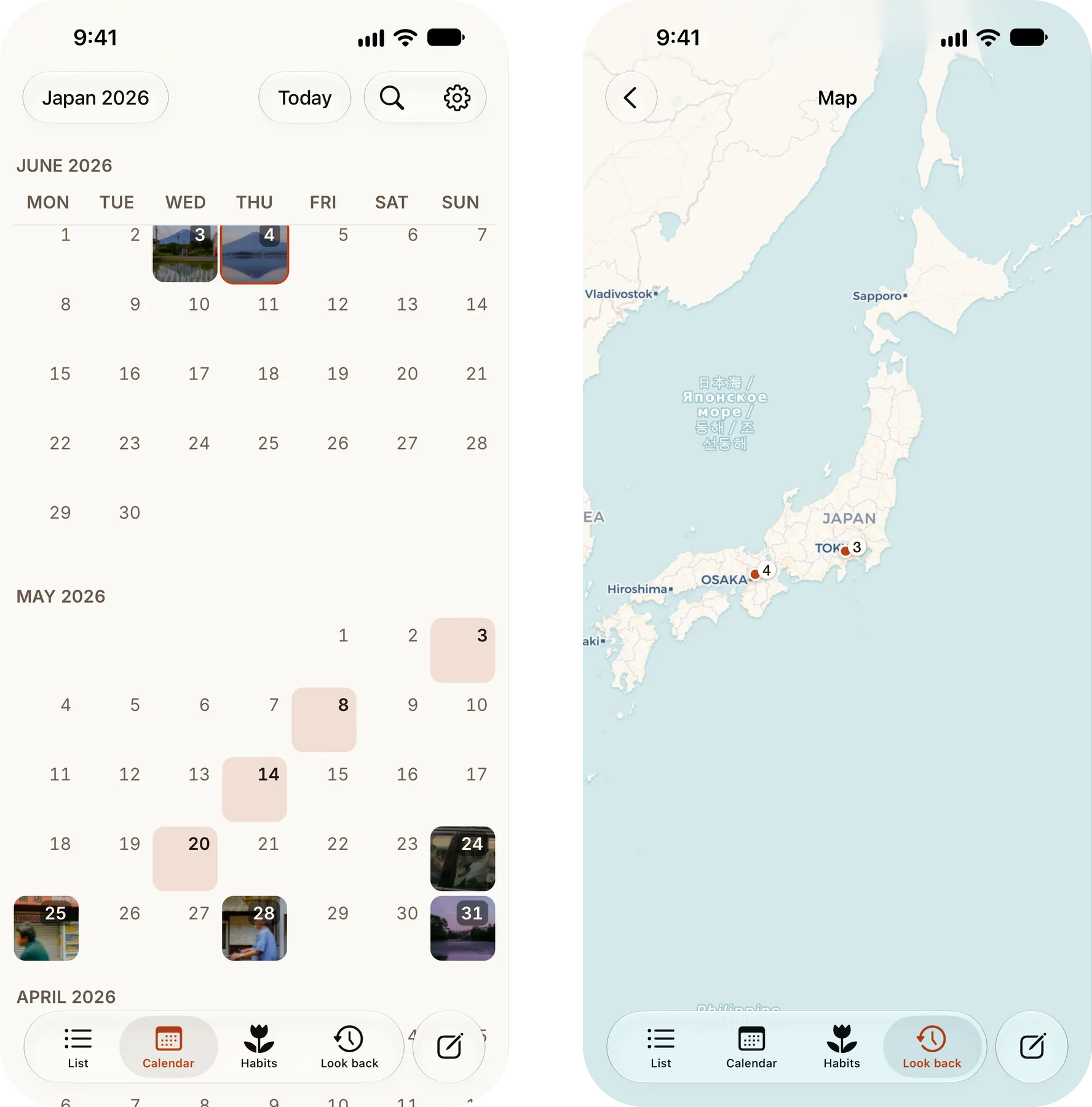
Section titled “Calendar view”See your entries laid out on a calendar, with photo days showing a thumbnail.
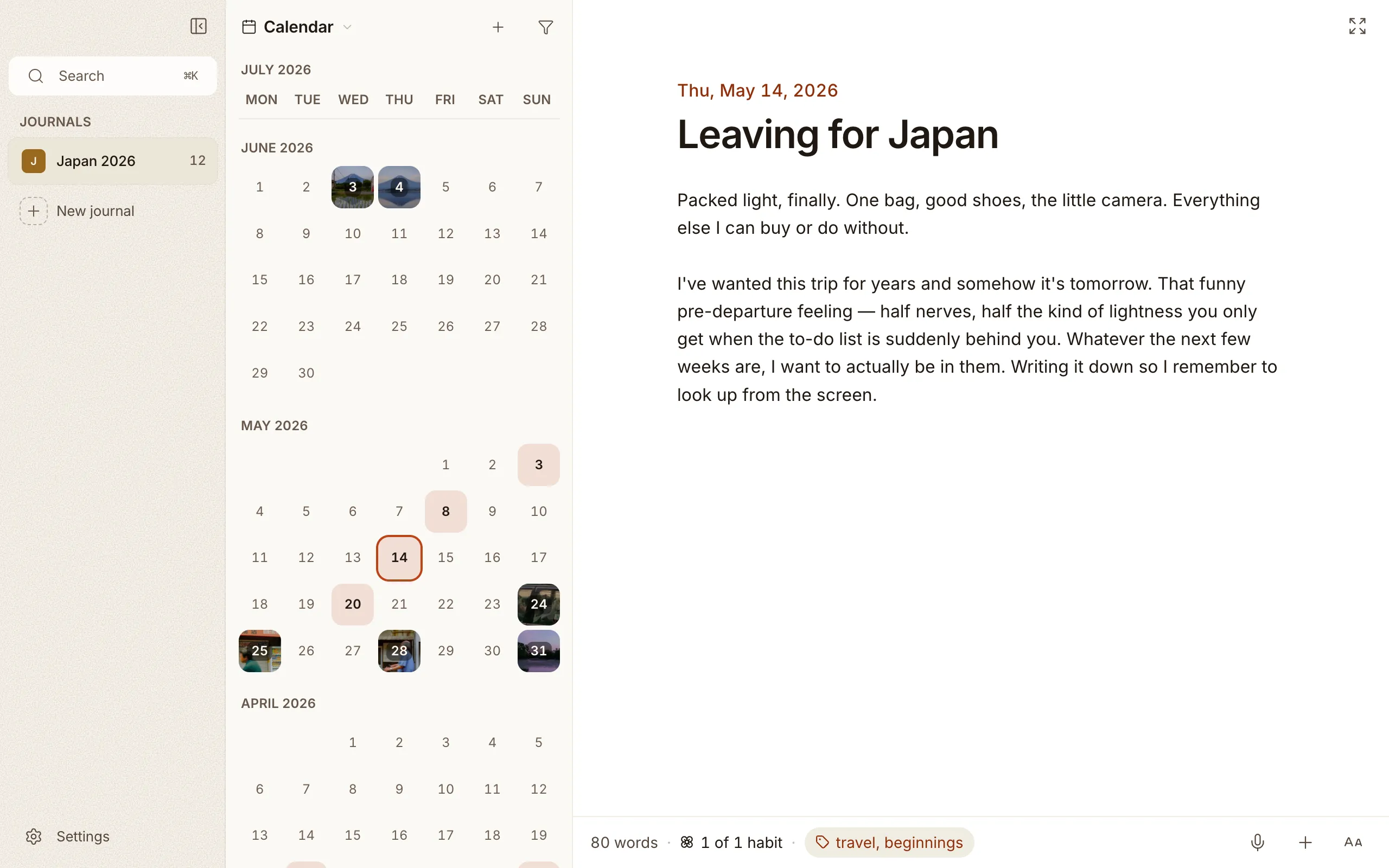
- Click a day with an entry to open it.
- Click an empty day to start an entry for that date. The calendar runs to the end of this year, so you can plan ahead on a day later this year. Later years stay closed.
- When a day holds more than one entry, a tidy sheet slides up listing them all, each with its thumbnail and a snippet, so you can pick the one you meant.
- Today wears a soft dotted outline, so it’s easy to spot and never gets mixed up with the solid ring around whichever entry you have open.
Map view
Section titled “Map view”If you’ve added locations to your entries, the map view pins each one to the place you wrote it.
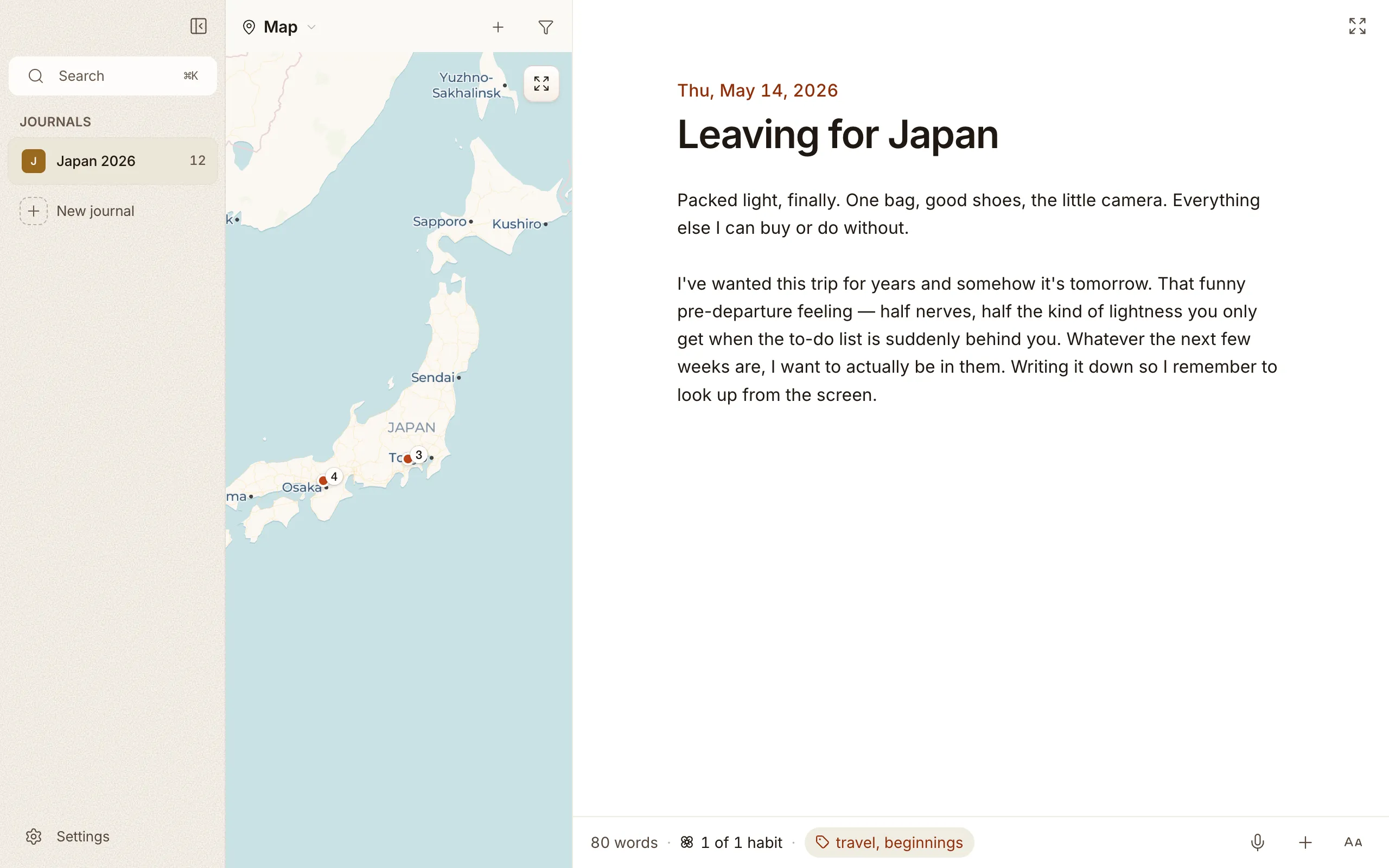
- The map opens on your most recent entry with a place on it, rather than zoomed out to hold every country you’ve ever written from. Picking Map again from the view menu brings you back there.
- Nearby entries cluster into a single pin with a small count badge (3, 12, 99+). Zoom out and pins merge together; zoom in and they split back apart into individual markers, so the map stays readable at every scale.
- Click a pin to open the entry, or, if it holds several, a short list of every entry pinned there, in your journal’s own order and under month headings when they span more than one, so you can jump straight to the right one.
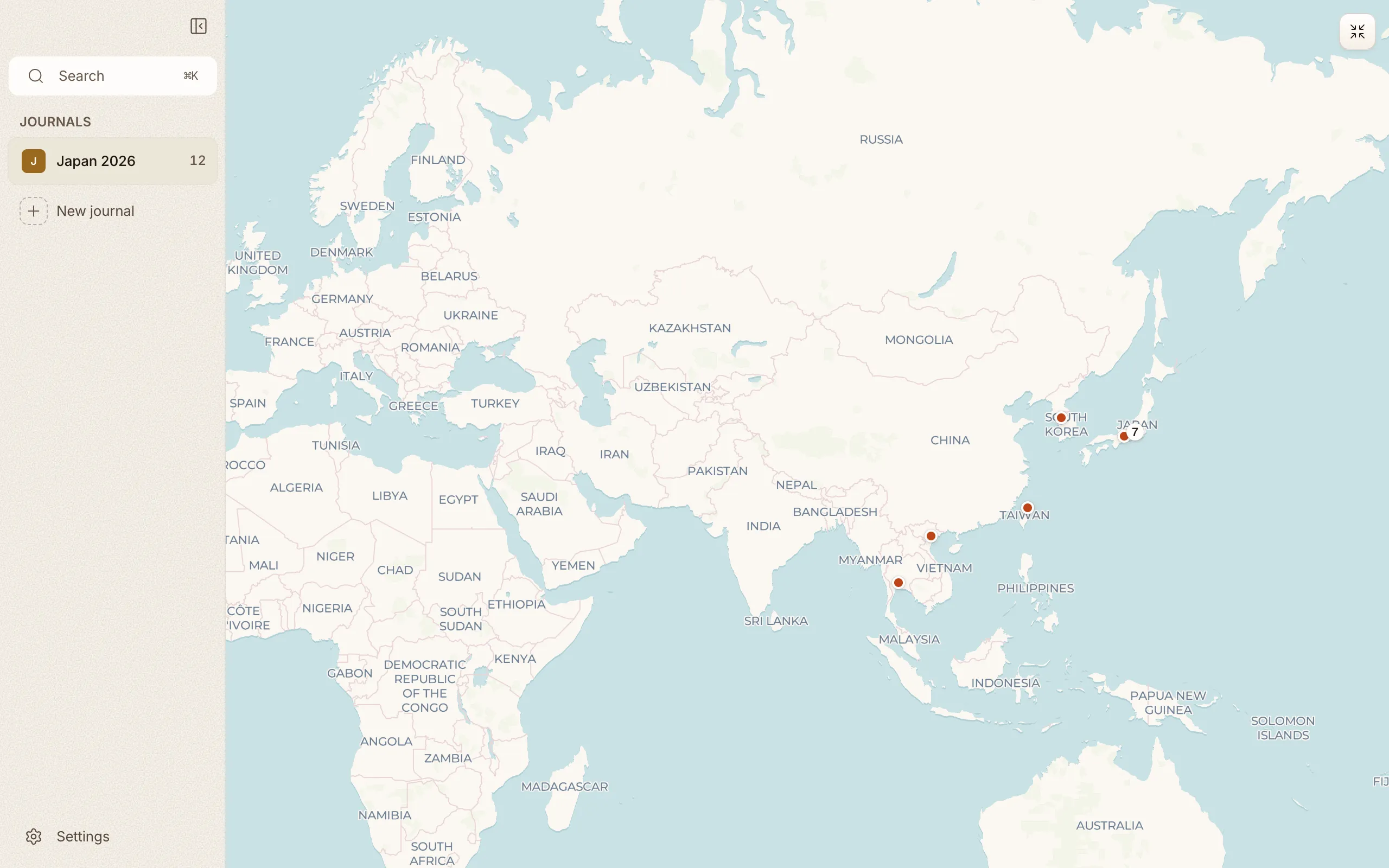
- Click the expand button in the corner of the map panel to let it fill the full window. The frame, the picture and the button move together, and the map keeps the view you had. Press Escape or click the button again to go back. A single-entry pin opens its entry and collapses the map automatically; a cluster pin keeps the map open and slides up a list of nearby entries to choose from.
- The map keeps working when you go offline. Cozy caches tiles on disk as you browse, so places you’ve already looked at load without a connection. New areas fill in once you’re back online.
On iPhone, Calendar has its own tab at the bottom, and the map sits under Look back.
Some days you remember the picture before you remember the words. The Media view, under Look back, swaps your entries for every photo and video you’ve written into them: one continuous grid, newest first, with the date sitting on the first picture of each day.
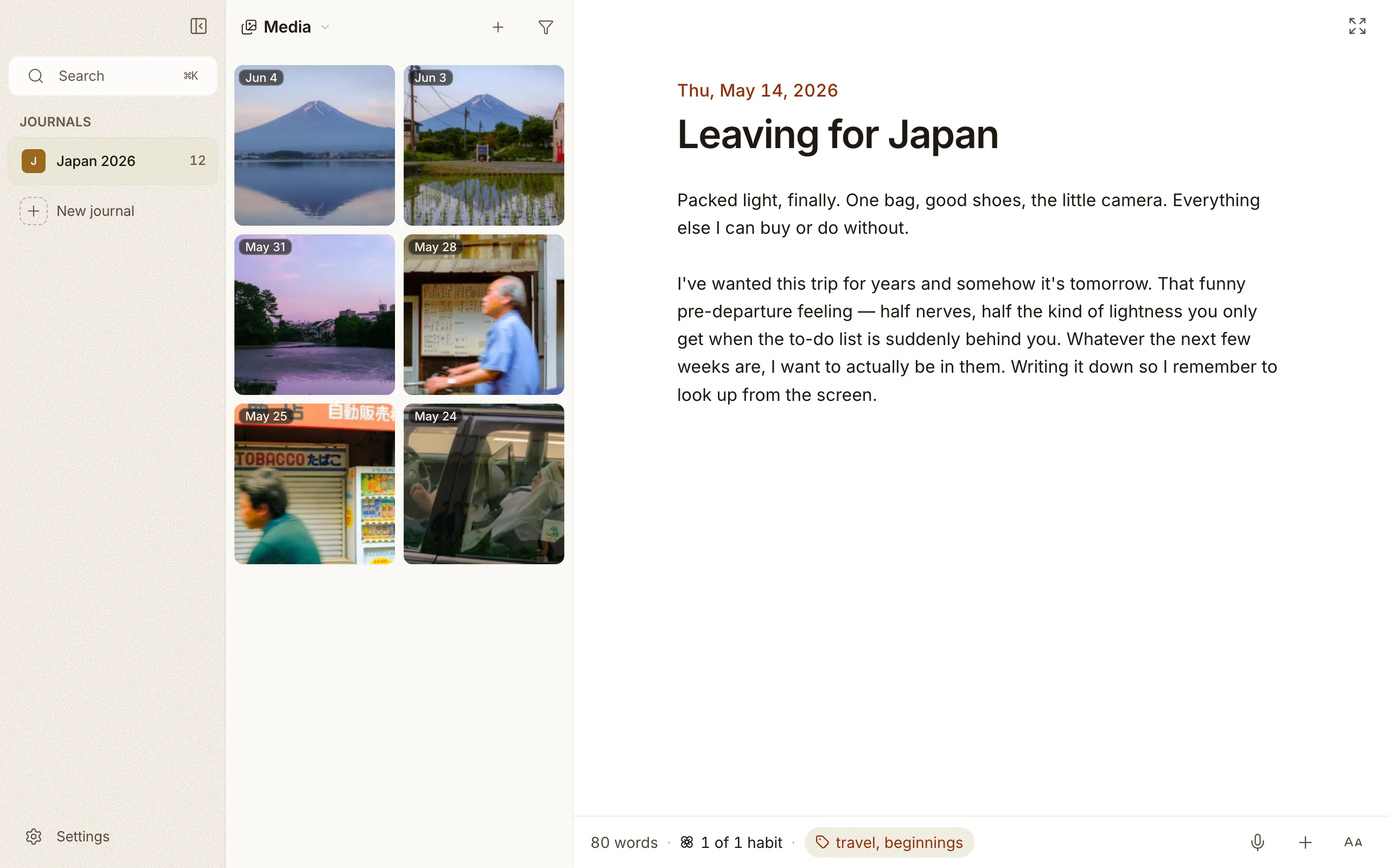
- Open any picture and it grows out of its tile, then goes back there when you close it. Step through the rest with the arrows or your keyboard.
- The caption underneath names the entry it came from, and it’s a button. One click and you’re back in the words you wrote that day.
- Write twice in one day and both entries’ pictures sit together under that one date, rather than splitting into two runs.
- Each journal remembers how you left it, so a journal you read by picture opens that way next time.
Nothing lives in the grid on its own. Every picture in it belongs to an entry, which is why there’s nothing to import here and nothing to delete: a photo leaves the grid when you remove it from the entry that holds it.
All journals
Section titled “All journals”If you keep more than one journal, an All journals row sits at the top of the sidebar. Pick it and every journal pours into one feed, newest first, with a little colored dot on each entry marking which journal it came from.
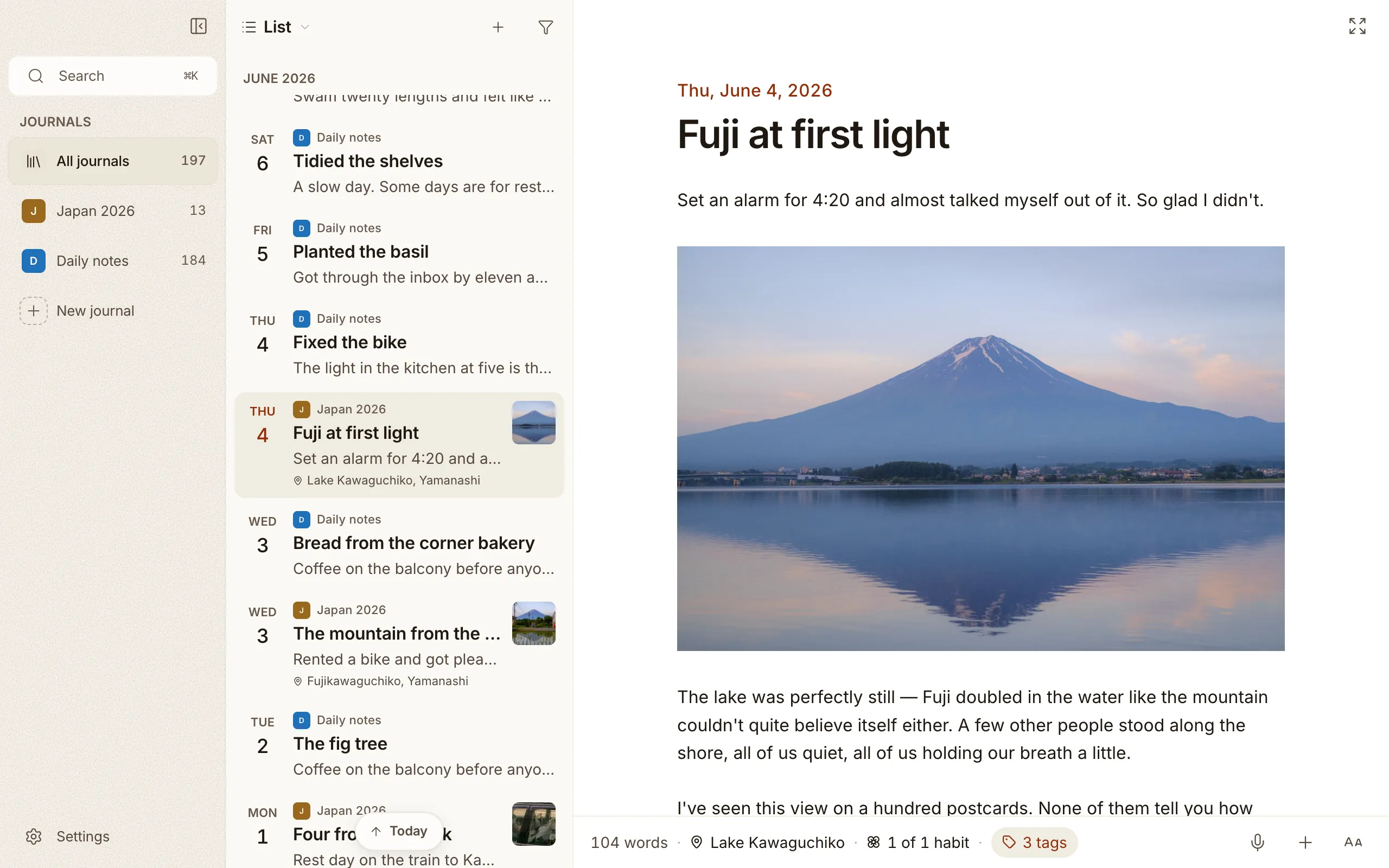
It’s the entry list you already know, just wider: the list, calendar, map, On This Day, search, and filters all span the whole collection. Open any entry and you stay in the combined feed; it comes up with its own journal’s habits and tags, so editing across journals feels no different. You can start a new entry from here too — Cozy asks which journal to put it in, or just writes it in the one you keep. Click any single journal to drop back to just that one.
Filtering
Section titled “Filtering”Both views, your entry list, and the All journals feed can be narrowed with the filter menu. Filter by:
- Tags
- Photo, Video, Audio — entries with that kind of attachment.
- Location — entries you wrote somewhere.
- Habits: pick one or more values from any habit (Mood: Good, Read: Yes…).
- Date — narrow to a year.
Every row shows a count, so you can see how many entries have a photo or a location without opening each list first.
Stack several together, say Mood: Good + the travel tag + 2025, to land on
exactly the entries you mean.
What shows beneath each entry
Section titled “What shows beneath each entry”By default, the location you wrote an entry from shows beneath its title in the list. You can change this in Settings to show tags, habits, or any combination — or turn it all off. One line, scrollable sideways if it runs long. Whatever you pick applies everywhere the entry list appears: the sidebar, the calendar, the map, and On This Day.
If you brought a journal over from Day One, every entry may carry its own date as its title, so each row reads the same day twice. There’s a switch in Settings for that: turn titles off and a row shows the day, the first line of what you wrote, and the photo, and nothing else.
Write twice in one day and the list shows the time of each one, later entry first, so the two rows are easy to tell apart. Entries you wrote before this are left as they were, with no time on them. If you’d rather not see times at all, turn off Time under Show beneath entries in Settings. It’s on by default.
Your writing streak
Section titled “Your writing streak”Write on consecutive days and a small card above your entries counts them, with the week laid out as seven letters and a potted hydrangea in the corner that grows as the run gets longer. Miss a day and the count starts again from zero.
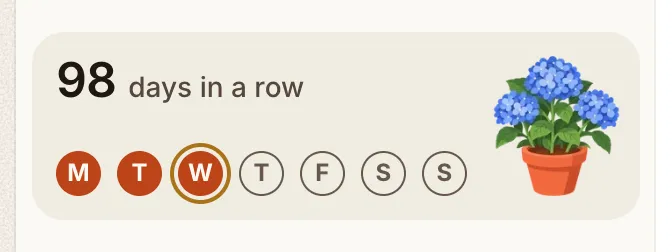
The streak is off until you turn it on, in Settings → Journal → Playful extras. A journal that never chose shows no card; one that chose on keeps it. The card sits in a single journal, not in All journals, and the setting applies to that journal on every device you use it on.
Habits
Section titled “Habits”The Habits view gives each habit a card: half a year of squares in the habit’s own color, and one number for what it came to. A habit is one of three things. A yes or no. A count against a goal, where a day that fell short is a smaller square. Or a choice from a list you write.
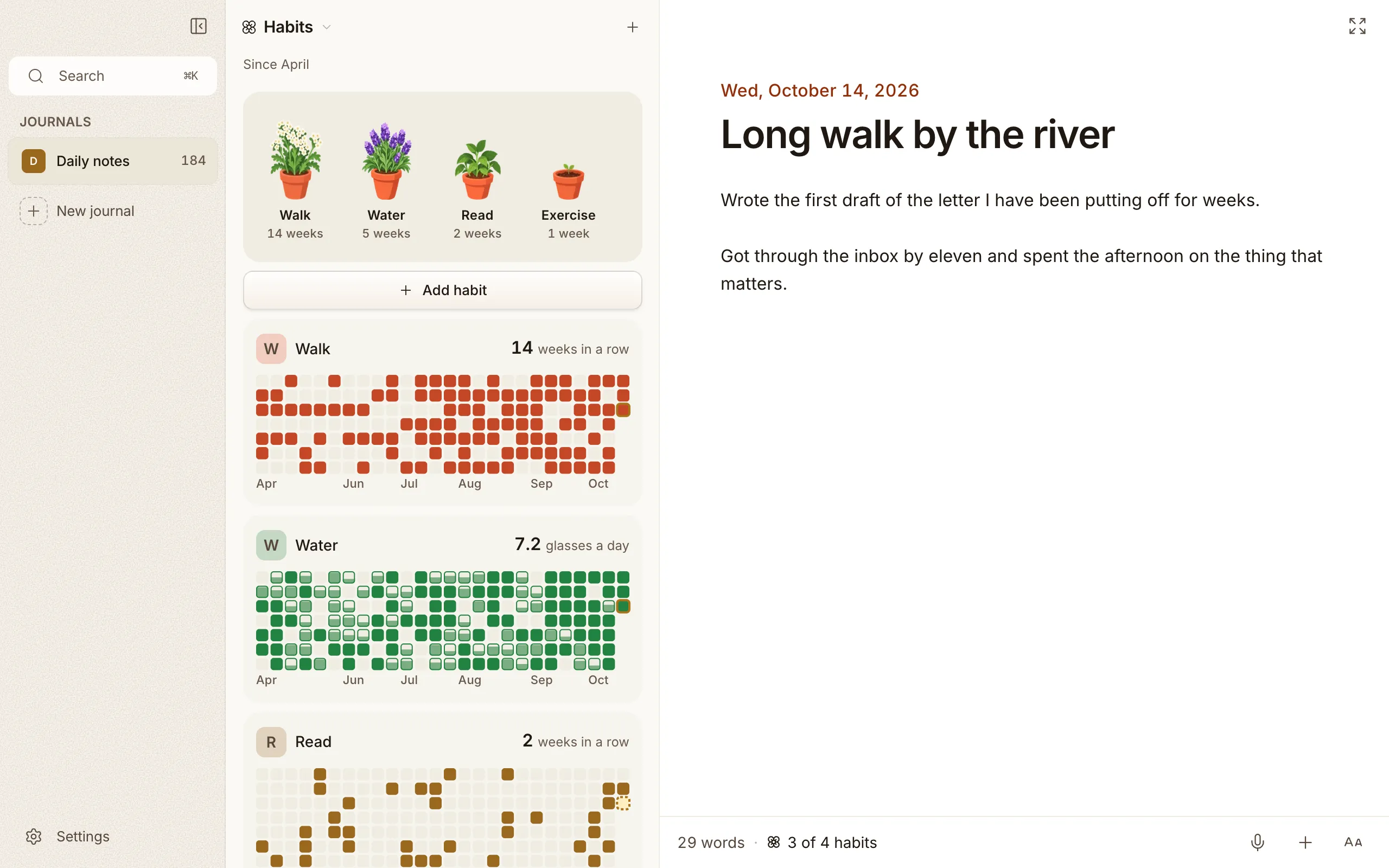
- Add, rename, recolor, reorder and delete right on the card. Delete asks first.
- Click a square to open that day’s entry. On iPhone, tap a day to pick it, then tap it again or tap Open entry.
- Under any entry, one Habits chip opens them all together: tick a yes or no, pick a choice, type a count.
Above the cards sits a windowsill. Each habit grows its own potted flower as its weeks in a row add up: leaves at 2, buds at 4, in bloom at 8. There are nine flowers, and none repeats until all nine are in use. Scroll the row sideways, and tap a pot to jump to its habit.
More on making and logging habits in Tags, places & habits.
Reviews
Section titled “Reviews”A review is an entry that looks back on a week, a month or a year instead of a day. Any entry can be one: open the editor’s + menu, choose Review of…, pick Week, Month or Year, and walk back with the arrows to the one you mean, years back too. On iPhone it’s Review of in the entry’s Details.
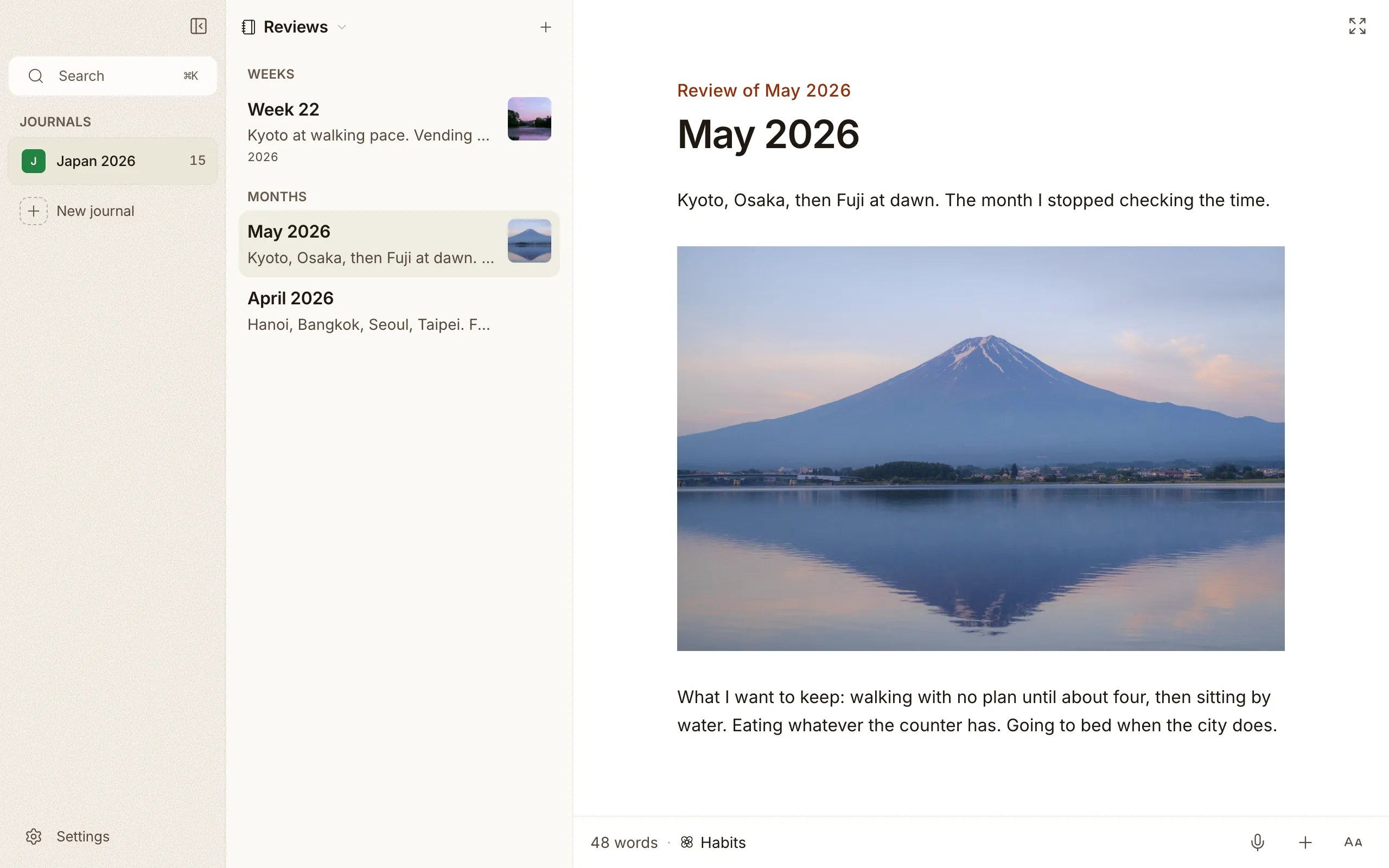
Reviews leave your list of days and gather under Reviews in the title menu (⌥⌘7), weeks, months and years apart, each row with its cover photo like any entry. Press ⌘N there to start a new one. On iPhone they live in Look back.
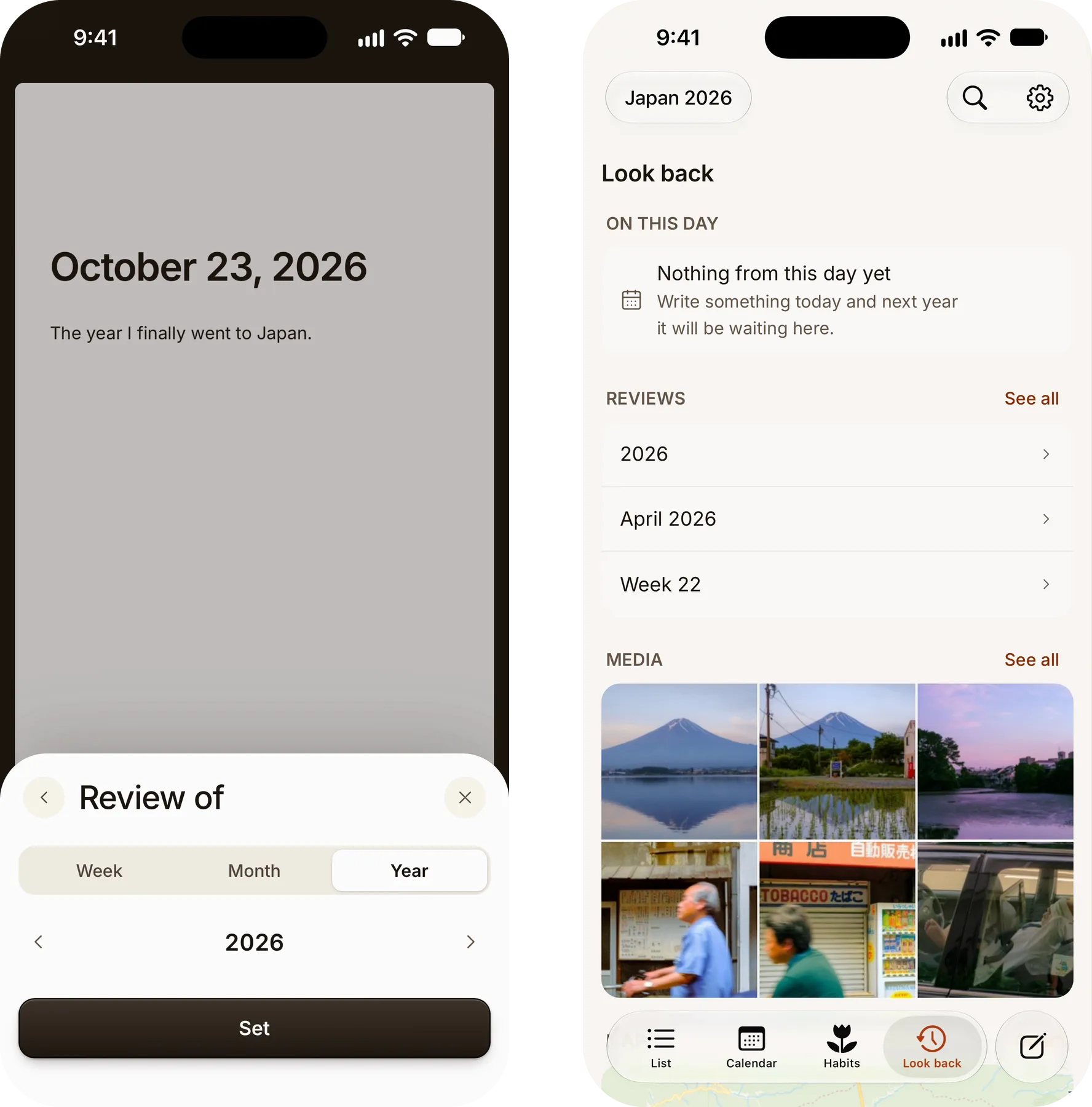
The file takes the period’s name: 2026-W43.md, 2026-10.md, 2026.md. Those
are the names Obsidian’s periodic notes use, so a vault’s weekly and monthly
notes open as reviews, and yours open in Obsidian. A review you title yourself
keeps your title. Choose Not a review in the same dialog to turn it back
into a plain entry.
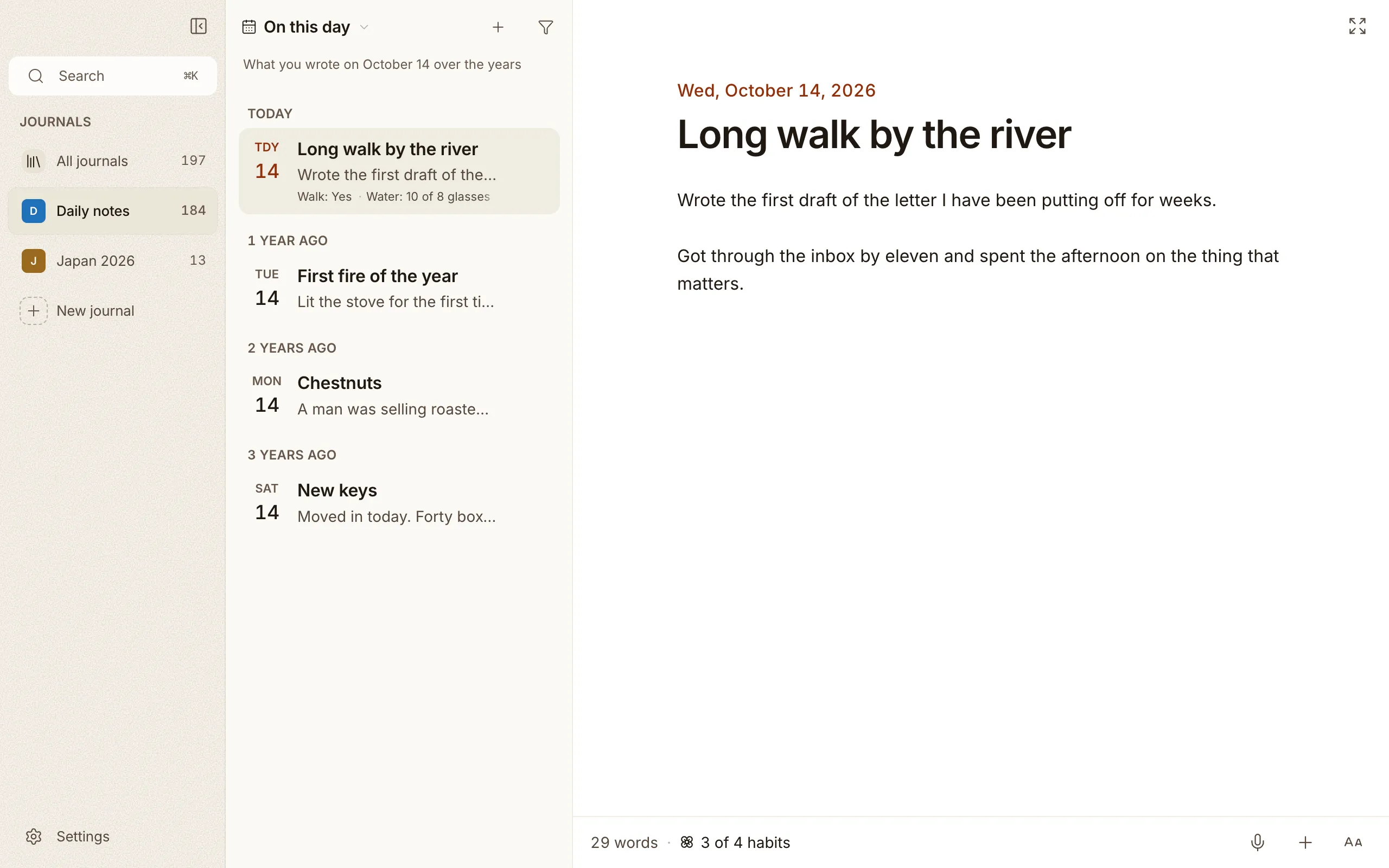
On this day
Section titled “On this day”The On this day view gathers entries you wrote on today’s date in past years, so you can read back through the same day across your history. They sit in one list, grouped by how many years ago you wrote them. More on finding your way around in Search & On this day.