Templates
Some days you want a blank page. Other days you want the same few prompts waiting for you. Templates are for those days.
Your templates
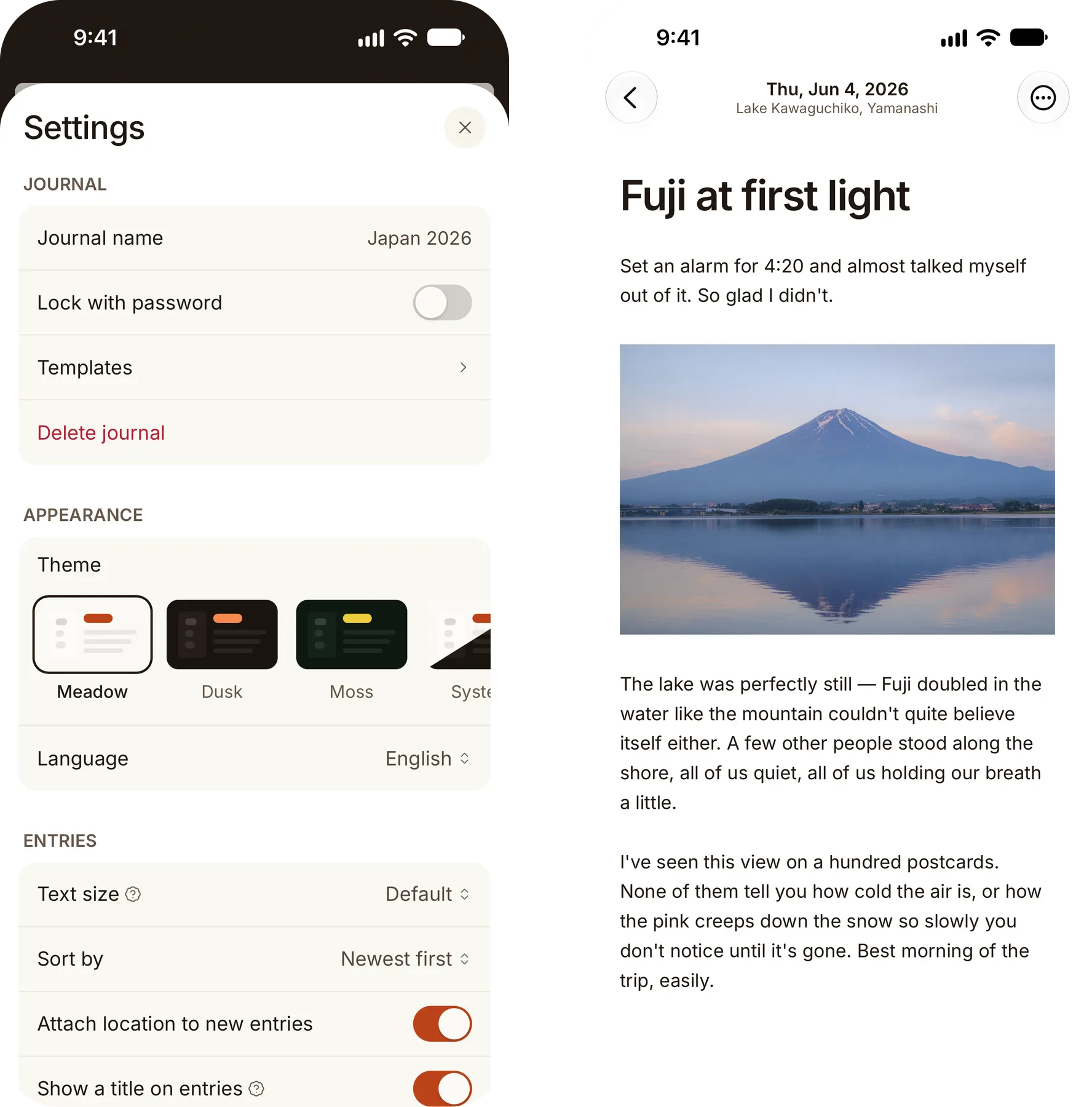
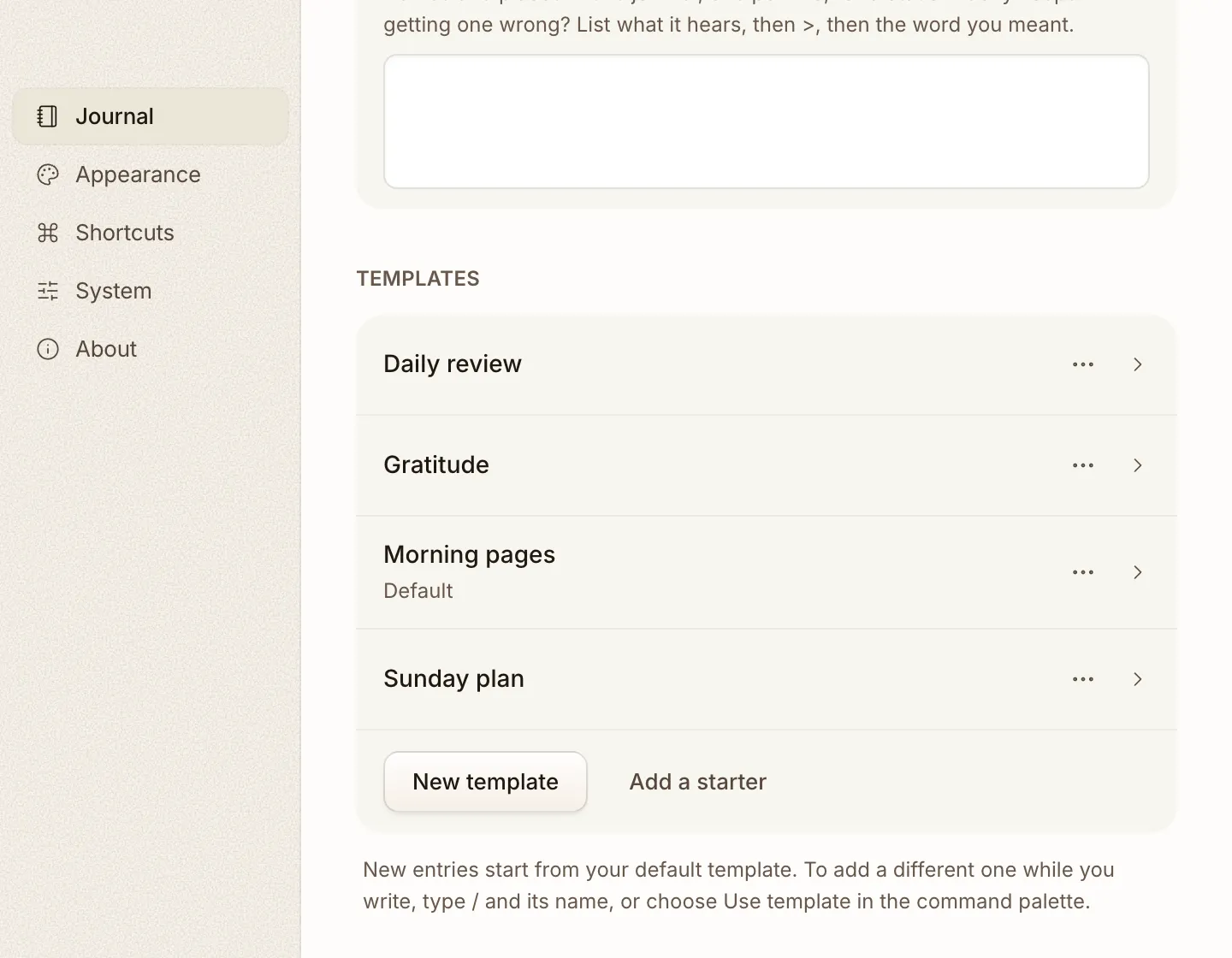
Section titled “Your templates”Templates live in Settings → Journal → Templates, one list per journal. A new journal has none, so new entries start blank until you add one.
- Add a starter gives you one of four to begin with: Morning pages, Bullet journal, Gratitude and Daily review. Once added, it’s yours to edit.
- New template starts from nothing. Give it a Name, some Tags if you
like, and the Text you want every entry to start with. Markdown works
here:
#for a heading,-for a list,- [ ]for a task.
Write {{date}}, {{weekday}} or {{time}} anywhere in the text and Cozy
fills in the day or the time when the template is used. Morning pages opens
with {{weekday}}, {{time}}. so each page knows when you wrote it.
Every entry made from a template gets its tags too. The Gratitude starter tags
its entries gratitude.
A default for new entries
Section titled “A default for new entries”Open a template’s menu and pick Use as default. From then on, every new entry in that journal starts with it. It shows a Default label in the list. Pick Stop using as default to go back to blank pages.
Using a template while you write
Section titled “Using a template while you write”Already in an entry and want a template in it?
- Type
/and the template’s name. Templates show up in the slash menu next to headings and lists. - Or press ⌘K and choose Use template, then pick one.
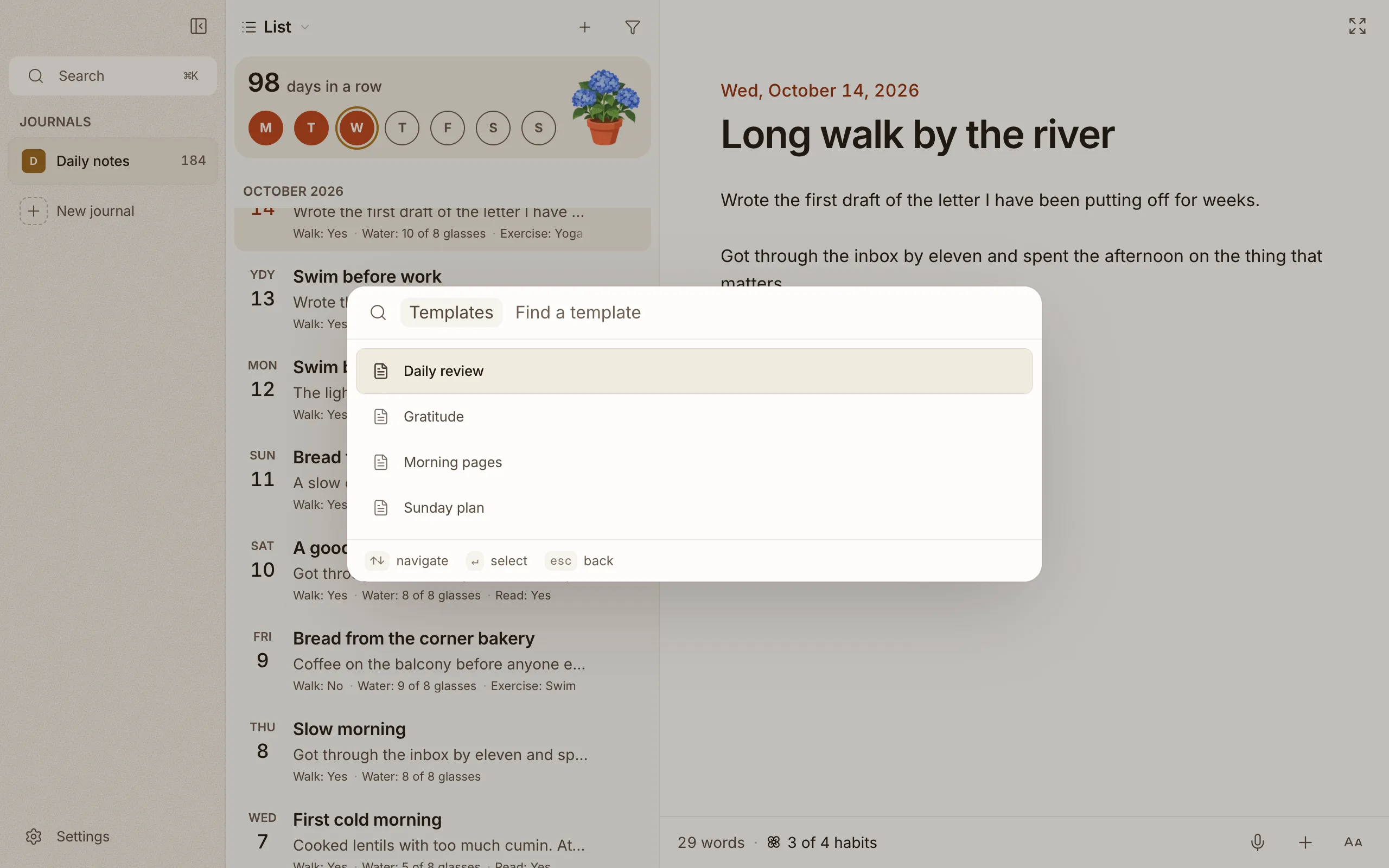
The template lands at your cursor, and its tags join the entry’s. Changed your mind? One undo takes the whole of it back, tags included.
On iPhone
Section titled “On iPhone”Your templates are in Settings → Journal → Templates, where you can add, edit and pick the default the same way. While you write, tap the template button above the keyboard to drop one into the entry. You can also search for Use template.