
Create your first journal
A journal in Cozy is simply a folder on your computer. You can have as many journals as you like: one for everyday life, one for travel, one for work, each in its own folder with its own settings.
Start fresh or bring one in
Section titled “Start fresh or bring one in”When Cozy opens to your home screen, you have two paths:
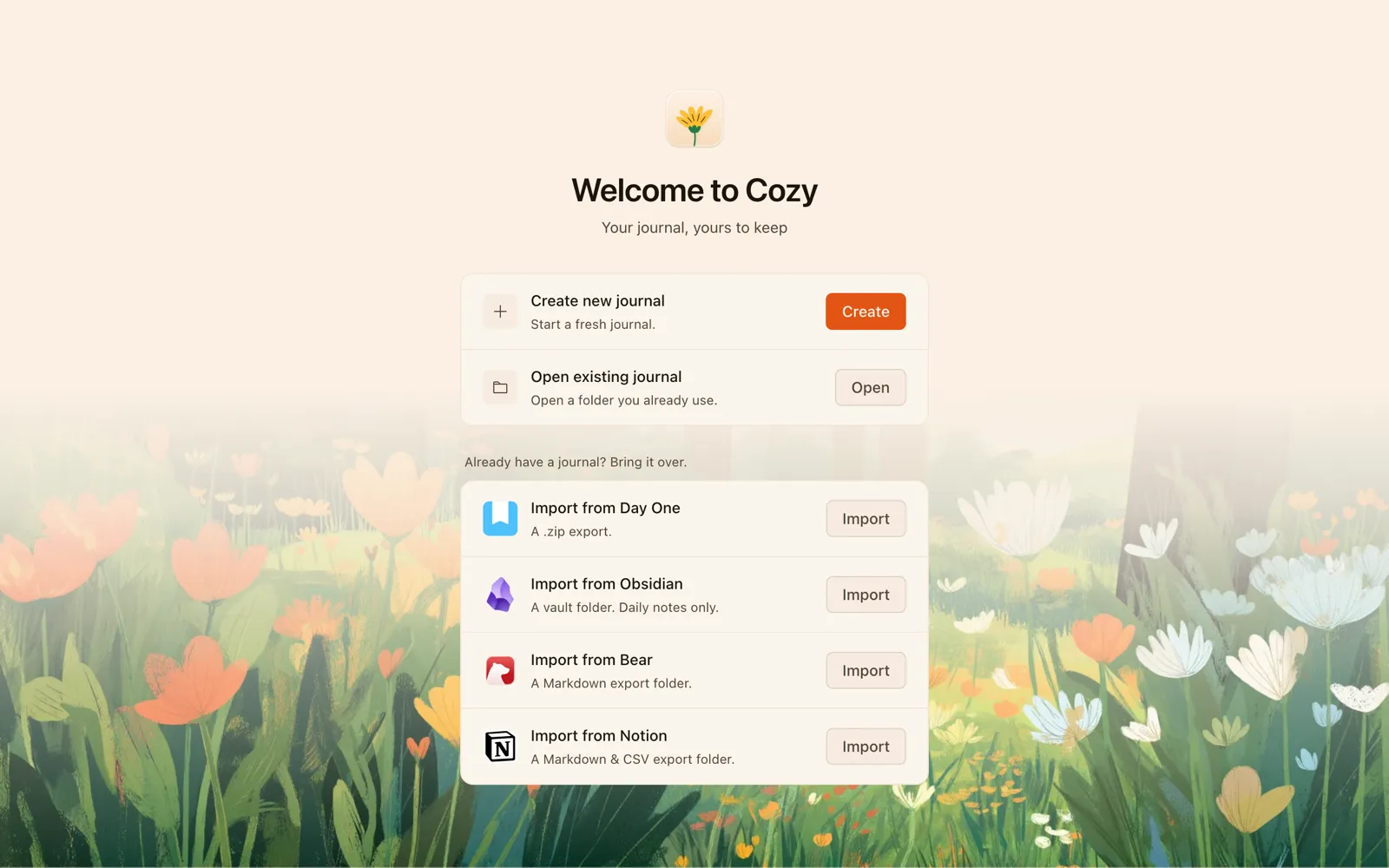
- Start a new journal — give it a name and you’re done. Cozy fills in your Documents folder for you, so there’s nothing else to decide. Point it somewhere else if you’d rather: a Dropbox or iCloud folder, an external drive, anywhere you like. That folder is your journal.
- Import an existing journal — already journaling in Day One, Obsidian, or Bear? Cozy can bring your history in so you don’t start from a blank page. See Import from other apps.
What a new journal starts with
Section titled “What a new journal starts with”A fresh journal comes ready to write in. It also includes a ready-made Mood tracker (Great / Good / Meh / Low / Bad) so the feature is easy to find on day one. You can rename it, change its options, or remove it entirely. See Tags, places & trackers.
Switching and adding journals
Section titled “Switching and adding journals”You can create or open another journal at any time from the app menu (New Journal / Open). Each journal keeps its own settings, stored in a small config file inside its folder, so you can set each one up differently.
Drag a journal up or down the sidebar to reorder the list. The order saves to that journal’s own config file, so your other devices show the same order.
If you keep several journals side by side in one folder, open the folder itself and Cozy lists every journal it found inside, then adds them all once you say yes. No need to open them one at a time.
Journals you started on your iPhone show up here too. Anything in your iCloud → Cozy folder counts as a journal on the desktop, so what you wrote on the bus is waiting for you when you sit down. More in Sync with iCloud.
You can also move an entry from one journal to another later if you file something in the wrong place, or point a journal at a new folder if you’ve moved it.
To remove a journal you no longer want, use Settings. Cozy only forgets it. The folder and every file inside stay right where they are.
Color-coding your journals
Section titled “Color-coding your journals”When you keep a few journals, give each its own color and icon so you can tell them apart at a glance. Right-click a journal in the sidebar and choose Edit (or open Settings) to pick a color from Cozy’s palette and an emoji of your own. Want a color that isn’t in the palette? Click the + swatch to open your system color picker and choose any shade. Leave the color on Auto and Cozy keeps choosing one for you.
That color does more than mark the badge. The whole interface tints to match the journal you’re in: links, bullets, checkboxes, calendar highlights, and the selection ring all pick up the color, and shift when you switch journals. If you’d rather keep the editor on the default warm theme, tick Use this color for highlights off and the journal keeps its badge color without tinting the rest of the app.
Meadow, Dusk, and Moss
Section titled “Meadow, Dusk, and Moss”Cozy’s themes have names. Meadow is the light one: a white page with the warmth kept in the chrome around it. Dusk is the soft dark one, and Moss wraps your journal in deep greens borrowed from the app icon. Switch between them in Settings → Appearance, or straight from the View menu. Choose System and Cozy follows your Mac or Windows appearance setting — light through the day, dark at night — and flips the moment your OS does. Each theme card shows a live preview in its real colors, so you can try each one on before you settle.
Start a day with nothing written and a meadow sits behind the page. It carries the light of the hour you’re in: soft and warm at dawn, its own color at midday, gold in the evening, cool and dim at night. Nothing to set, and slow enough that you never catch it moving.
See every journal at once
Section titled “See every journal at once”Keep more than one journal and an All journals row appears at the top of the list. Pick it and Cozy gathers every journal into a single feed, newest first, each entry wearing a little colored dot for the journal it came from. The calendar, map, On This Day, search, and filters all span the whole collection until you click back into a single journal. It’s a place to read across everything you’ve kept, and you can start a new entry without leaving it: Cozy asks which journal to put it in, or just writes it in the one you keep. More in Calendar & map views.
Locking a journal
Section titled “Locking a journal”Some journals aren’t for anyone else to open. Go to Settings → Journal and set a password. From then on Cozy asks for it before that journal opens, keeps it out of All journals and out of search until you do, and locks it again when you put the app away. On iPhone, Face ID opens it in a glance.
You’re ready to write. Head to Writing entries.