
Import from other apps
Moving from another app shouldn’t mean starting over. Cozy can bring your old entries in from a few places, so you keep your whole history.
Importing works the same on Mac and Windows. No system tools required.
From Day One
Section titled “From Day One”Export your Day One journal as a .zip, then import that file into Cozy. Your
photos and videos come along with your entries.
For a full walkthrough with screenshots, and the list of what does not transfer, read Move your Day One journal to Cozy.
From Obsidian
Section titled “From Obsidian”Pick your whole vault, or only the folder your journal lives in. Cozy finds the vault’s attachment folder either way, so embedded photos, audio and PDFs come along, and image sizes carry over.
It brings in your daily notes, reading the format from your Daily Notes setting (and the ones you used before it, like “Saturday, March 16, 2024”). Notes without a date stay in Obsidian. Untitled daily notes show their date as the title rather than appearing blank, and a link to another note keeps its text.
What else makes the trip:
- Properties become habits. A property like mood or sleep, with a handful of values, turns into a Cozy habit holding those values.
- Tags and places. Inline #tags join the entry’s tags, and Map View locations land on the map.
- Callouts and comments. A callout arrives as a quote with its title in bold. A %% comment stays a quiet aside. Code blocks come through untouched.
From Bear
Section titled “From Bear”Export your notes from Bear as a Markdown export folder, then import that folder.
From Notion
Section titled “From Notion”Export your Notion workspace as a Markdown & CSV folder, then import that folder into Cozy. Your pages come in as journal entries, with their dates, titles, and tags.
When something is left behind
Section titled “When something is left behind”If a note had no date, a photo wasn’t in the folder, or a note is still waiting in iCloud, a message at the end of the import names it and says what to do. A clean import stays quiet.
Starting the import
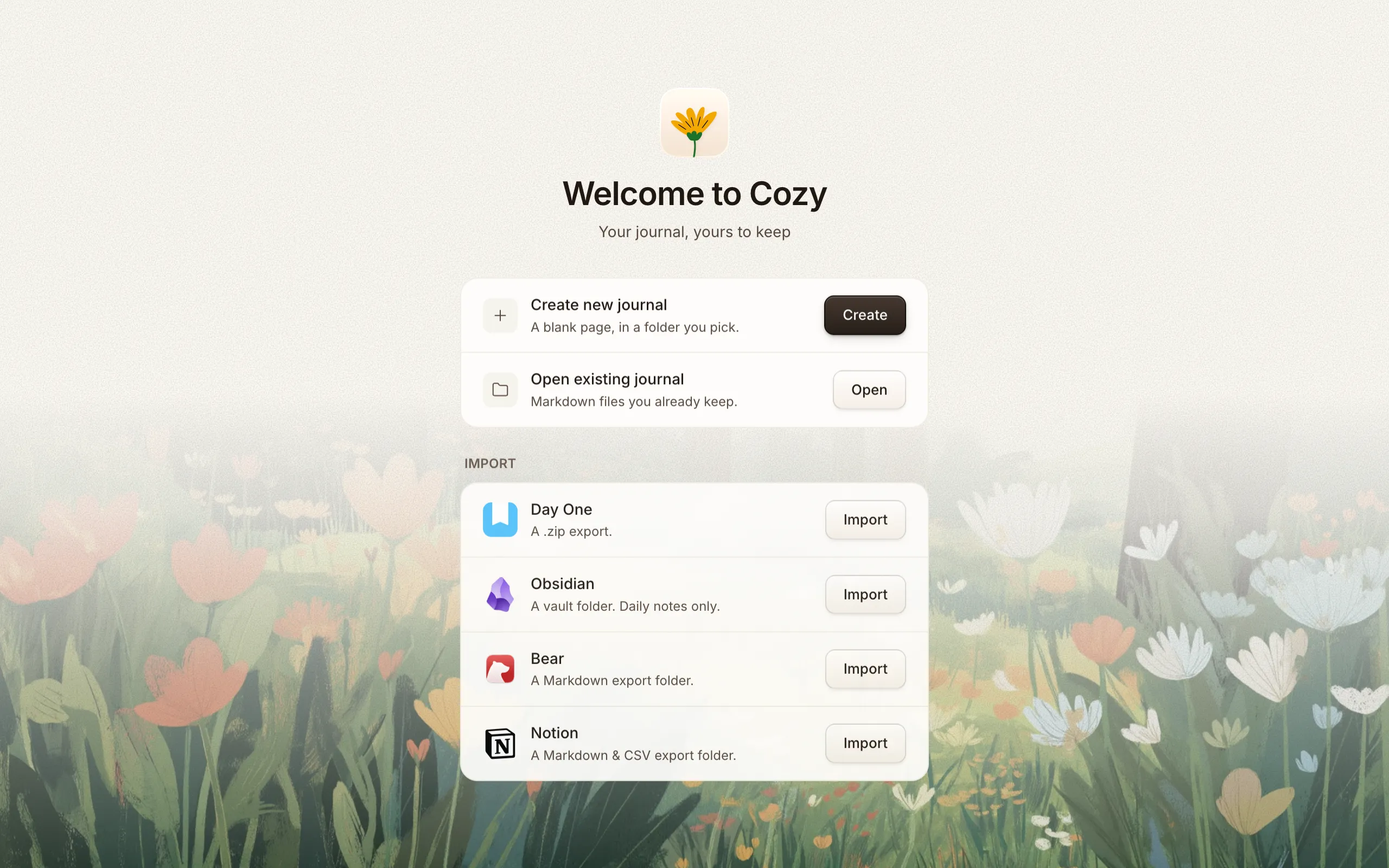
Section titled “Starting the import”From Cozy’s home screen choose Import an existing journal, pick the source, and select the file or folder to bring in. Cozy creates your new journal from it, and like every journal, it’s just a folder of plain files afterward.
Don’t see your app?
Section titled “Don’t see your app?”These are the import sources Cozy supports today, and more can be added later. If there’s one you’d like to see, let me know.