
Search & On this day
The ⌘K command bar
Section titled “The ⌘K command bar”Press ⌘K (Ctrl+K on Windows) to open the command bar, the fastest way to move around Cozy without thinking about it. It searches your journal a few different ways:
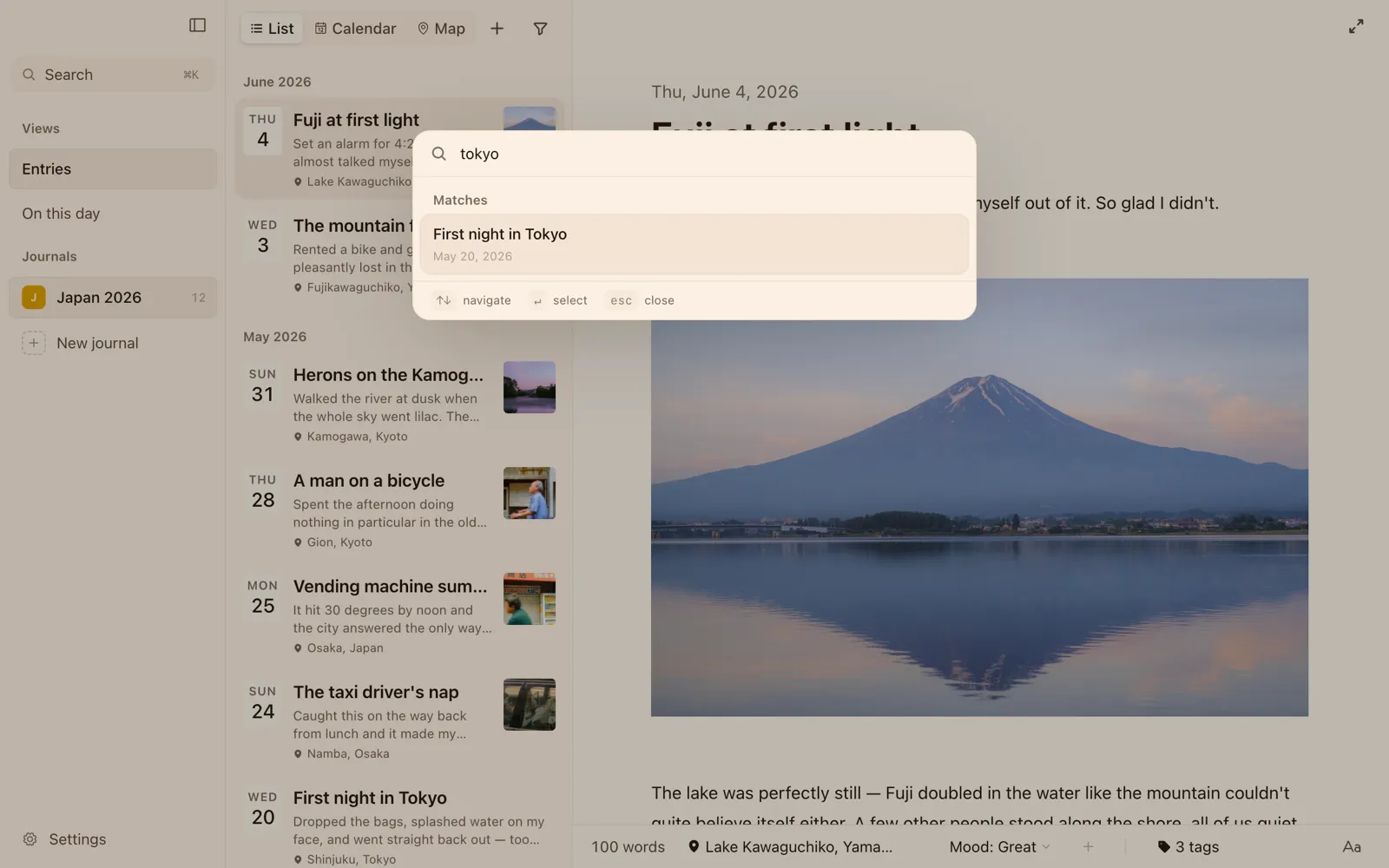
- By what you wrote. Type a few words from an entry and Cozy finds it, showing
a snippet of where it matched. It searches the title you see in the list, too,
so an entry you never named (it shows the day, like Friday, June 5) turns up
when you type that. Accents don’t get in the way: type
cordobato find Córdoba, orstrasseto find Straße. A few words in any order will do, whatever language you wrote in. - By date. Type a date and Cozy jumps to that day. It reads dates the way you
write them:
March 5,1/1/1992,2020-12-25, a bare3/14for this year, or just2020to land at the start of that year. If you didn’t write that day, it takes you to the closest one. ⌘J opens the bar ready for a date. - By command. Type what you want to do. Start a new entry, open today’s or a random one, switch journals, change views, import from another app, toggle writing mode, or format the entry you’re writing. Each row shows its keyboard shortcut, so you learn the ones you use often.
Before you type anything the bar stays calm: a few common commands and your recent entries. Everything else appears as you search, and a match arrives looking like the entry it is: the same row your list shows, with its thumbnail, date and location alongside the passage your search landed in.
Everything you can run
Section titled “Everything you can run”Search by name or by what you’d call it. Zen finds writing mode, trash finds delete, shuffle finds a random entry.
Entries
| Command | Shortcut |
|---|---|
| New entry | ⌘N |
| Today’s entry | |
| Random entry | |
| Reveal in Finder | |
| Delete entry | Delete |
Views
| Command | Shortcut |
|---|---|
| View entries | |
| View calendar | |
| View map | |
| View on this day | |
| View all journals | |
| Toggle sidebar | ⌘\ |
| Toggle writing mode | ⌘⇧F |
Journals
| Command | Shortcut |
|---|---|
| New journal | ⌘⇧N |
| Open journal | ⌘O |
| Reveal the journal folder in Finder | |
| Import from Day One, Obsidian, Bear, or Notion | |
| Switch to another journal | ⌘1 – ⌘9 |
While you’re writing
These appear when your cursor is in an entry, and they’re the same list the slash menu offers.
| Command | Shortcut |
|---|---|
| Bold | ⌘B |
| Italic | ⌘I |
| Strikethrough | ⌘⇧X |
| Code | ⌘E |
| Highlight | ⌘⇧H |
| Heading 1 to 4 | ⌘1 – ⌘4 |
| Bullet list | ⌘⇧8 |
| Numbered list | ⌘⇧7 |
| Checklist | |
| Quote | |
| Insert link | |
| Insert audio | |
| Insert a photo or video | ⌘⇧I |
| Insert date | ⌘⇧D |
| Insert time | |
| Insert horizontal rule |
Open settings (⌘,) is in there too.
A few shortcuts work outside the bar and aren’t commands: ⌘⇧T to edit tags, ⌘⇧M to log a tracker, ↑ and ↓ to move through your list, → or Enter to jump into the entry, Esc to clear your selection. Settings → Shortcuts lists them all.
When you’re in the All journals view, search reaches across every journal at once, not just the one you started in.
On this day
Section titled “On this day”On this day lets you read the entries you wrote on the same date in past years. It’s a quiet way to notice how things change, and how they don’t. Its subtitle spells out exactly what you’re looking at, like What you wrote on June 7 in past years.
It carries the same list, calendar, and map tabs as your entry list, so you can read those years straight down the page or see where you were when you wrote them. See Calendar & map views for what each tab does.
Back to the top
Section titled “Back to the top”When you scroll down your list, or open an old “On this day” memory that parks you deep in the past, a little pill slides up at the bottom. Tap it to glide straight back to your newest entry.