
Share a journal
A journal in Cozy is a folder of your own files. Share that folder in iCloud Drive and everyone you invite opens the same journal in Cozy. There’s no Cozy account and no server in the middle. iCloud carries the files between you.
Everyone in a shared journal can write new entries, edit any entry and delete any entry. It belongs to all of you.
Before you start
Section titled “Before you start”- Everyone needs Cozy and their own license.
- Everyone needs an Apple Account with iCloud Drive turned on. On Windows, that means iCloud for Windows.
- Keep a shared journal separate from your own. Cozy holds as many journals as you like, so your private one stays private.
1. Make the journal folder
Section titled “1. Make the journal folder”One person makes the journal and shares it. They’re the owner.
- On a Mac, open Finder → iCloud Drive and make a new folder at the top, next to Desktop and Documents. Name it after the journal, like Our journal.
- In Cozy, create a journal in that folder, or move the files of an existing one into it.
2. Invite people
Section titled “2. Invite people”- In Finder, right-click the journal folder and choose Share.
- Switch the menu at the top from Send a Copy to Share a Link.
- Check that it says People you choose can edit.
- Choose Add Access and type the email address of each person’s Apple Account.
Each person gets an invitation. Once they accept it, the folder shows up in their iCloud Drive under Shared.
Open the folder’s share options again whenever you want to see who has access:
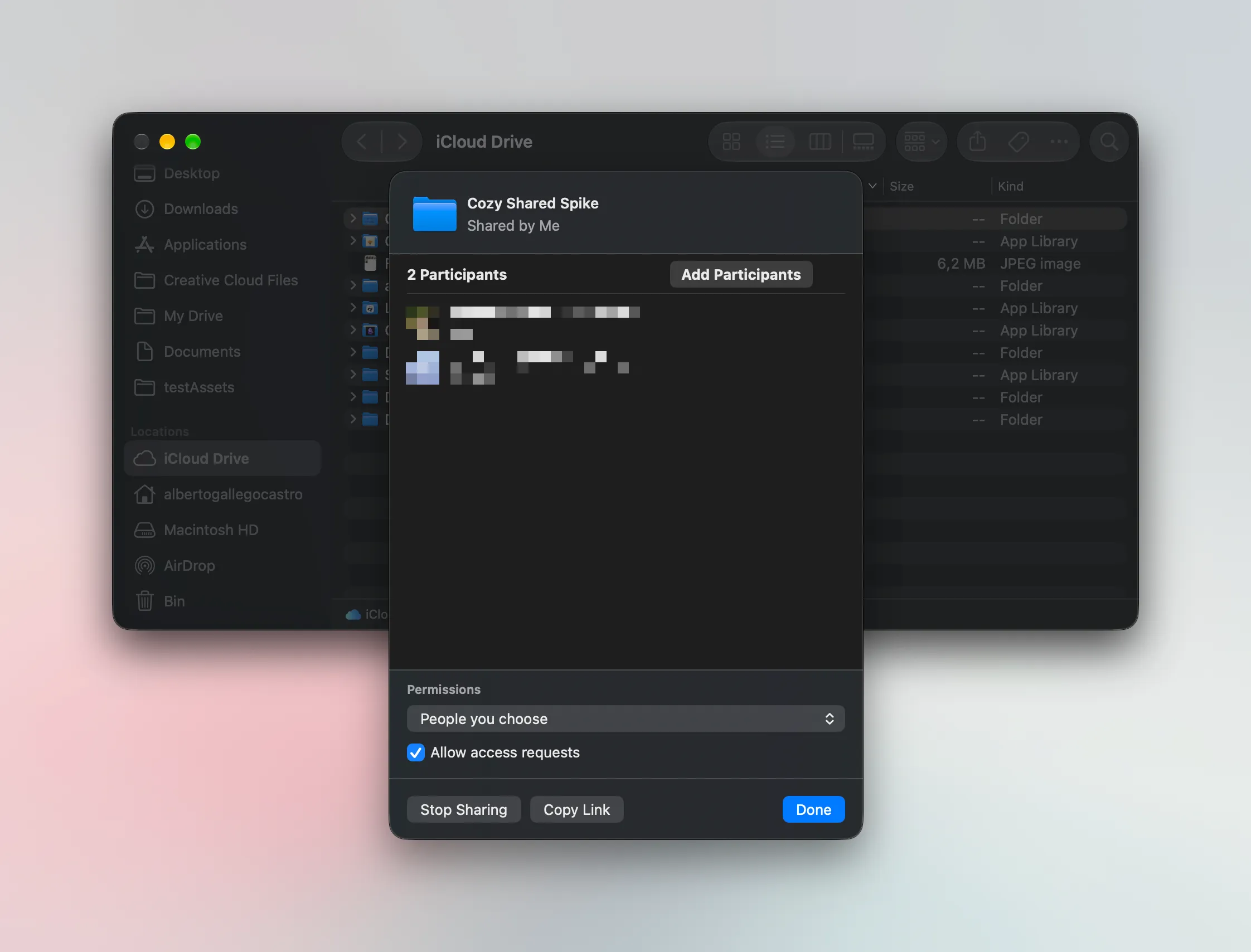
- Add Participants invites another person.
- Permissions stays on People you choose, so only the people you invited can open the folder.
- Copy Link gives you the invitation link to send yourself.
- Stop Sharing closes the folder to everyone.
3. Open it in Cozy
Section titled “3. Open it in Cozy”Every person, the owner too, opens the folder once on each device.
iPhone and iPad
- In Cozy, add a journal and choose Open existing journal.
- Choose iCloud, then Choose folder at the bottom of the list.
- Find the shared folder in iCloud Drive and tap Open.
- Choose Keep it where it is. A copy wouldn’t be shared.
Mac
In Finder, right-click the shared folder and choose Keep Downloaded, so every entry stays on the Mac. Then, in Cozy, choose Open from the app menu and pick the folder.
Windows
The shared folder appears inside your iCloud folder in File Explorer. Right-click it and choose Always keep on this device. Then, in Cozy, choose Open from the app menu and pick the folder.
Writing at the same time
Section titled “Writing at the same time”iCloud takes a few seconds to carry an entry from one person to the others. If two people change the same entry in that window, iCloud keeps both versions. Cozy shows the second one in the list labeled Second copy, so nothing anyone wrote gets lost. Read both, keep what you want, and delete the copy from the editor.
Different entries never clash. Two people can write on the same day as long as each one writes their own entry.
An entry’s file follows its title only when someone edits the title. Opening and writing in an entry never moves its file under the others.
Locking a shared journal
Section titled “Locking a shared journal”The lock lives in the journal folder, so it locks the journal for everyone in it. If one person turns it on, everyone needs the same password to open the journal. Agree on it together before you set one.
Leaving a shared journal
Section titled “Leaving a shared journal”To stop sharing, the owner opens the folder’s share options in Finder and removes a person, or chooses Stop Sharing for everyone. Someone who leaves loses the folder, and the journal stays with the people who still have it.
To remove it from Cozy on your own device without touching anyone’s files, remove the journal from Cozy’s journal list. The folder and its entries stay in iCloud Drive.